Godot 4 Sprite Animation: AnimatedSprite2D or AnimationPlayer?
October 8, 2026 · 8 min read · Updated October 14, 2026
When to animate a sprite sheet with AnimatedSprite2D or AnimationPlayer in Godot 4, how to set up each, and the GDScript to play, switch and flip.
Open the tool from this article — free, in your browser, no signup.
You have a sprite sheet, and Godot 4 offers two ways to animate it: AnimatedSprite2D and AnimationPlayer. Both work, but they solve different problems, and picking the right one up front saves you rebuilding animations later.
This article explains the difference, sets both up from the same sheet, and gives you the GDScript that drives them. It applies to all of Godot 4; the one feature that is new in Godot 4.7 is marked.
Which one to use
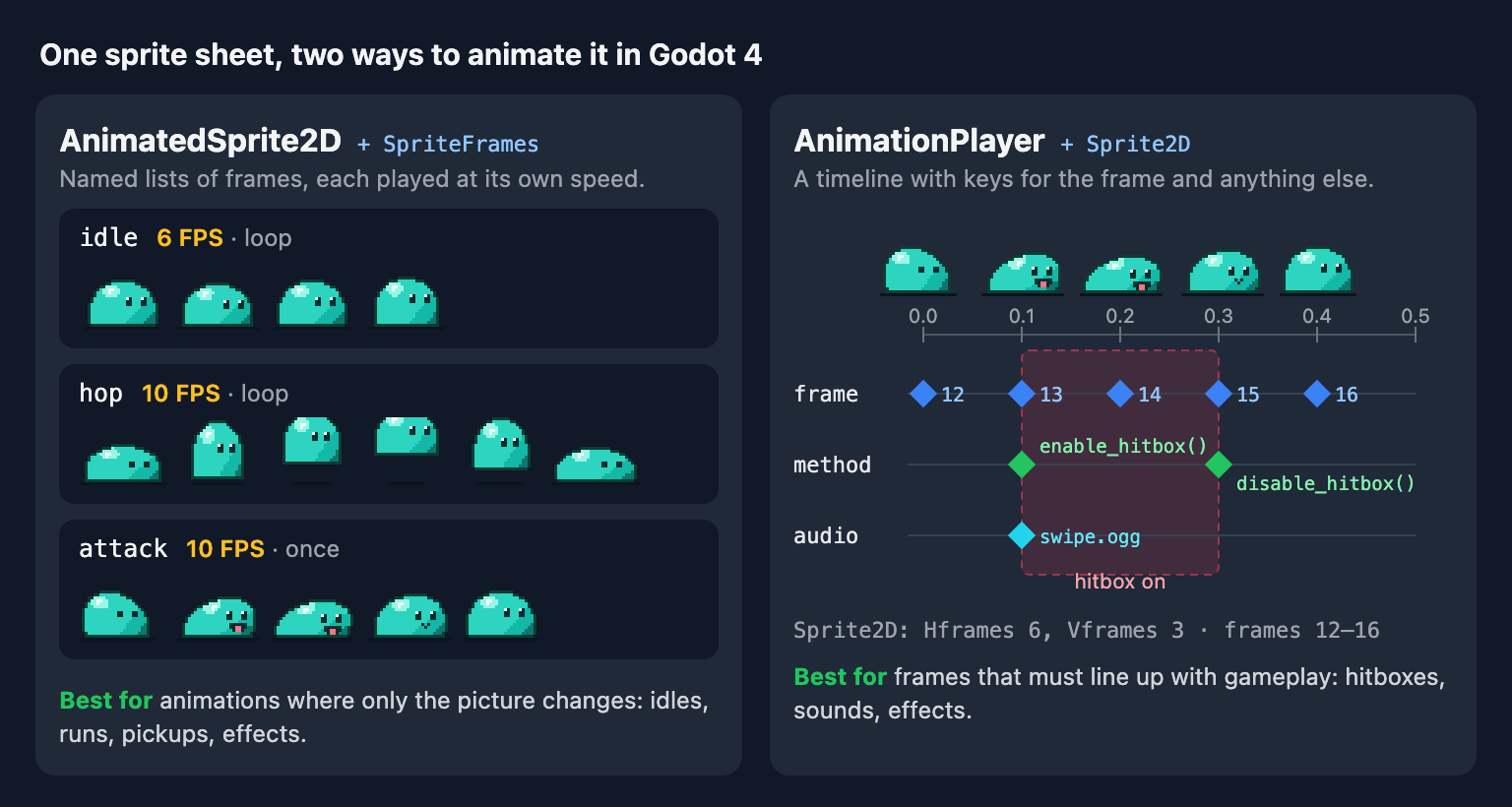
AnimatedSprite2D plays a SpriteFrames resource: named animations, each a list of frames with its own speed. AnimationPlayer is a general timeline. Point it at a Sprite2D and it can key the sprite's frame number, plus any other property, method call or sound at an exact time.
| AnimatedSprite2D | Sprite2D + AnimationPlayer | |
|---|---|---|
| You edit | Frame lists and an FPS per animation | Keys on a timeline, in seconds |
| Holding a frame longer | A relative duration per frame | Move the next key later |
| Sheets with a border or gaps | Supported when you import frames | Not supported: Hframes × Vframes must be an even grid |
| Changing other things on a frame | In code, through signals | On the same timeline, no code |
| Looping | On or off (ping-pong added in Godot 4.7) | None, loop or ping-pong |
A good rule: start with AnimatedSprite2D. Move an animation to AnimationPlayer when something besides the picture has to change on a particular frame: a hitbox during a swing, a footstep sound, a muzzle flash. The two also combine, since an AnimationPlayer can key an AnimatedSprite2D's properties too.
Set up AnimatedSprite2D from a sheet
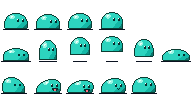
The example is a 192 × 96 slime sheet (free to download at the end): three rows of 32 × 32 frames for idle (4 frames), hop (6) and attack (5).
- Add an AnimatedSprite2D node. In the Inspector, click its empty Sprite Frames property, choose New SpriteFrames, then click the new resource. The SpriteFrames panel opens at the bottom of the editor.
- Double-click the
defaultanimation and rename itidle. - Click Add Frames from Sprite Sheet (the grid icon above the frame list; Ctrl+Shift+O, or Cmd+Shift+O on a Mac) and pick the PNG.
- In the Select Frames dialog, set Horizontal to 6 and Vertical to 3. Click the four idle frames, then Add 4 Frame(s).
- Set the speed in the FPS box beside the animation list; new animations start at 5 FPS. The Animation Looping button next to it turns looping on or off. In Godot 4.7 it has a third state, ping-pong.
- Click Add Animation and repeat for
hopandattack.
Two settings in the panel do most of the timing work. FPS sets the base speed, and Frame Duration stretches individual frames. Frame Duration is relative, and the SpriteFrames documentation gives the formula: seconds on screen = duration ÷ (FPS × playing speed). At 10 FPS, a frame with duration 1.0 shows for 0.1 s and one with 3.0 holds for 0.3 s, which is how you give an attack a pause before the strike. For choosing the numbers, see How Fast Should Pixel Art Animate?
Sheets with a border or gaps
If the sheet has a border around it (a margin) or gaps between frames (spacing), the dialog's other fields matter: Size is the frame size, Separation is the gap and Offset is the border. The order you fill them in decides the result.
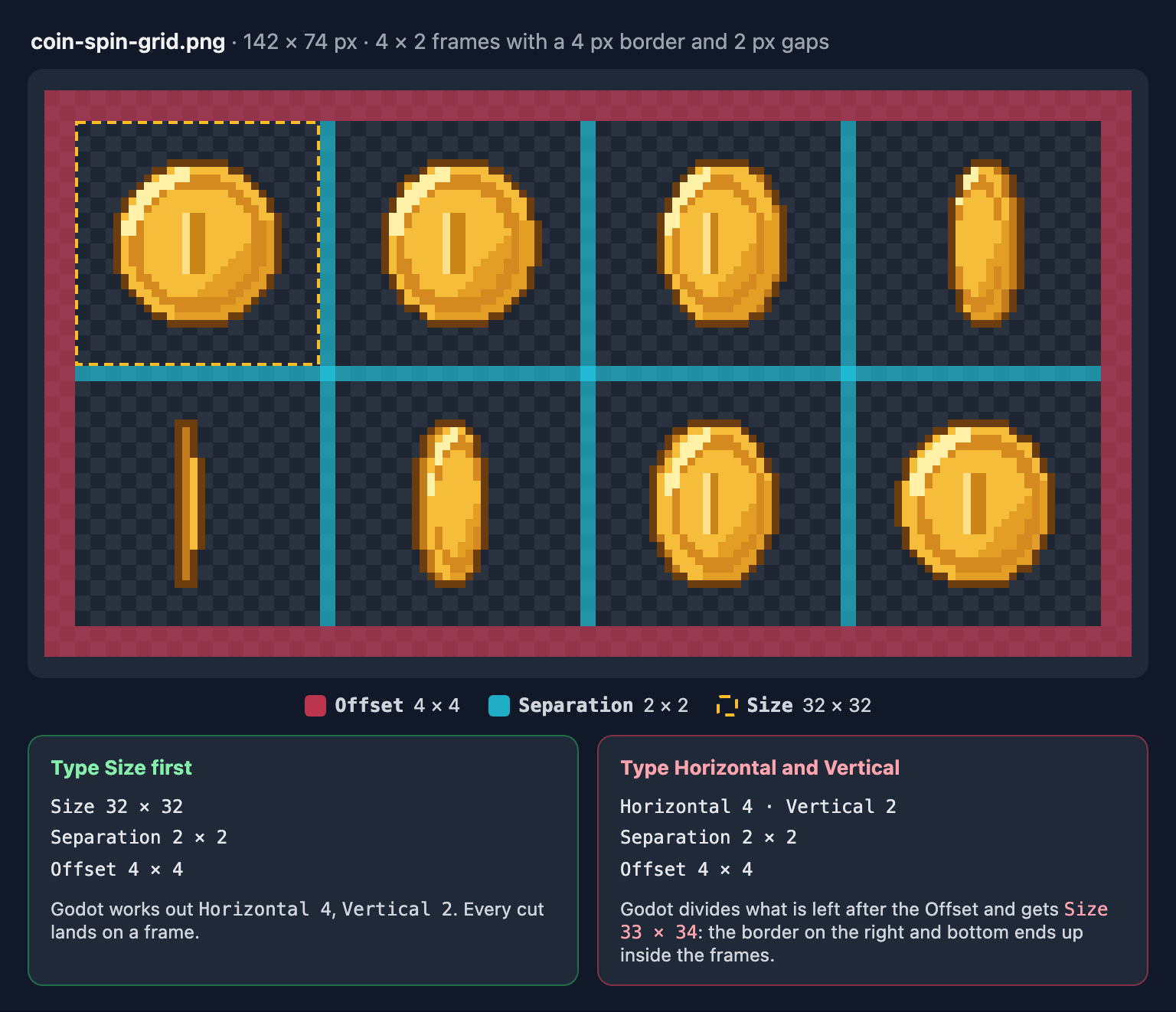
When you type Horizontal and Vertical, Godot works out the size by dividing what's left of the image after the Offset and the gaps. The Offset only comes off the left and top, so the border on the right and bottom is counted as frame. On this 142 × 74 coin sheet that gives 33 × 34 frames, and each cut lands a little further off target. Type Size first instead (32 × 32), then Separation (2) and Offset (4), and Godot works out the counts itself. If you don't know the numbers, How to Find the Frame Size of a Sprite Sheet shows how to work them out.
Play, switch and flip from GDScript
This character idles, hops while moving and attacks once on a key press:
extends CharacterBody2D

const SPEED := 120.0

@onready var sprite: AnimatedSprite2D = $AnimatedSprite2D

var attacking := false


func _ready() -> void:
	sprite.animation_finished.connect(_on_animation_finished)


func _physics_process(_delta: float) -> void:
	var direction := Input.get_axis("ui_left", "ui_right")
	velocity.x = direction * SPEED
	move_and_slide()

	if direction != 0.0:
		sprite.flip_h = direction < 0.0

	if attacking:
		return
	if Input.is_action_just_pressed("ui_accept"):
		attacking = true
		sprite.play("attack")
	elif direction != 0.0:
		sprite.play("hop")
	else:
		sprite.play("idle")


func _on_animation_finished() -> void:
	if sprite.animation == &"attack":
		attacking = false
Four details make this work:
- Calling
play()every frame is safe. If the animation is already playing,play()with the same name carries on instead of restarting, so you don't need to check first. animation_finishednever fires for a looping animation, as the AnimatedSprite2D reference notes. Turn looping off forattack, or the character stays stuck in it.flip_hmirrors the drawing only. Child nodes such as a hitbox keep their position, so mirror theirposition.xin the same place you setflip_h.- Per-frame events need a signal. For a footstep, connect
frame_changedand checksprite.animationandsprite.framethere. If you find yourself writing many of these checks, that animation belongs in an AnimationPlayer.
The AnimationPlayer route
Here the picture comes from a plain Sprite2D, and the AnimationPlayer changes its frame number on a timeline.
- Add a Sprite2D and drag the sheet onto its Texture. Under Animation in the Inspector, set Hframes to 6 and Vframes to 3. Frames are numbered left to right, top to bottom from 0, so the attack row is frames 12 to 16. Sprite2D cuts the texture into equal cells, so it can't skip a border or gaps; give it a sheet without them.
- Add an AnimationPlayer, open the Animation panel and choose Animation → New. Name it
attackand set its length to 0.5 s: five frames at 10 FPS. - At the bottom of the panel, switch the snap step from Seconds to FPS and enter 10, so keys land every 0.1 s.
- Select the Sprite2D and set Frame to 12. Click the key icon next to Frame and confirm the new track. Godot adds the key, raises Frame to 13 and moves the playhead one step. Click it four more times to key 13 to 16. The track is created in Discrete mode, so it jumps between whole frames instead of blending.
- To sync gameplay, add a Call Method Track for the character node (Add Track → Call Method Track…). Right-click it at 0.1 s, choose Insert Key…, and pick
enable_hitbox; insertdisable_hitboxat 0.3 s. An Audio Playback Track can start the swipe sound at 0.1 s too.
The methods the track calls live in the character's script. Here the hitbox is an Area2D child named Hitbox:
func enable_hitbox() -> void:
	$Hitbox/CollisionShape2D.set_deferred("disabled", false)


func disable_hitbox() -> void:
	$Hitbox/CollisionShape2D.set_deferred("disabled", true)
set_deferred() is there because Godot's documentation says a collision shape's disabled property should be changed that way. Start the animation with $AnimationPlayer.play("attack") and listen for its animation_finished(anim_name) signal; like the AnimatedSprite2D signal, it never fires while the animation loops. One more trap from the 2D sprite animation tutorial: play() takes effect the next time the player processes. If you flip the sprite in the same frame and see one glitched frame, call advance(0) after play().
Exporting a ready-made SpriteFrames from SpritePilot
If you cut your sheet with SpritePilot's Grid Slice, or bring frames in from a GIF or the Pixel Art Editor, Export & Download can write the SpriteFrames resource for you. Choose SpriteFrames (Godot 4 .tres resource) and add an Animation Tag for each animation.
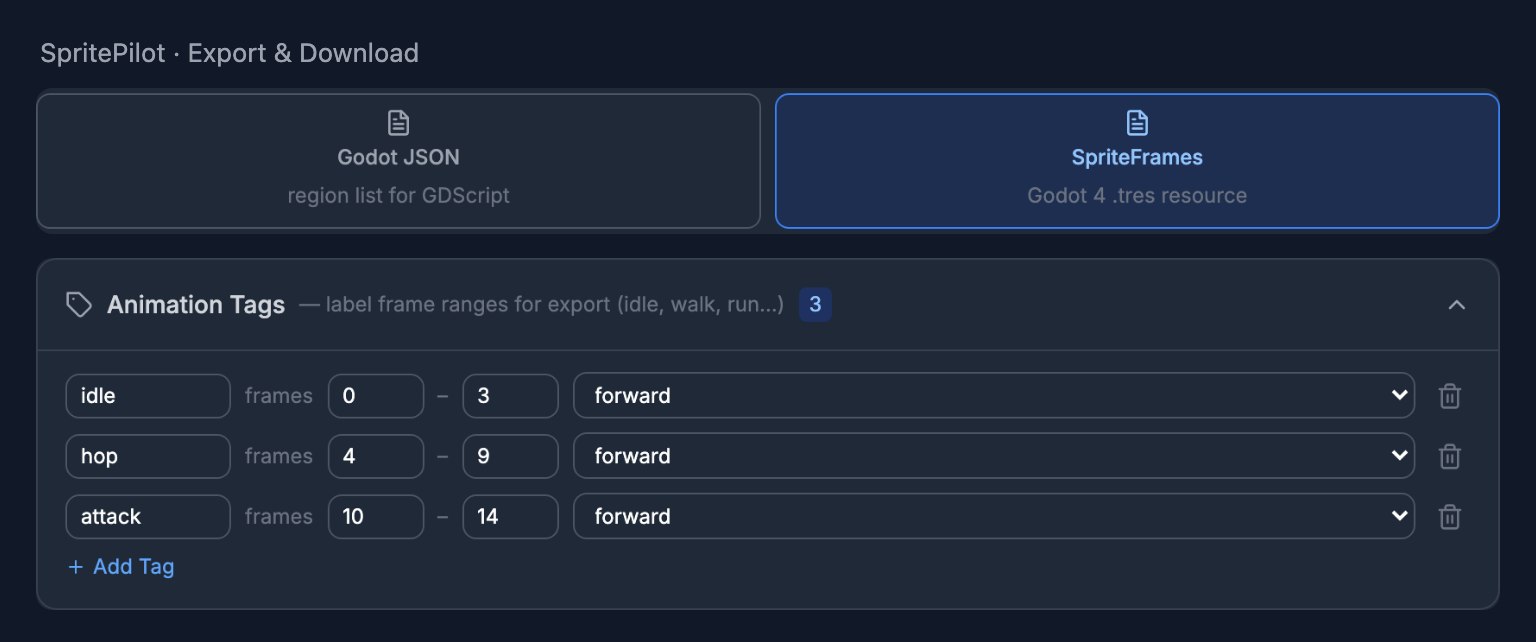
The download is the packed sheet, sprite-sheet.png, and sprite-frames.tres, a text resource that starts like this:
[gd_resource type="SpriteFrames" load_steps=17 format=3]

[ext_resource type="Texture2D" path="res://sprite-sheet.png" id="1"]

[sub_resource type="AtlasTexture" id="AtlasTexture_1"]
atlas = ExtResource("1")
region = Rect2(0, 0, 32, 32)
What's inside:
- One AtlasTexture per frame, pointing at that frame's rectangle in the sheet. With Trim transparency on, each also gets a margin that restores its original size, so trimmed frames don't shift.
- One animation per tag, using the frames from–to counted from 0 in the export order. With no tags you get a single animation called
defaultcontaining every frame. - 12 FPS, looping, duration 1.0 for every animation. Adjust them in the SpriteFrames panel afterwards, and switch looping off for
attack. A tag's reverse or ping-pong direction is not carried into the file.
The resource expects the sheet at res://sprite-sheet.png, so put both files in the project root, or edit the path on the ext_resource line. Then load sprite-frames.tres into the AnimatedSprite2D's Sprite Frames property. The Godot import guide covers the JSON alternative.
A checklist
- Only the picture changes: AnimatedSprite2D.
- Something must happen on a specific frame: AnimationPlayer, or
frame_changedin code for one or two cases. - Sheet with a border: type the Size in the Select Frames dialog, not the counts.
- Anything you wait for, such as an attack or a death, must not loop.
flip_hmirrors the drawing, not its children.- For crisp pixel art, set the project's default texture filter to Nearest (why lines appear between tiles explains it).
The slime sheet is free to use in any project (CC0): download slime-sheet.png, 192 × 96, with idle in the top row (4 frames), hop in the middle row (6) and attack in the bottom row (5), all 32 × 32. Check its timing in the Sprite Player before you build the animations. The same sheet is set up in Unity, Phaser and pygame too. For more to practice with, the Free Pixel Art Game Assets page has 70 animated CC0 sprites, from creatures to effects, as one-row strips that load the same way: Horizontal = the frame count, Vertical = 1.