Onion Skinning: Animate Pixel Art Without Guesswork
October 14, 2026 · 6 min read
What onion skinning shows, a key-poses-first workflow for pixel animation, how to check arcs and spacing against the ghost, and the mistakes it can cause.
Open the tool from this article — free, in your browser, no signup.
Drawing the second frame of an animation without seeing the first is guesswork. Where was the hand? How far did the ball move? Was the head this big? Guess a pixel wrong on every frame and the result wobbles: shapes swell and shrink, and motion speeds up and slows down for no reason. Onion skinning replaces the guessing with a reference you can see while you draw.
What onion skinning shows
Onion skinning displays one or more neighboring frames faintly behind the frame you're editing. The name comes from traditional animation, where frames were drawn on thin, translucent onionskin paper over a light, so the animator could see the drawings underneath (Wikipedia).
The ghost answers three questions while you draw:
- Position: where each part was on the previous frame.
- Spacing: how far it moved since then. Gaps that grow mean speeding up; gaps that shrink mean slowing down.
- Volume: whether the shape is still the same size.
It does not tell you timing, how long each frame stays on screen. For that you have to play the animation.
SpritePilot's onion skin, exactly
In SpritePilot's Pixel Art Editor, the ghost button in the toolbar turns onion skin on and off:
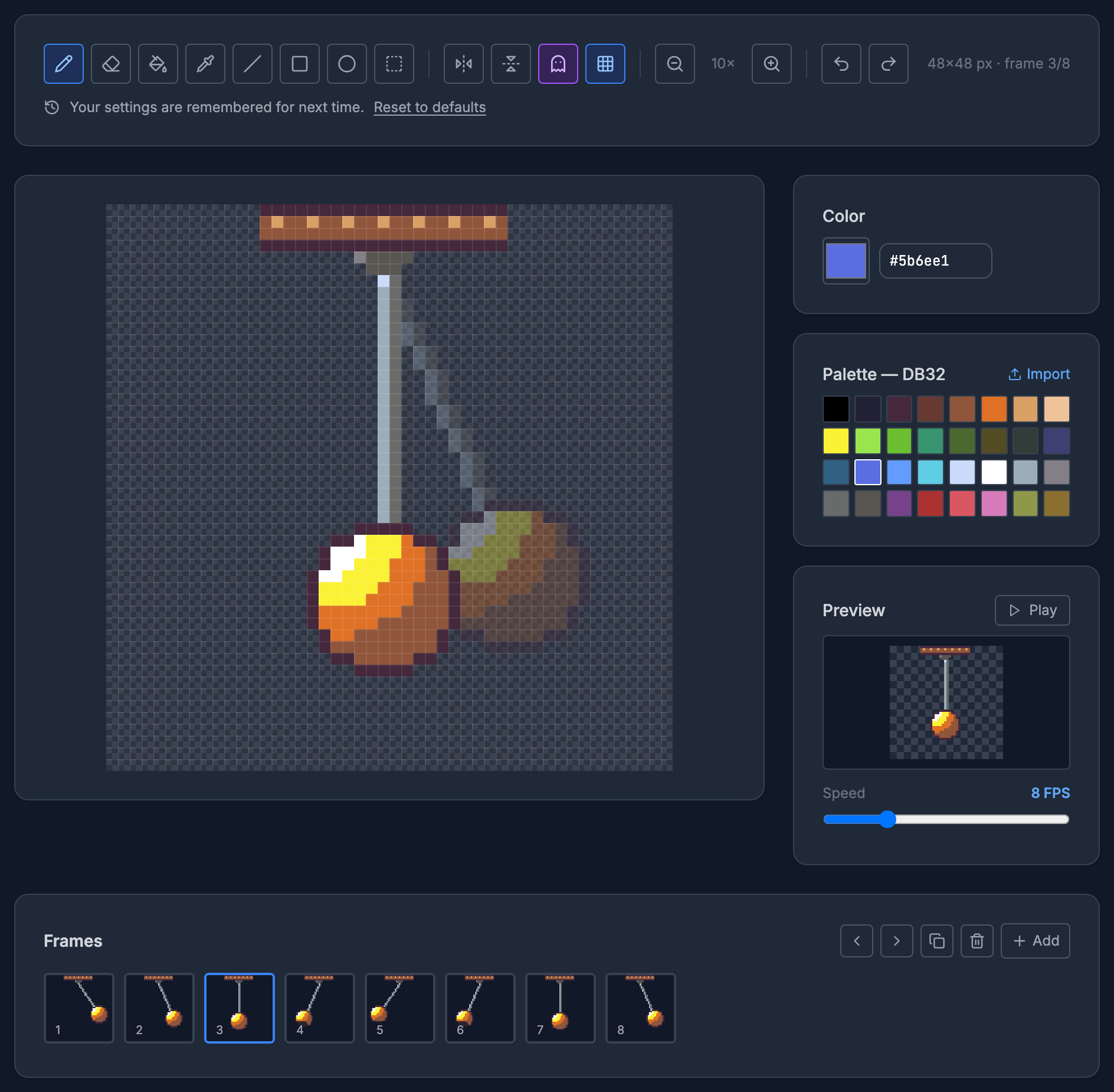
Exactly what it does:
- It shows the previous frame only, at 35% opacity, in its own colors. There's no tint, so a faded yellow can look olive against the checkerboard.
- The ghost sits under the current frame: wherever you've drawn a pixel, the pixel hides the ghost.
- Frame 1 has no ghost. The editor doesn't wrap around to show the last frame under the first.
- The ghost is display only. It is never saved into a frame or an export, the eyedropper ignores it, and the fill tool doesn't treat it as a boundary: filling inside a ghost outline fills every connected empty pixel of the frame.
- The setting is remembered for your next visit, like the editor's other options.
Other editors offer more. In Aseprite, for example, F3 toggles onion skinning, and the timeline's configuration sets how many previous and next frames to show and can tint them red and blue (Aseprite docs). The workflow below works with either.
Draw the keys first, then the frames between
Onion skin is most useful when you draw the important poses first and fill in the rest, instead of drawing frame after frame from the start and hoping the end lands in the right place:
- Draw the key poses. For the pendulum these are the two ends of the swing: frame 1 at 34° to the right and frame 5 at 34° to the left. For a walk they're the contact poses; for a jump, the crouch, the peak and the landing.
- Add the breakdowns, the main drawings between the keys. Here that's frame 3, hanging straight down, halfway through the swing.
- Fill the in-betweens. Select a key, press Duplicate frame to copy it in after itself, and move only what changes, with the previous frame showing underneath.
- Flip through the frames with onion skin on and watch how each one relates to the one before it:
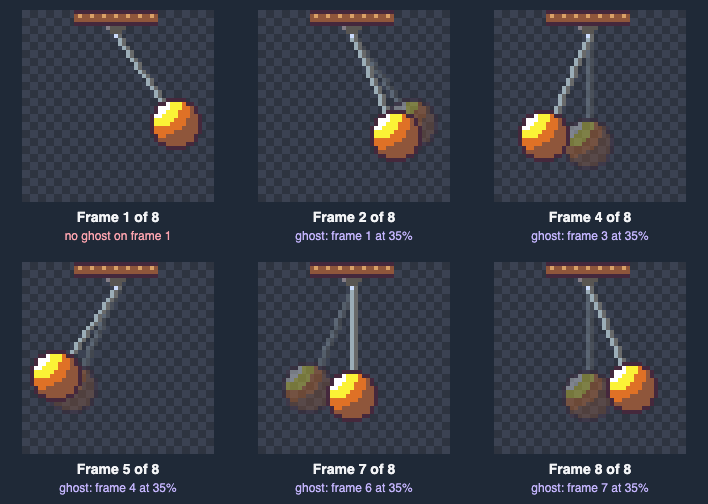
An in-between depends on the frames on both sides, but SpritePilot only ghosts the previous one. To check the next frame, use the move buttons above the frame strip. Say frame 2 sits between frames 1 and 3: select frame 2 and press Move frame right. Frames 2 and 3 swap places, your frame stays selected, and frame 3 is now the ghost underneath. Compare, then press Move frame left to put it back. Adding, duplicating, moving or deleting a frame clears the undo history, so finish a correction before you rearrange.
Check arcs and spacing
Two things often go wrong between key poses, and the ghost shows both.
Arcs. Most natural motion follows curved paths, a point Disney's animation principles make explicitly (twelve principles). Arms swing from the shoulder, heads turn on the neck, a pendulum swings from its pivot. The tempting in-between is the one halfway along the straight line between the two keys. It's easy to place and it's wrong:
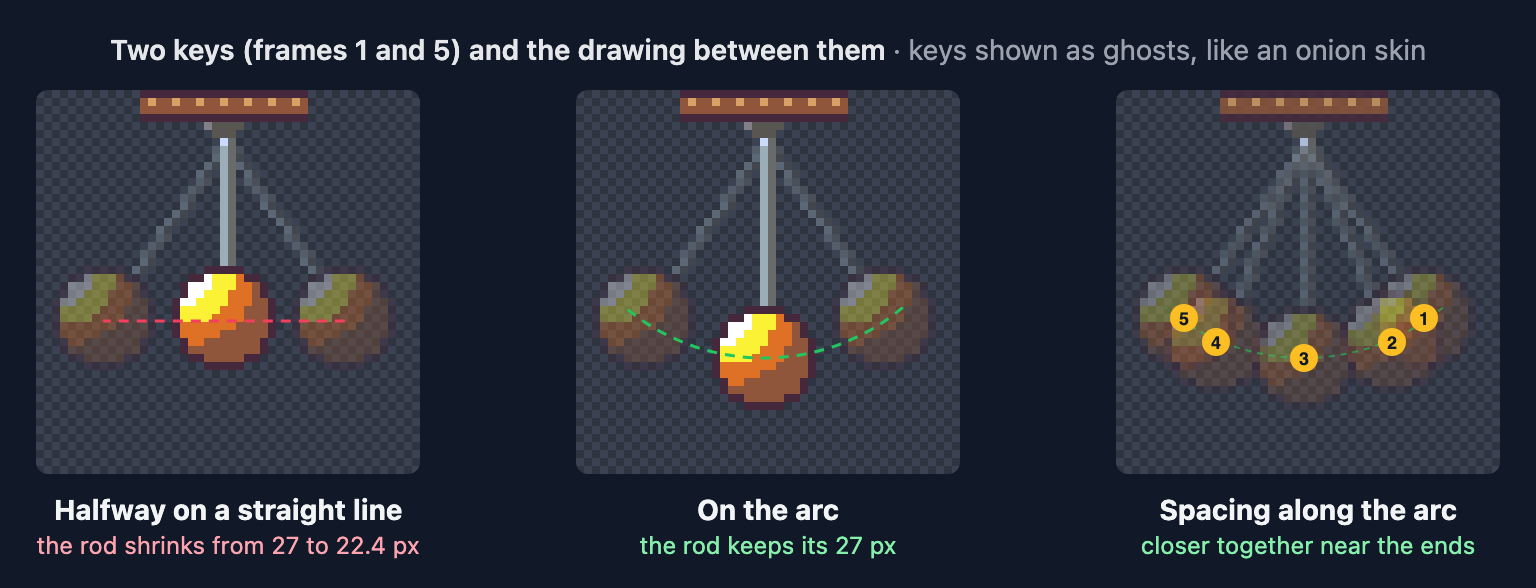
With the two keys ghosted, the straight-line in-between puts the bob 22.4 pixels from the pivot instead of 27, and the rod visibly shrinks in the middle of every swing. On the arc, the rod keeps its length. The same mistake shortens arms and legs in character animation. Before drawing an in-between, find the pivot, such as the shoulder for an arm or the hip for a leg, and keep the distance from it.
Spacing. The right-hand panel shows where the bob sits in frames 1 to 5. The gaps between them are 4.7, 11.2, 11.2 and 4.7 pixels: small at the ends, where a pendulum slows down to turn, and large through the middle, where it's fastest. The angles come from 34° × cos(k × 45°), with k running from 0 to 7 for frames 1 to 8, which produces exactly that easing. With onion skin on you can see the gap to the previous frame directly, so uneven spacing is easy to spot: a gap that is suddenly bigger or smaller than its neighbors is a lurch in the motion.
Mistakes that onion skinning can cause
- Tracing the ghost. Copying the previous frame's outline and nudging it tends to give stiff motion, and small tracing differences from frame to frame make edges flicker. Use the ghost to place things, then draw the shape the way it should look in this pose.
- Drifting volume. If every frame is drawn only against the one before it, a one-pixel error on each frame adds up: by frame 8 the head can be two pixels smaller than on frame 1. Count the pixels of something that shouldn't change, such as head width or the size of a ball, on the first and last frames.
- Mistaking the ghost for real pixels. At 35% the ghost can look like part of the drawing. Toggle onion skin off now and then to see what's actually on the frame.
- Judging timing from the ghost. Even spacing on the canvas can still play too fast or too slow. Press Play in the Preview panel and adjust the speed. For choosing a frame rate, see How Fast Should Pixel Art Animate?
Try it
Open the Pixel Art Editor, start a new drawing with the 32×32 button (or type 48 into W and H for more room), and animate something simple with an arc: a pendulum, a waving arm or a bouncing ball. Draw the two ends of the motion first, add the middle drawing between them, then fill the rest with onion skin on. Play the preview at 8 to 12 FPS and fix whatever lurches. The drawing saves itself in your browser, and Download GIF or Download Sheet PNG exports it. The drawing guide covers the editor's tools, and the same approach applies to walks (How Many Frames Does a Walk Cycle Need?) and bounces (Squash and Stretch for Sprite Animation).