GIF or Video to Sprite Sheet Without a Huge File
October 14, 2026 · 6 min read
Three seconds of 1080p video can need 746 MB as one sprite sheet. The math behind sheet size, the settings that shrink it, and measured results.
Open the tool from this article — free, in your browser, no signup.
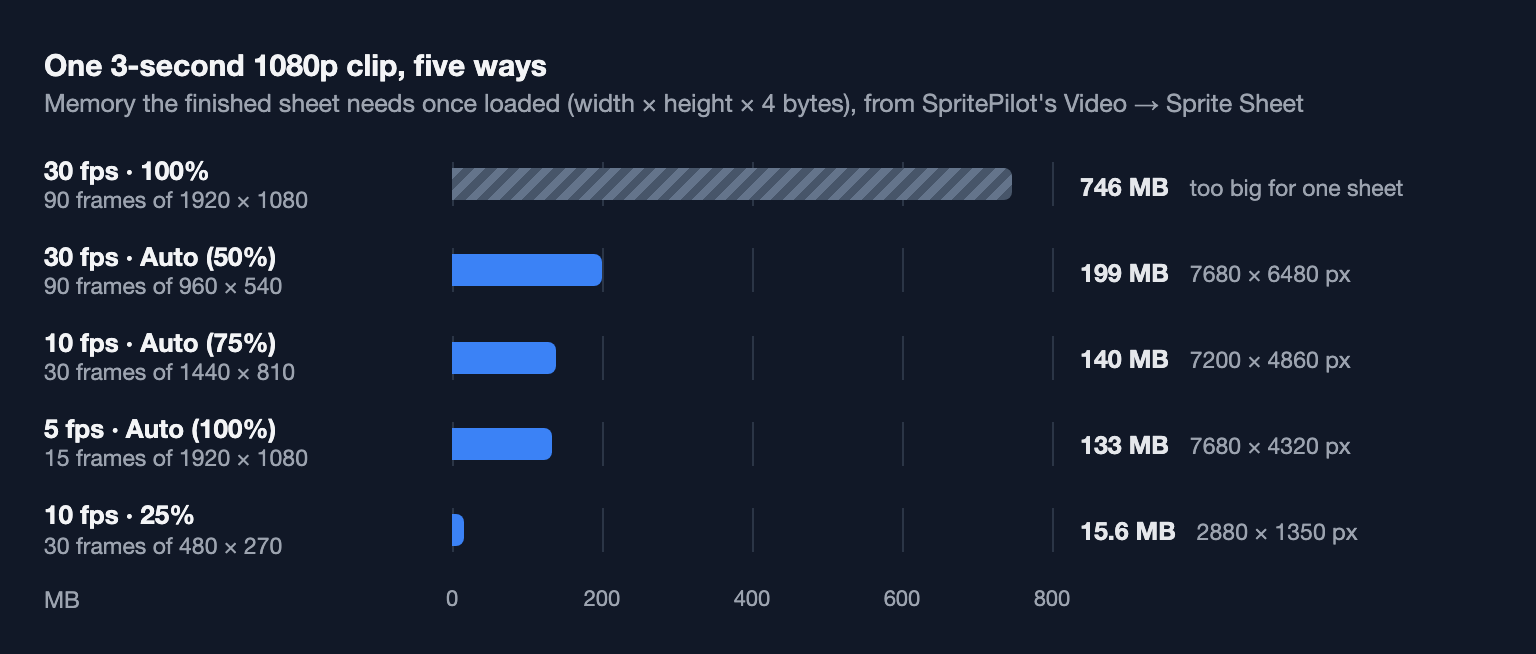
A three-second clip doesn't sound like much until it becomes a sprite sheet. At 1080p and 30 frames per second it's 90 full-HD images side by side, and once loaded that sheet needs about 746 MB of memory, far more than any one texture should take.
The size of a sheet is decided before you convert, by two numbers you choose: how many frames and how big each one is. The file size on disk then depends on what's in the frames. Here is the math, four ways to shrink a sheet, and what they did to real clips in SpritePilot.
The math: frames × frame size × 4 bytes
- Frames = clip length × sampling rate. A 3-second clip sampled at 10 frames per second gives 30 frames.
- Pixels = frames × frame width × frame height.
- Memory = pixels × 4 bytes, one each for red, green, blue and alpha.
Those 4 bytes are what an image costs once decoded, whatever its file size: a browser's ImageData holds four values per pixel, and Unity lists uncompressed RGBA textures at 32 bits per pixel. A sheet is stored on disk as a compressed PNG, but it's drawn from memory.
Worked through for that 3-second 1080p clip:
| Sampling, frame size | Frames | Pixels | Memory |
|---|---|---|---|
| 30 fps, 1920 × 1080 | 90 | 186,624,000 | 746 MB |
| 10 fps, 1440 × 810 | 30 | 34,992,000 | 140 MB |
| 10 fps, 480 × 270 | 30 | 3,888,000 | 15.6 MB |
Halving the sampling rate halves the memory. Halving the frame width and height quarters it.
Four ways to shrink a sheet
1. Frame size. The strongest lever, because it works on both dimensions: 25% of the size is one sixteenth of the pixels. Pick the size the sprite will actually be drawn at in the game; anything bigger is memory the player never sees. For a screen recording of pixel art, choose the size that undoes the upscaling. A 1080p recording of a 480 × 270 pixel-art scene, converted at 25%, came back at its original resolution: all but one of its 3,888,000 pixels were within 6% of the original color, and the sheet had a ninth of the pixels of the 75% size that Auto suggested.
2. Sampling rate. Game animations rarely need the video's full frame rate; 8 to 12 frames per second is a common range for sprites (see How Fast Should Pixel Art Animate?). Never sample faster than the video itself: a 10 fps test clip sampled at 30 fps gave 60 frames, but only 20 different pictures, each repeated three times.
3. Clip length. Convert the one loop you need, not the whole recording. SpritePilot samples the entire clip, up to 300 frames, so trim the video first.
4. Cropping. Most video frames are mostly background. Cutting the frame down to the subject before converting keeps its full resolution while dropping everything around it. This FFmpeg command keeps 1.5 seconds starting at 0.6 s and crops a 960 × 960 square whose top-left corner is at x 440, y 60:
ffmpeg -ss 0.6 -t 1.5 -i input.mp4 -vf "crop=960:960:440:60" -an clip.mp4Any video editor can do the same. Here's what these settings did to a 3-second 1080p clip of camera-like footage, all measured in SpritePilot's Video → Sprite Sheet:
| Settings | Frames | Sheet | Memory | PNG file |
|---|---|---|---|---|
| 30 fps, Auto (50%) | 90 of 960 × 540 | 7680 × 6480 | 199 MB | 91.2 MB |
| 10 fps, Auto (75%) | 30 of 1440 × 810 | 7200 × 4860 | 140 MB | 68.8 MB |
| 5 fps, Auto (100%) | 15 of 1920 × 1080 | 7680 × 4320 | 133 MB | 61.1 MB |
| 10 fps, 25% | 30 of 480 × 270 | 2880 × 1350 | 15.6 MB | 7.1 MB |
| cropped to 960 × 960 and 1.5 s, 10 fps, Auto (100%) | 15 of 960 × 960 | 3840 × 3840 | 59.0 MB | 26.3 MB |
The cropped clip keeps the subject at full resolution and still needs less than half the memory of the full frame at 75%.
Sizes engines can actually load
SpritePilot's converters won't save a sheet wider or taller than 8192 pixels, because many engines and GPUs can't load bigger textures. Its video converter also refuses to extract more frame pixels than one 8192 × 8192 sheet holds, about 268 MB, and Auto frame size picks the largest size at which your frames fit:
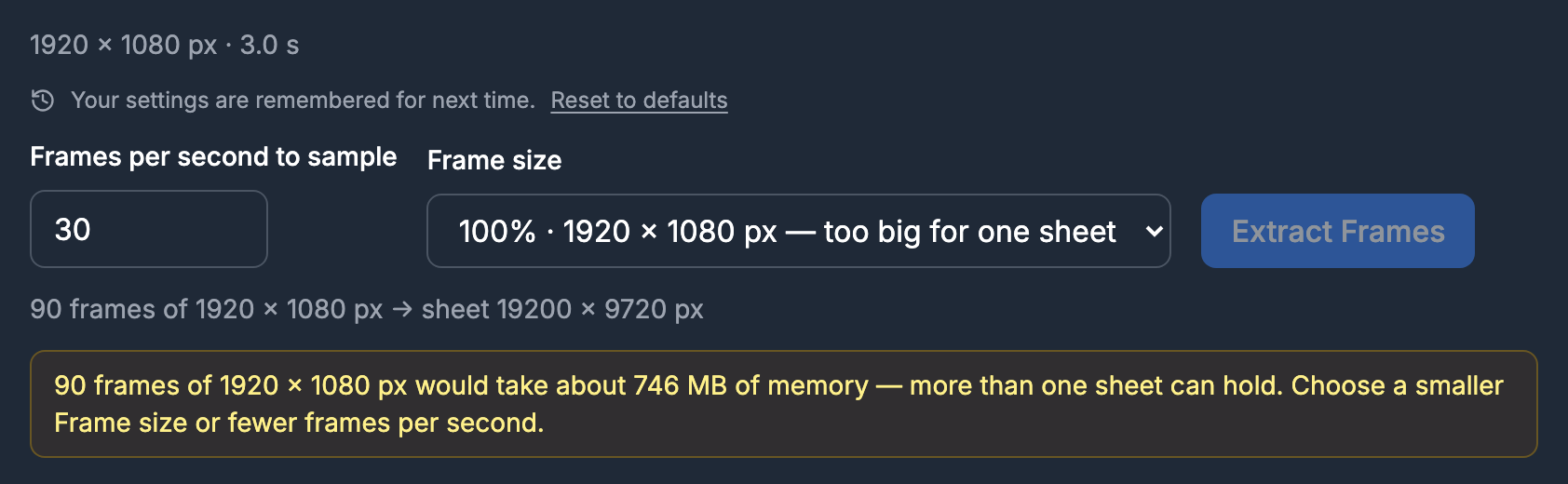
8192 is a ceiling, not a target. Godot's importing images documentation says mobile and web platforms "usually can't display textures larger than 4096×4096", and Unity scales any texture larger than its import Max Size down when it imports it. If you target phones or browsers, keep sheets at 4096 or below, or split the animation over several sheets. Sprite Sheet Size Limits covers texture size limits in more depth.
Why the PNG size depends on the picture
Memory follows the pixel count, but the PNG file doesn't. Here are three clips with the same length, resolution and settings, so the same 7200 × 4860 sheet:
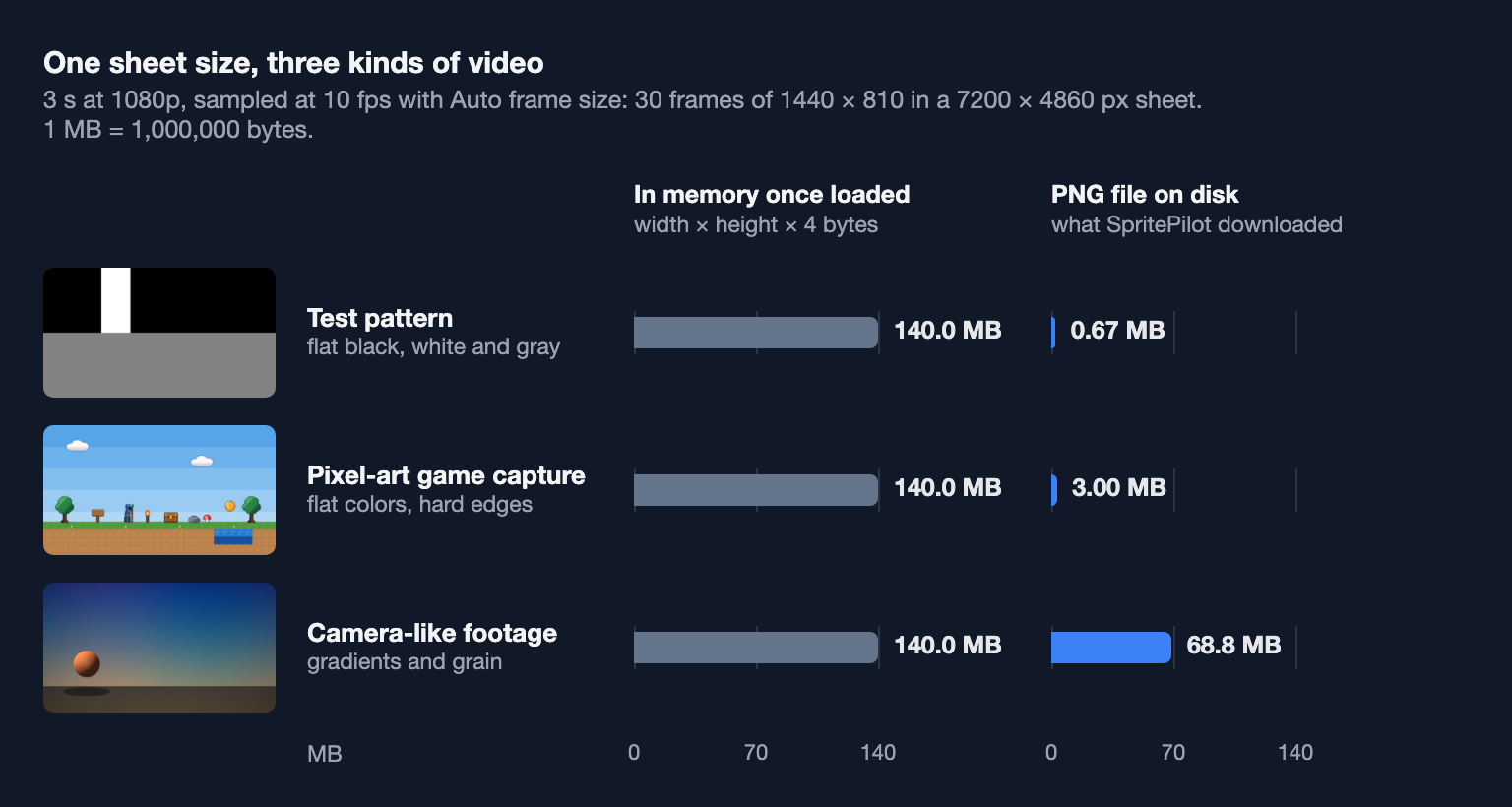
PNG is lossless. As the PNG specification describes, it filters each row of pixels and then compresses the result with deflate, which works by finding repetition. Flat colors and transparent areas are almost pure repetition, so they nearly vanish. Gradients and grain never repeat exactly, so nearly every pixel costs bytes, and a lossless format has to keep all of them. That's why the camera-like clip is 100 times larger on disk than the test pattern while needing exactly the same memory.
Two practical consequences. A small PNG doesn't mean a light sheet: check width × height × 4. And for camera footage, shrinking the frame size cuts both numbers; in the table, 25% took the PNG from 68.8 MB to 7.1 MB. The sheets in these tests were all 32-bit RGBA PNGs, even from video, which has no transparency. For when a lossy format makes sense instead, see PNG, WebP or JPG for Sprites.
GIFs: the frames are already chosen
A GIF has its frame count and frame size baked in, so GIF → Sprite Sheet has no sampling rate or frame size to choose. It decodes up to 300 frames at the GIF's own size and keeps each frame's delay in the JSON. The levers are the column count, and editing the GIF itself before you convert.
The column count matters more than it looks. An 8-frame, 64 × 64 GIF gives a 3 × 3 grid by default, 192 × 192 pixels with one empty cell; 4 columns make a 256 × 128 sheet with none, 11% less memory. Pick a column count that divides the frame count when the sheet stays under the size limit.
Don't be surprised if the PNG is larger than the GIF. That GIF is 2,627 bytes and the sheet 6,272. A GIF stores each pixel as an index into a table of at most 256 colors, while the sheet stores full RGBA. Transparent backgrounds still compress well, and if the frames have empty borders, sending them to Export & Download and trimming the transparent pixels shrinks the sheet further.
A checklist before you convert
- Cut the clip to the loop you need, and crop it to the subject.
- Sample at 8–12 fps, and never faster than the video's own frame rate.
- Choose the frame size the sprite is drawn at in the game.
- Estimate the memory: frames × width × height × 4 bytes.
- Keep sheets at 4096 px or less for phones and browsers; SpritePilot stops at 8192.
- Judge the PNG by the content: flat art compresses well, footage doesn't.
SpritePilot's converters run in your browser, so nothing is uploaded, and the video converter's plan line shows the frame count, frame size and sheet size before you extract a single frame. For a walkthrough of the controls, see How to Convert a Video to a Sprite Sheet.