Trimming Transparent Pixels From Sprites: Smaller Sheets Without Jitter
October 14, 2026 · 5 min read
Trimming cuts the empty border off every frame. How much it saves, the three numbers an atlas keeps so frames stay put, and which engines use them.
Open the tool from this article — free, in your browser, no signup.
Animation frames are usually drawn on one fixed canvas, say 64 × 64 pixels, and most of that canvas is empty. Trimming cuts the transparent border off each frame before it's packed, and the sheet shrinks accordingly. But a trimmed frame has lost one thing: where it sat on its canvas. If the engine doesn't put that back, the animation shakes, slides or floats.
This article measures what trimming saves, shows the numbers an atlas stores to undo it, and lists which loaders use them.
How much trimming saves
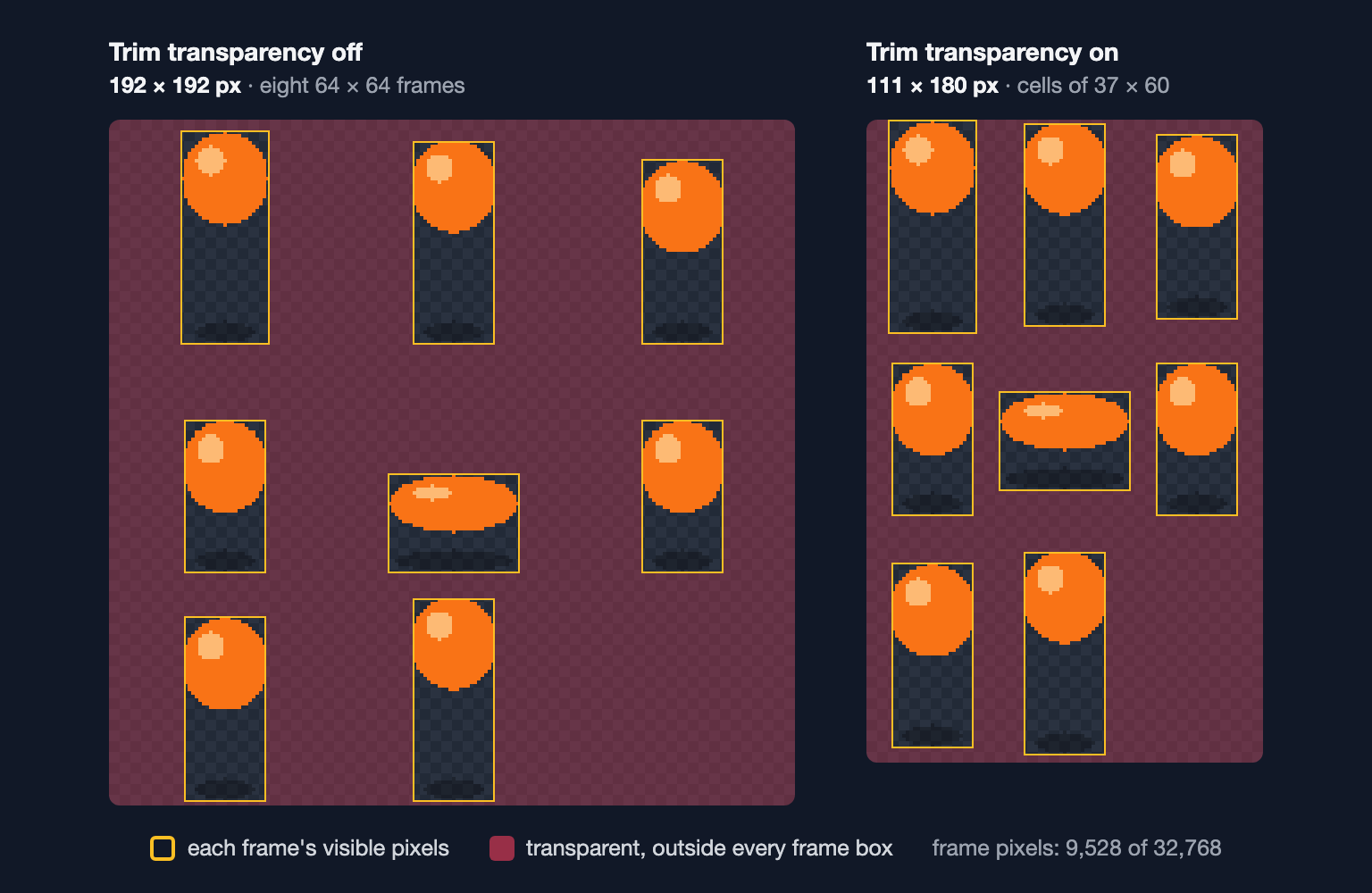
Take SpritePilot's bouncing-ball sample: eight frames of 64 × 64 pixels, a ball falling, squashing on the ground and rising again, with its shadow on the floor in every frame.

| Untrimmed | Trimmed | Saved | |
|---|---|---|---|
| Ball: pixels in the 8 frames | 32,768 | 9,528 | 71% |
| Ball: exported sheet | 192 × 192 px | 111 × 180 px | 46% |
| Coin (8 frames of 32 × 32): pixels in the frames | 8,192 | 2,684 | 67% |
| Coin: exported sheet | 96 × 96 px | 66 × 66 px | 53% |
Two details explain the gap between the rows. First, trimming only cuts the outer border: the ball frames keep the empty column of air between the ball and its shadow, so the tallest one is still 60 pixels high. Second, SpritePilot's Export & Download lays trimmed frames out in a grid whose cells fit the largest trimmed frame (37 × 60 here), so the sheet saves less than the frames do. A packer that places each trimmed frame individually gets closer to the frame total; SpritePilot's Export keeps the simpler grid. Sprite Sheet vs. Texture Atlas measures that difference for untrimmed sprites.
The savings depend entirely on the art. Small objects on big canvases gain the most; frames that fill their canvas, like video frames or full-screen backgrounds, gain nothing.
The three numbers an atlas keeps
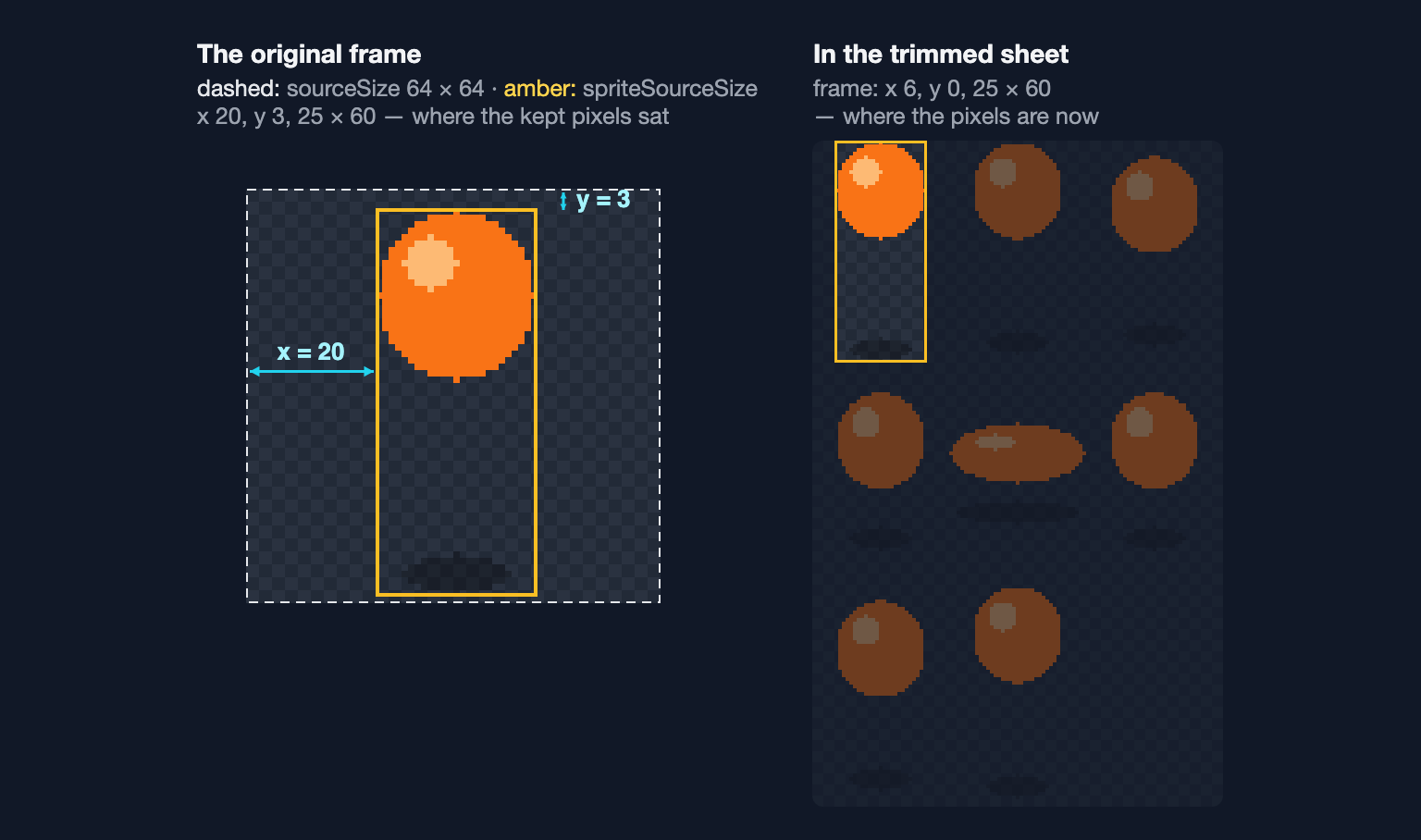
A trimmed frame can't be drawn correctly on its own, so the atlas stores the information needed to put it back. This is a real entry from SpritePilot's TexturePacker JSON with Trim transparency on, for the first ball frame:
"sprite_0001.png": {
  "frame": { "x": 6, "y": 0, "w": 25, "h": 60 },
  "rotated": false,
  "trimmed": true,
  "spriteSourceSize": { "x": 20, "y": 3, "w": 25, "h": 60 },
  "sourceSize": { "w": 64, "h": 64 },
  "pivot": { "x": 0.5, "y": 0.5 }
}- sourceSize is the original canvas: 64 × 64.
- spriteSourceSize is where the kept pixels sat on that canvas: 20 pixels from the left, 3 from the top, 25 × 60 in size.
- frame is where those pixels are now in the sheet.
- trimmed: true tells the loader the first two differ.
SpritePilot writes the same information into its other formats: Phaser 3 and Aseprite JSON use the same fields, Godot JSON and Basic JSON store an offset and a sourceSize, the Godot 4 SpriteFrames (.tres) file gives each trimmed frame an AtlasTexture margin, and CSS sprites get padding that restores the original box. Trimming keeps any pixel with even the faintest opacity, so soft glows and shadows survive.
Why trimmed frames jitter
A trimmed frame is a different size in almost every pose. If the engine ignores the offsets and positions each frame by its own size, every frame lands somewhere slightly different.
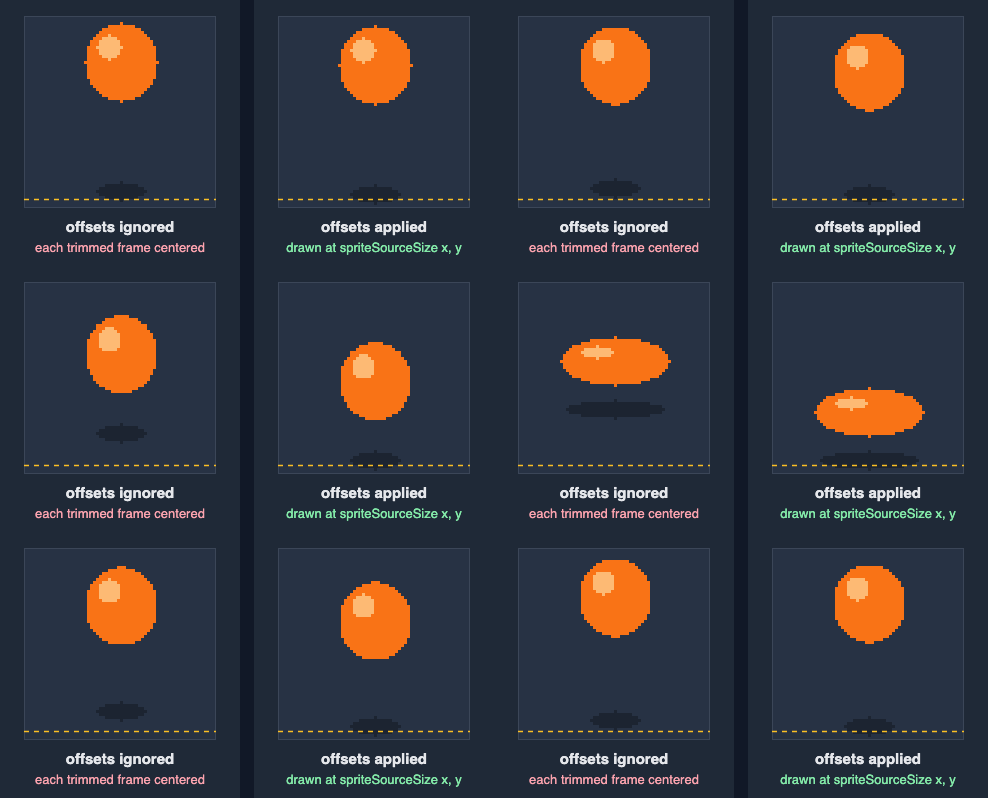
On the left, each frame is centered by its trimmed size. The tallest frame is 60 pixels high and the squashed one only 28, so the shadow's bottom edge swings 16 pixels up and down and the squashed ball hangs in the air. The pixels are all correct; only their placement is wrong.
If you draw sprites yourself, the fix is one addition. This canvas code puts each trimmed frame back on its original canvas; drawing all eight frames this way rebuilds the original 64 × 64 frames pixel for pixel:
// Draw a frame from a TexturePacker-style atlas exactly where the
// untrimmed frame would have been. (x, y) is that frame's top-left corner.
function drawFrame(ctx, sheet, f, x, y) {
  ctx.drawImage(
    sheet,
    f.frame.x, f.frame.y, f.frame.w, f.frame.h,          // where the pixels are now
    x + f.spriteSourceSize.x, y + f.spriteSourceSize.y,  // where they were
    f.frame.w, f.frame.h,
  )
}

// To center a sprite on (cx, cy), use the original size, not the trimmed one.
function drawFrameCentered(ctx, sheet, f, cx, cy) {
  drawFrame(ctx, sheet, f, cx - f.sourceSize.w / 2, cy - f.sourceSize.h / 2)
}
Centering by f.frame.w and f.frame.h instead is exactly the mistake in the left half of the animation: it matched the original frames zero times out of eight.
Which engines use the offsets
- Phaser (
this.load.atlas, JSON Hash or JSON Array): the atlas parser readssourceSizeandspriteSourceSizefor every frame markedtrimmed, and the frame keeps its untrimmed size for positioning. Trimmed atlases work without extra code. - PixiJS: the Spritesheet parser uses
sourceSizeas the texture's original size andspriteSourceSizeas its trim, unless the frame saystrimmed: false. - Godot 4: an AtlasTexture is drawn at its region size plus its margin size, with the region offset by the margin's position. That's how SpritePilot's SpriteFrames export restores trimmed frames: assign the .tres to an AnimatedSprite2D's Sprite Frames and every frame keeps its original 64 × 64 box.
- Unity works the other way round. You normally import untrimmed frames and let a Sprite Atlas pack them; its Tight Packing option packs each sprite by its mesh shape instead of its rectangle, so the empty space is dealt with inside Unity.
If your loader only reads frame, expect the left half of the GIF. In that case export without trimming, or position frames with the offsets yourself.
When not to trim
- Tiles. A tileset has to stay a regular grid with every tile the same size. Trimming a tile with transparent edges breaks the grid.
- Anything sliced as a grid. Phaser's
load.spritesheet, a Godot Sprite2D's Hframes and Vframes, and Unity's Grid By Cell Size never see the offsets. SpritePilot's trimmed export still looks like a grid, because each frame is centered in a cell, but slicing it as one gives you the left half of the animation above. - Frames that fill their canvas. Video frames and opaque backgrounds have no transparent border to cut. SpritePilot marks such frames
trimmed: falseand leaves them alone. - Tiny sprites. Trimming a 16 × 16 icon saves at most 1 KB of memory and adds a rule every loader must follow.
Try it
Get frames into SpritePilot, for example by slicing a sheet with Grid Slice or sending them from the GIF or video converter, then open Export & Download. Tick Trim transparency, choose TexturePacker, Phaser 3, Godot JSON or SpriteFrames metadata, and download. The preview's heading adds "trimmed" so you can see it's on. Everything runs in your browser.
Before you ship, check one thing: play the trimmed animation in your engine next to the untrimmed one. If the shadow or the feet move, the loader isn't applying the offsets. For what each metadata format is for, see Sprite Sheet Export Formats Explained; for choosing the point a sprite is positioned by, see Sprite Pivot Points Explained.