Sprite Pivot Points Explained: Center, Feet and Flipping
October 14, 2026 · 7 min read
Where a sprite's pivot belongs, why characters jump when they flip or change frames, and how to set it in Unity, Godot, Phaser and SpritePilot.
Open the tool from this article — free, in your browser, no signup.
Your character turns around and jumps sideways. It crouches and floats off the ground. It swings a staff and the whole body slides. The art is fine and the code moves the character smoothly; the problem is the point the sprite is positioned by, its pivot.
This article explains what a pivot is, where to put it, why the wrong one makes sprites jump, and how to set it in Unity, Godot, Phaser and SpritePilot.
What a pivot is
A sprite is a rectangle of pixels, but the game positions it by a single point. That point is the pivot: whatever coordinates you give the object, the pivot lands exactly there. Unity's documentation calls it the point "Unity uses for transformations such as rotation", so it is also what the sprite turns and scales around.
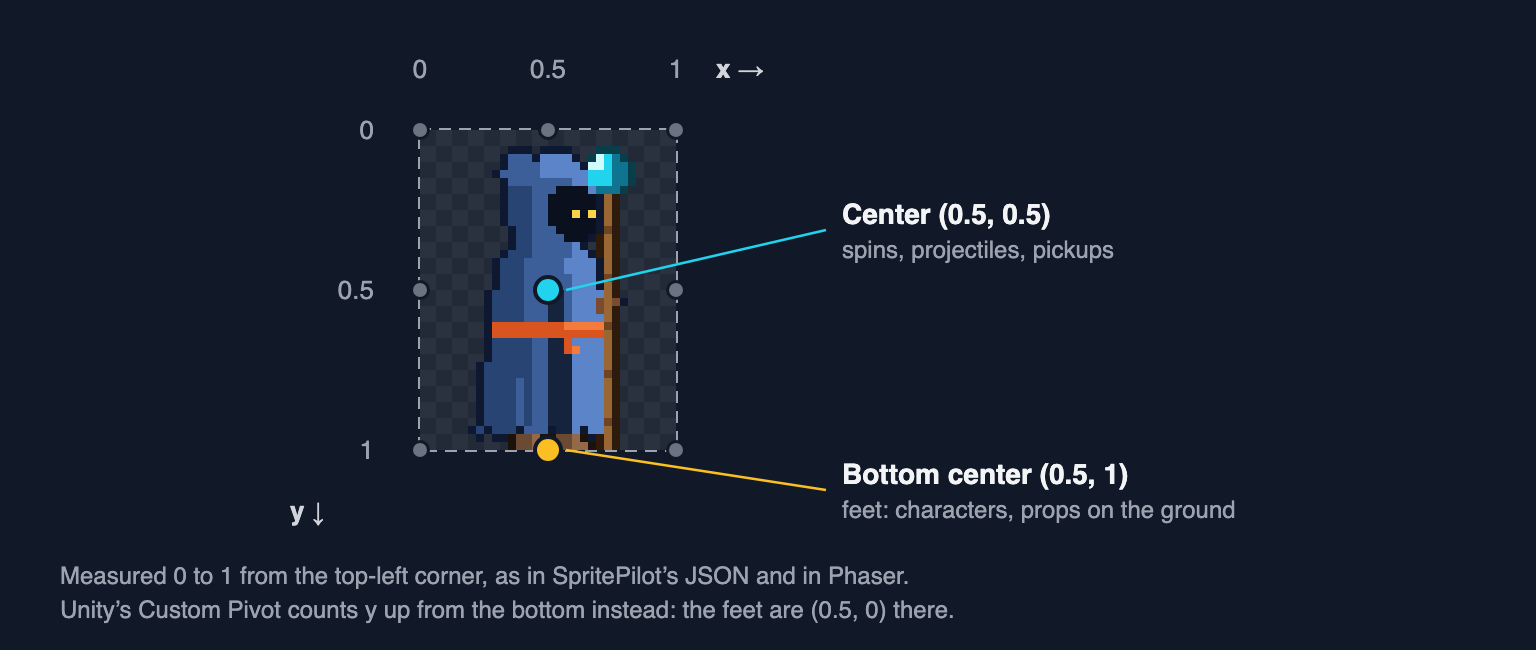
Pivots are usually written as fractions of the frame, from 0 to 1, so they work for any frame size. The same point gets different names and conventions:
| Center | Bottom center (feet) | |
|---|---|---|
SpritePilot's JSON, Phaser setOrigin |
0.5, 0.5 | 0.5, 1 |
| Unity, Normalized | 0.5, 0.5 | 0.5, 0 |
| Unity, Pixels (32 × 40 frame) | 16, 20 | 16, 0 |
Unity counts y upward from the bottom-left corner of the sprite; Phaser and SpritePilot count downward from the top-left. Mixing them up flips the pivot to the character's head.
Where the pivot should go
- Center for anything that spins, scales or has no ground: coins, projectiles, explosions, floating pickups. They rotate around their middle, which is what you want.
- Feet (bottom center) for characters, enemies and props that stand on something. The object's position becomes the point where it touches the ground, so placing it on a platform, snapping it to a tile or sorting it by depth works directly. Unity can sort by it too: set the Sprite Renderer's Sprite Sort Point to Pivot.
- Top-left for UI and anything aligned to a grid, where you think in corners.
For pixel art, make sure the pivot lands on a whole pixel. A centered 25-pixel-wide sprite has its middle at 12.5 pixels, between two pixels, and Godot's documentation notes that centered pixel art can look deformed for exactly that reason. Even frame sizes avoid it.
Why sprites jump between frames
A pivot is defined per frame. When every frame has the same size and the character stands in the same spot in each, any pivot works. Trouble starts when frames differ: an attack frame drawn wider to fit a weapon, or a crouch drawn shorter.
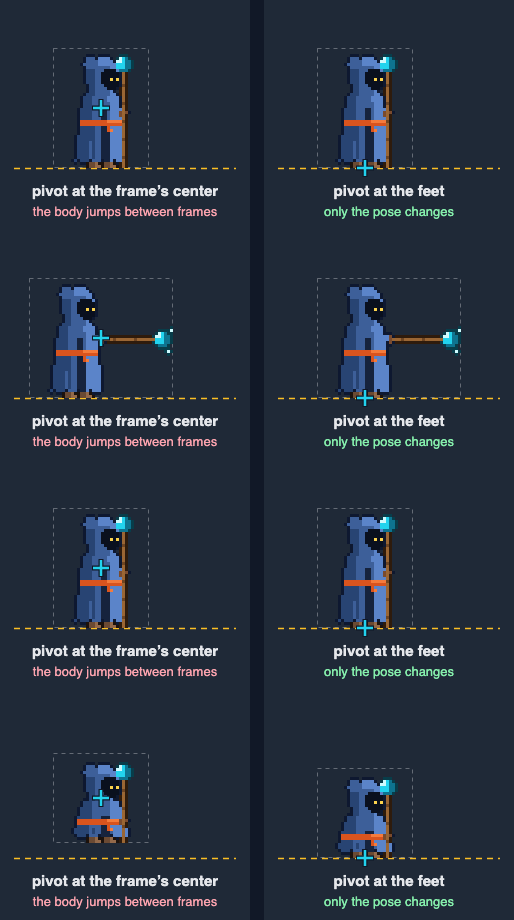
Here the idle frame is 32 × 40 pixels, the cast frame 48 × 40 (16 pixels wider, all on the staff side) and the crouch frame 32 × 30. With the pivot at each frame's center, the body slides 8 pixels to the left during the cast and the crouch hangs 5 pixels above the ground. With the pivot on the feet in every frame, nothing moves except the pose.
There are two fixes. Give each frame its own pivot at the feet, which Unity's Sprite Editor allows, as do atlas files with a pivot per frame. Or, simpler and supported everywhere: draw or export every frame of a character on the same canvas, with the feet at the same spot, ideally the bottom center. Then one pivot is right for all of them.
Why sprites jump when they flip
Turning a character around is usually a mirror image instead of new art. A mirror needs an axis, and engines don't agree on where it is.
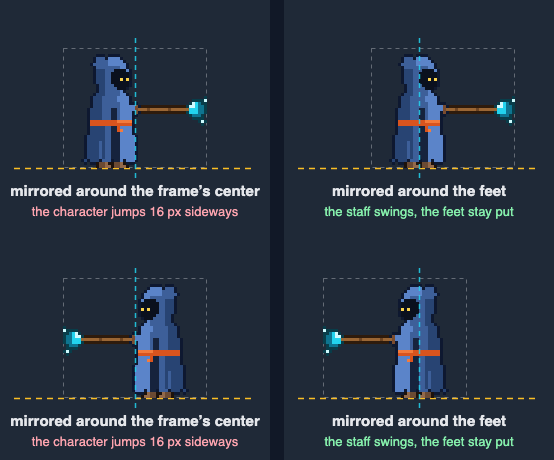
In the cast frame the feet are 16 pixels from the left edge, not in the middle. Mirrored around the frame's center they move to 32 pixels, so the character jumps 16 pixels each time it turns. Mirrored around the feet, it doesn't move.
- Unity mirrors around the pivot. The pivot is the origin of the sprite's own coordinates, and the Sprite Renderer's Flip mirrors those coordinates; per the documentation, it doesn't move the GameObject.
- Godot 4's
flip_hmirrors the texture inside its own drawing rectangle, wherevercenteredandoffsetput that rectangle. In the Sprite2D source, flipping negates the rectangle's width but leaves the offset alone. - Phaser's documentation for flipX says "Flipping always takes place from the middle of the texture". The origin you set doesn't change that. The exception is a frame that got its pivot from an atlas file, which flips around that pivot.
The rule that makes all three behave: keep the feet in the horizontal middle of every frame. Then the frame's center and the feet share one axis, and a flip never moves the character.
Setting the pivot in each engine
Unity
For a sheet sliced into several sprites, open the Sprite Editor, select a sprite and set Pivot: one of nine presets, or Custom. With Custom, Pivot Unit Mode chooses between Normalized and Pixels, and Custom Pivot takes the values. The Sprite Editor reference confirms that both modes start at 0, 0 in the bottom-left corner, so the feet of a 64 × 40 frame are 0.5, 0 normalized or 32, 0 in pixels. A single-sprite texture has the same Pivot setting in its import settings.
The pivot is in sprite pixels; Pixels Per Unit turns pixels into world units. With Pixels Per Unit at 32, a 64 × 40 frame is 2 units wide and 1.25 units tall, and with the pivot at the feet it extends 1 unit to each side of the GameObject's position and 1.25 units up. If a character's frames come from several textures, give them all the same Pixels Per Unit, or frames will change size as they play.
Godot 4
Sprite2D and AnimatedSprite2D don't have a pivot property; they have Centered and Offset. With Centered on (the default), the texture's middle sits on the node's position, and Offset moves the texture from there, with positive y pointing down. To put the feet of 64 × 40 frames on the node's position, keep Centered on and set Offset to (0, -20), half the frame height upward. With Centered off, the same point needs (-32, -40).
Because flip_h doesn't mirror the offset, keep the feet horizontally centered in the frame. If you can't, mirror a parent node with a negative x scale instead, which mirrors around that node's origin. The Node2D documentation warns that a negative x scale reads back as a negative y scale plus a 180° rotation, so don't be surprised by the numbers.
Phaser
Phaser calls the pivot the origin. It runs from 0 to 1 and defaults to 0.5, the center:
// a grid sheet of 64 × 40 frames with the feet at the bottom center of each
this.load.spritesheet('wanderer', 'wanderer-poses-64x40.png', { frameWidth: 64, frameHeight: 40 })

// in create(): (160, 120) is now the point between the character's feet
const hero = this.add.sprite(160, 120, 'wanderer', 0).setOrigin(0.5, 1)
hero.setFlipX(true) // mirrors inside the frame; the feet are in its middle, so they stay put
When a frame comes from an atlas whose JSON has a pivot (or anchor) for it, Phaser applies it as the origin every time that frame is shown.
Plain canvas
Drawing sprites yourself, translate to the position first and draw the frame offset by its pivot; a flip is then a scale around the pivot. This runs as written:
// Draw a frame so its pivot lands on (x, y). pivotX and pivotY run from 0 to 1,
// from the top-left. A flip mirrors around the pivot, so the feet stay put.
function drawWithPivot(ctx, sheet, r, x, y, pivotX, pivotY, flipX = false) {
  ctx.save()
  ctx.translate(x, y)
  if (flipX) ctx.scale(-1, 1)
  ctx.drawImage(sheet, r.x, r.y, r.w, r.h, -pivotX * r.w, -pivotY * r.h, r.w, r.h)
  ctx.restore()
}
SpritePilot's pivot setting
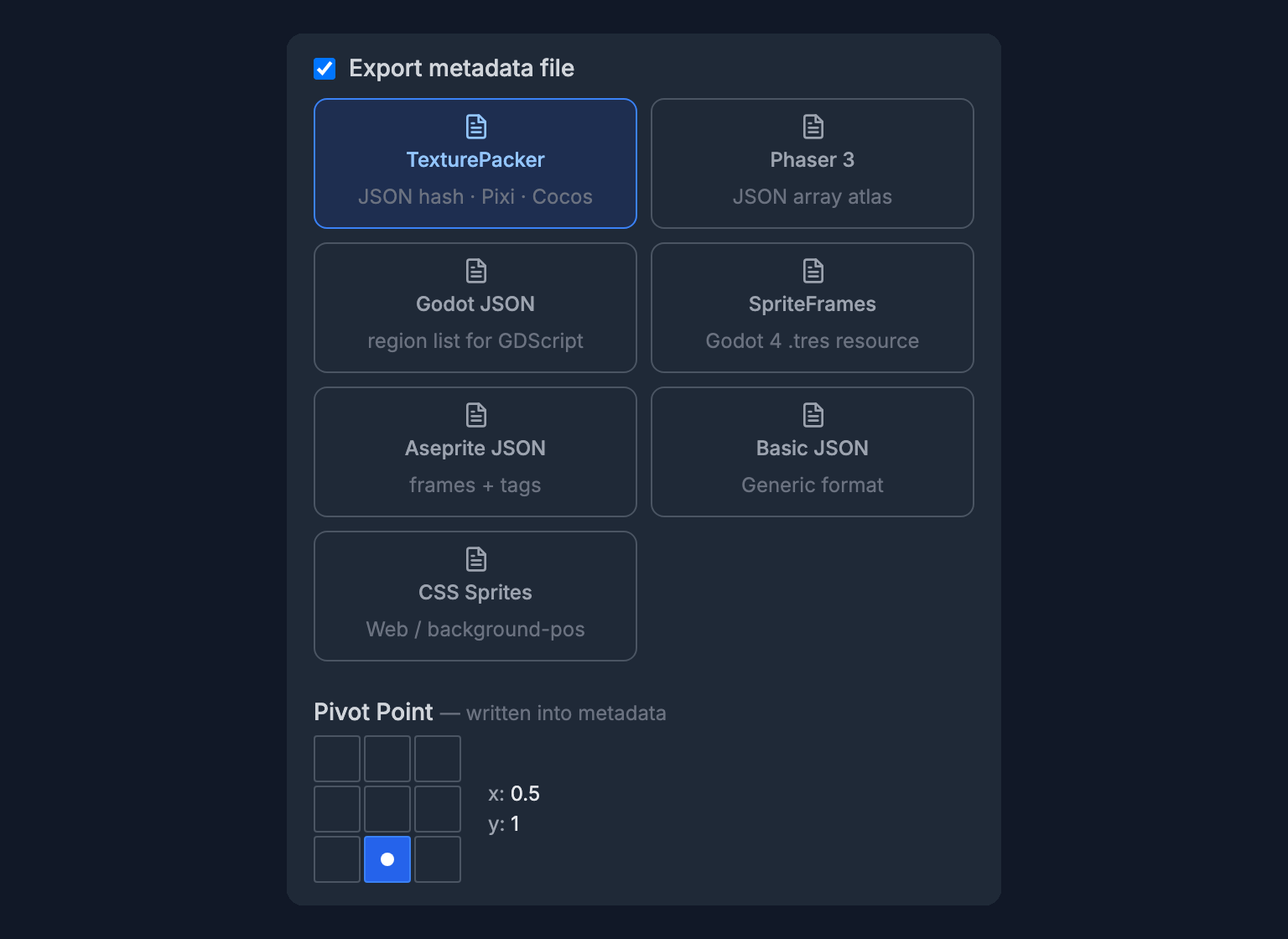
In Export & Download, Pivot Point offers the same nine presets as a 3 × 3 grid, with x and y at 0, 0.5 or 1; the default is the center. It appears when the metadata format is TexturePacker, Phaser 3 or Godot JSON, and SpritePilot writes it into every frame, for example "pivot": { "x": 0.5, "y": 1 } for the bottom center. SpriteFrames (.tres), Aseprite JSON, Basic JSON and CSS don't carry a pivot.
What happens next depends on the reader. Phaser applies the pivot automatically, as described above. PixiJS reads a field called anchor rather than pivot, so set the anchor in code. Godot JSON is for your own import script, and in Unity you set the pivot in the Sprite Editor.
One pivot applies to the whole export, which is another reason to put every frame on the same canvas with the feet at the bottom center. The character in this article is drawn that way and free to use (CC0): download the three poses, 64 × 40 pixels each.

A checklist
- Things that spin get a center pivot; things that stand get a feet pivot.
- Draw all frames of a character on one canvas size, feet at the same pixel in each.
- Keep the feet in the horizontal middle of the frame so flips don't move the character.
- Check the convention: Unity counts y from the bottom, Phaser and SpritePilot from the top.
- Play the animation and flip it once before building a level around it.
For the related problem of frames that lost their position when their empty border was cut off, see Trimming Transparent Pixels From Sprites.