Free Animated Pickup Sprites: Coin, Gem and Heart (CC0)
October 14, 2026 · 7 min read
Three matching 32 × 32 animated pickups — a spinning coin, a shining gem and a beating heart — free under CC0, with an atlas and setup for Godot, Unity and Phaser.
Open the tool from this article — free, in your browser, no signup.
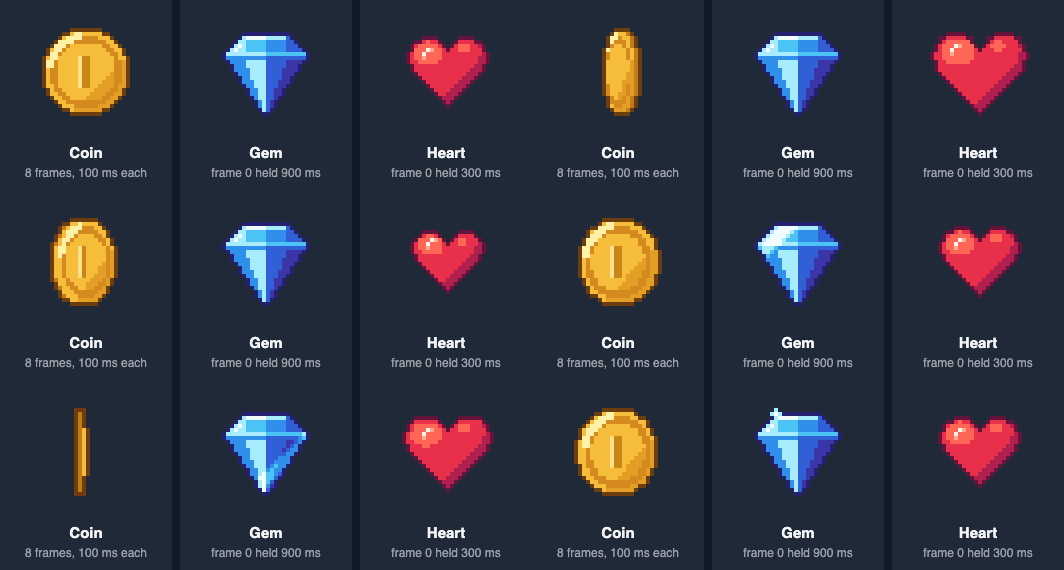
Almost every game needs something to pick up, and placeholder squares make a prototype hard to judge. Here are three 32 × 32 pixel-art pickups — a spinning coin, a shining gem and a beating heart — drawn to match each other and free to use in any project. Below you'll find what's in the pack, how to use it in Godot 4, Unity and Phaser, and how the animations were designed, so you can adapt them or draw your own.
What's in the pack
| File | Frames | Size | Suggested timing |
|---|---|---|---|
| coin-spin-strip.png | 8 | 256 × 32 | 10 fps |
| gem-shine-strip.png | 8 | 256 × 32 | 10 fps, frame 0 held 0.6–1 s |
| heart-pulse-strip.png | 6 | 192 × 32 | 10 fps, frame 0 optionally held 0.3 s |
| sprite-sheet.png + sprite-sheet.json | 22 | 704 × 32 | all three, with an atlas file |




- Every frame is 32 × 32 pixels on a transparent background, with no margin or spacing between frames. The art is at most 25 pixels across and centered, so a pivot in the middle of the frame works for all three, and nothing touches the frame's edge.
- The combined sheet has all 22 frames in one row — coin, then gem, then heart — and a TexturePacker JSON (hash) file. Its frames are named
coin_00.pngtocoin_07.png,gem_00.pngtogem_07.pngandheart_00.pngtoheart_05.png, each with a centered pivot, and three animation tags list the ranges: coin 0–7, gem 8–15, heart 16–21. - The whole pack uses 22 colors.
License: CC0
All files are released under CC0 1.0, a public domain dedication. You may copy, change and ship them in any project, free or commercial, "all without asking permission". No credit is required. The deed adds two notes worth knowing: the work comes with no warranties, and you shouldn't suggest that the author endorses your project.
The coin, gem and heart are also part of the Pickups Pack, together with a key, a star, a potion, a treasure chest, a shield, a lightning bolt and an extra-life orb in the same style, each at 16 and 32 px.
How the animations were designed
Three pickups in one game should look like a set, and each should be recognizable in a fraction of a second. Three rules did most of the work.
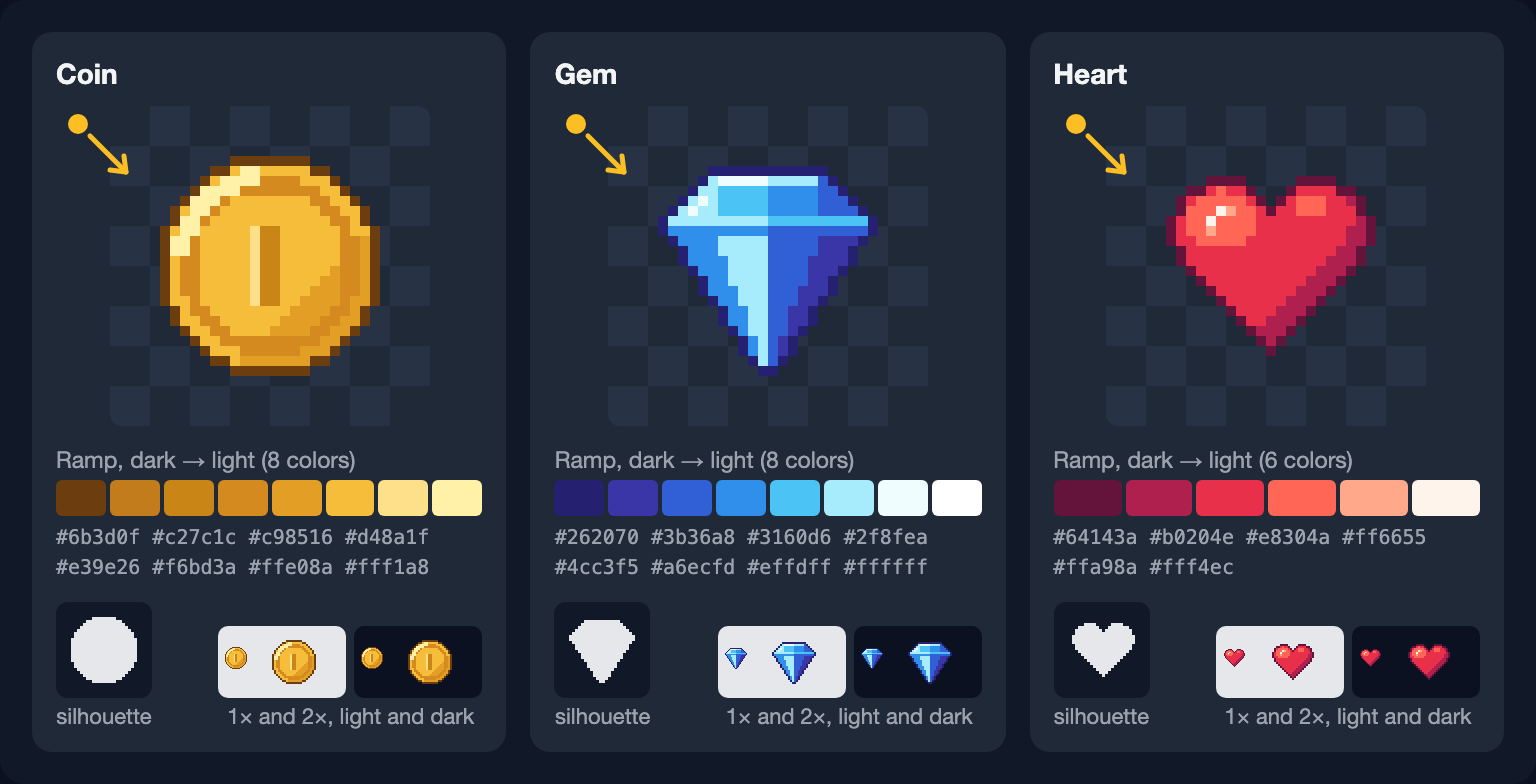
One light, one outline. All three are lit from the top-left: highlights sit on the upper-left, shadows on the lower-right. Each has a one-pixel outline in a dark version of its own hue — brown for the coin, deep indigo for the gem, wine for the heart — instead of black, which separates the sprite from the background without making it look heavy.
Hue-shifted ramps. Each material is a ramp from dark to light whose hue rotates as it brightens: the coin from 30° (brown) to 50° (pale yellow), the gem from 244° (indigo) to 188° (pale cyan), the heart from 332° (wine) through red to 25° (warm white). Limited Color Palettes for Pixel Art explains why that reads better than darkening one color.
Shapes first. A round coin, a faceted gem and a heart are different even as flat silhouettes, so a player can tell them apart at 1× before any color registers. Inside each sprite, facets and shading are separated by value rather than by internal lines, which keeps 22 pixels from looking busy.
The coin: a turn that reads as rotation
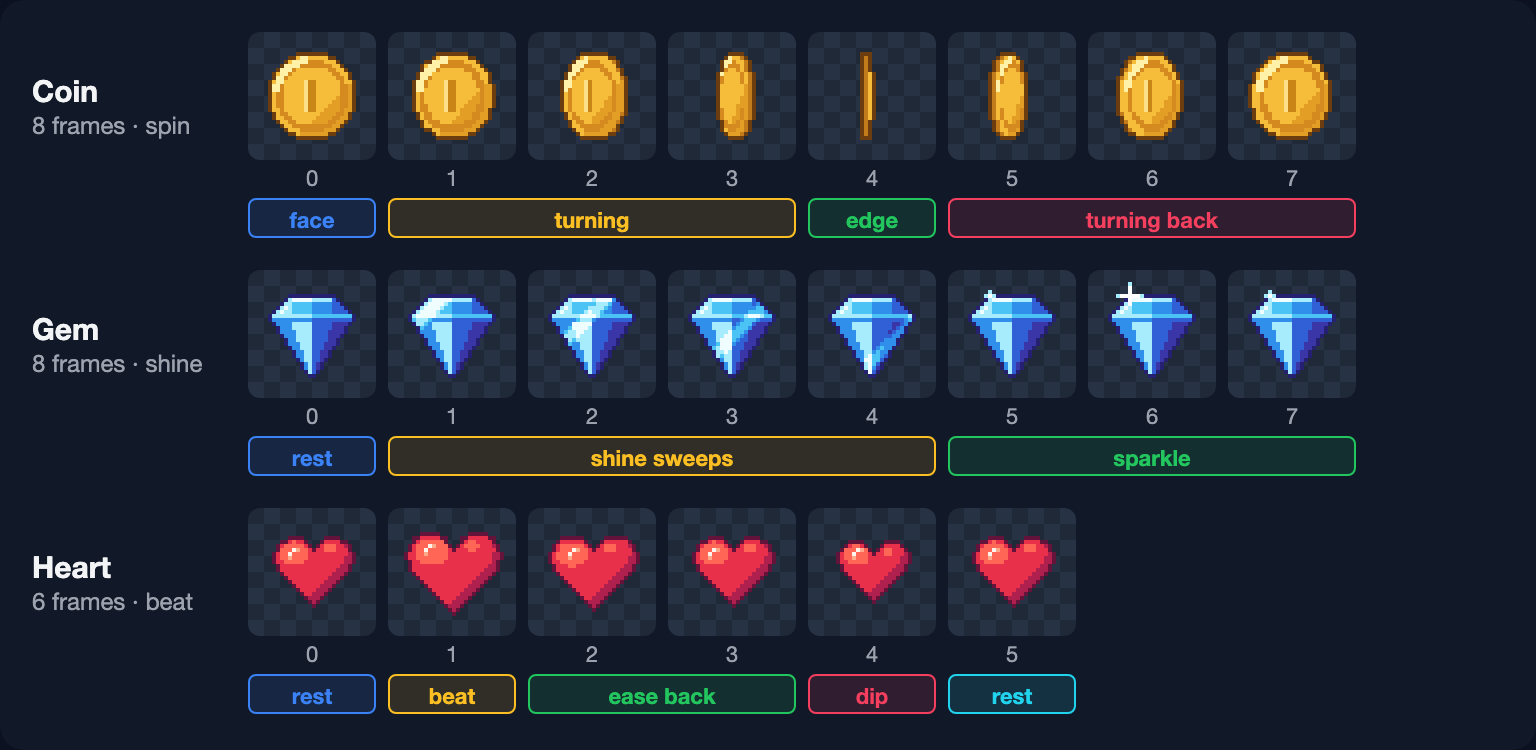
The coin is the one from How to Find the Frame Size of a Sprite Sheet. Its eight frames show half a turn: face-on, edge-on at frame 4, face-on again. Because both faces are drawn alike, the loop looks like a continuous spin. Its width across the eight frames is 22, 21, 17, 10, 4, 10, 17 and 21 pixels — barely changing near face-on and collapsing quickly toward the edge, the way a real turning disc does. Evenly shrinking widths would look like squashing instead of turning. The rim shows on one side as the coin turns away and on the other as it turns back.
The gem: the light moves, not the gem
A gem that bobs or rotates competes with everything else on screen; a gem that catches the light only now and then draws the eye without noise. So the gem never moves. In frames 1 to 4, a diagonal band of light sweeps from its top-left corner to its bottom-right, brightening the pixels it crosses by up to two steps of the ramp. In frames 5 to 7, a four-pointed sparkle appears on the corner where the light hits first, grows and fades.
The timing matters more than the drawing. Played at an even 10 fps, the shine repeats every 0.8 seconds and reads as flicker. Held on frame 0 for 0.6 to 1 second, it becomes an event. Most engines can hold a single frame — see How Fast Should Pixel Art Animate? for each engine's setting.
The heart: a beat, not a breath
The heart has six frames but only four drawings, 19, 21, 23 and 25 pixels wide. At rest it's 21. On frame 1 it jumps straight to 25 — the beat — then eases back through 23 and 21, dips to 19 and settles at 21 again. Rising in one frame and falling over three is what makes it feel like a thump rather than a slow breath. Frames 5 and 0 are the same drawing, a short hold built into the strip. At 10 fps one beat takes 0.6 seconds, 100 beats per minute; holding frame 0 for 0.3 seconds slows it to 0.8 seconds, 75 per minute.
Each size is drawn as its own shape, not scaled from one heart: enlarging a 21-pixel heart to 25 is a factor of about 1.19, and scaling by fractions makes some pixels wider than others. All four sizes have odd widths and share a center column, so the heart grows evenly and never shifts sideways.
Use them in Godot 4
- Make sure textures use Nearest filtering (Project Settings → Rendering → Textures → Canvas Textures → Default Texture Filter), or the pixels will blur.
- Add an AnimatedSprite2D, and in its SpriteFrames property select New SpriteFrames.
- In the SpriteFrames panel, click Add frames from a Sprite Sheet, open a strip, set Horizontal to 8 (6 for the heart) and Vertical to 1, select all frames and add them.
- Set Speed (FPS) to 10, then start the animation with the node's Autoplay property (the animation to play when the scene loads) or from code:
$Coin.play("default") # Coin is the AnimatedSprite2D nodeThese steps follow Godot's own 2D sprite animation tutorial. To skip them, load the frames into SpritePilot and download a Godot 4 SpriteFrames (.tres) file from Export & Download instead. The Godot 4 sprite animation article covers per-frame durations, which give the gem its hold.
Use them in Unity
- Select a strip and set Texture Type to Sprite (2D and UI), Sprite Mode to Multiple, Filter Mode to Point (no filter) and Compression to None, then click Apply.
- Open the Sprite Editor, choose Slice, set the type to Grid By Cell Count with 8 columns (6 for the heart) and 1 row, click Slice, then Apply.
- Select the sliced frames in the Project window and drag them into the Scene. Unity's sprite animation tutorial describes how this creates an Animation Clip and adds an Animator for you.
Timing and holds in Unity's Animation window are covered in the Unity sprite animation article.
Use them in Phaser
Load a strip as a sprite sheet, or the combined sheet as an atlas — Phaser's loader accepts TexturePacker's JSON Hash and JSON Array formats:
// in preload()
this.load.spritesheet('gem', 'gem-shine-strip.png', { frameWidth: 32, frameHeight: 32 })
this.load.atlas('pickups', 'sprite-sheet.png', 'sprite-sheet.json')

// in create()
const shine = this.anims.generateFrameNumbers('gem', { start: 0, end: 7 })
shine[0].duration = 900 // hold the resting frame for 0.9 s
this.anims.create({ key: 'gem-shine', frames: shine, frameRate: 10, repeat: -1 })

this.anims.create({
  key: 'heart-beat',
  frames: this.anims.generateFrameNames('pickups', { prefix: 'heart_', start: 0, end: 5, zeroPad: 2, suffix: '.png' }),
  frameRate: 10,
  repeat: -1,
})

this.add.sprite(100, 90, 'gem').play('gem-shine')
this.add.sprite(140, 90, 'pickups', 'heart_00.png').play('heart-beat')
A frame's duration, in milliseconds, replaces the frame rate for that one frame. Keep pixelArt: true in the game config so the sprites stay sharp. More options are in Phaser sprite sheets and atlases.
How the atlas was made
The combined sheet and its JSON were exported by SpritePilot, and you can do the same with your own frames:
- The 22 frames were laid out in an 8 × 3 grid and cut with Grid Slice in Sprite Detection: 8 columns, 3 rows. Skip empty (fully transparent) cells dropped the two empty cells at the end of the heart row, leaving 22 sprites.
- In Export & Download: Horizontal Strip layout, Trim transparency off, Padding 0, Extrude 0, TexturePacker metadata. The frames were renamed under Rename & Reorder Sprites — those names go into the JSON — and the three ranges were added under Animation Tags.
- Download Sprite Sheet saved
sprite-sheet.pngandsprite-sheet.json. Compared with the three strips placed side by side, the exported sheet matched pixel for pixel.
To try other speeds before you commit, load any strip into the Sprite Player and drag the FPS slider while it plays; everything runs in your browser.