How to Find the Frame Size of a Sprite Sheet
October 6, 2026 · 5 min read · Updated October 14, 2026
A sprite sheet with no notes? Work out its frame size, margin and spacing in a minute, check them, and enter them in Unity, Godot or Phaser.
Open the tool from this article — free, in your browser, no signup.
You found a great sprite sheet — on itch.io, OpenGameArt, or from an artist friend — but it arrived as one PNG with no notes. Your engine wants the frame width and height, or the number of columns and rows. Here is how to work them out in a minute, and how to check you got them right before you build an animation on top.
Step 1: Count the frames
Most sheets are a grid: one animation per row, frames running left to right. Count the frames across and down. An empty slot at the end of the last row is normal — the animation simply had fewer frames than the row has room for.
You also need the size of the whole image. Your file manager shows it: on a Mac, select the file and choose File → Get Info (look under More Info); on Windows, right-click → Properties → Details.
Step 2: Divide
If the frames touch each other, the arithmetic is one line:
- frame width = image width ÷ columns
- frame height = image height ÷ rows
Example: coin-spin-strip.png is 256 × 32 pixels with 8 frames in one row, so each frame is 256 ÷ 8 = 32 pixels wide and 32 ÷ 1 = 32 pixels high.

When both divisions come out as whole numbers, you are done. A result that is a familiar size — 16, 24, 32, 48, 64, 96 or 128 — is a good sign. A result like 35.5 means something else is in the image.
If you can't tell how many columns there are, work backwards: try the familiar sizes and keep the one that divides both the width and the height exactly and matches the art you see.
When it doesn't divide: margin and spacing
Many sheets leave a border around the whole image (the margin) and a gap between neighboring frames (the spacing). Sprite packers add them on purpose, to keep frames from bleeding into each other when the game scales them. They are invisible on a transparent background, which is why the simple division goes wrong.
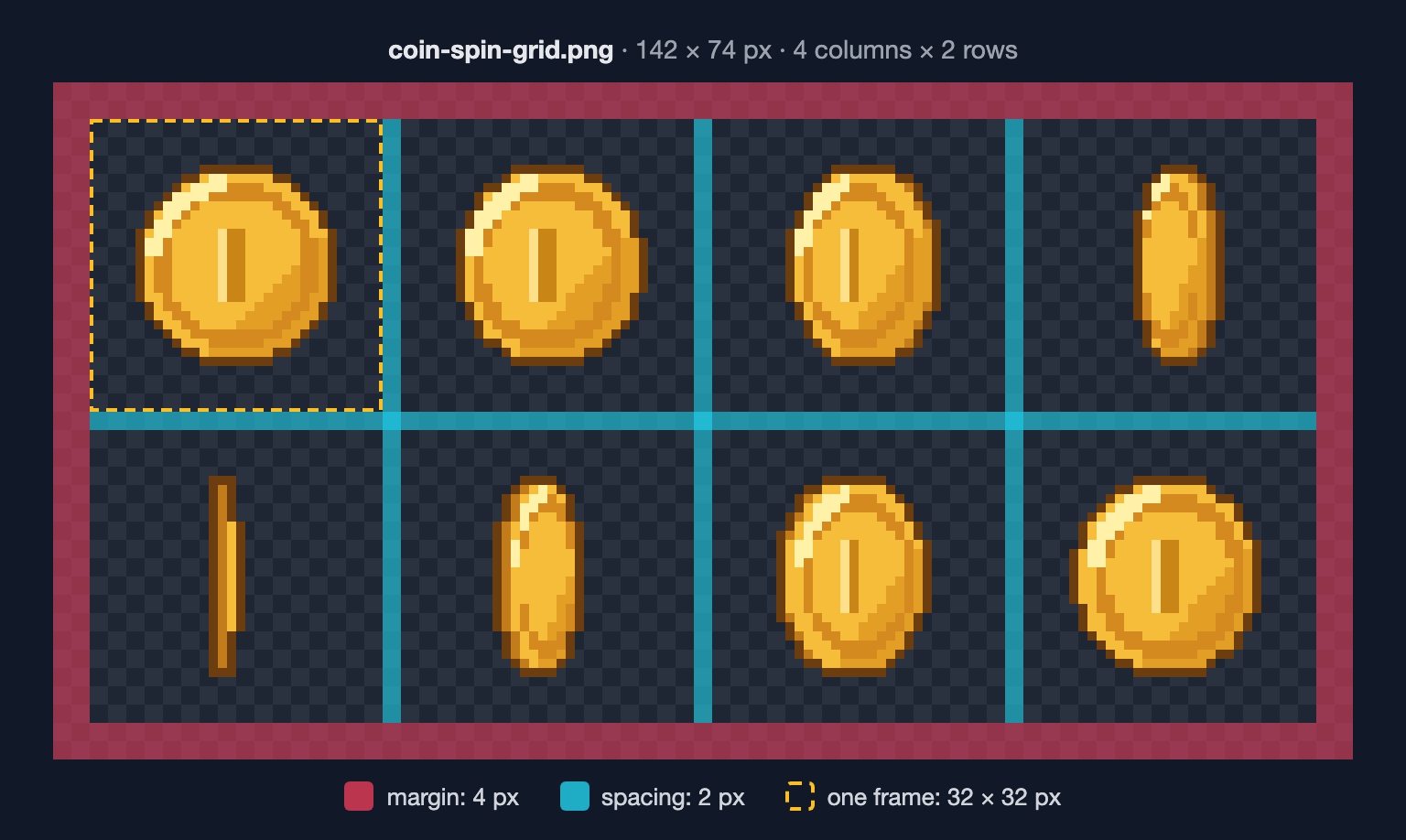
This sheet is 142 × 74 pixels, 4 columns by 2 rows. 142 ÷ 4 = 35.5, so it can't be gap-free. With a margin and spacing, the full formula is:
- frame width = (image width − 2 × margin − (columns − 1) × spacing) ÷ columns
- frame height = (image height − 2 × margin − (rows − 1) × spacing) ÷ rows
With a margin of 4 and spacing of 2: (142 − 8 − 6) ÷ 4 = 32, and (74 − 8 − 2) ÷ 2 = 32.
How do you find the margin and spacing if nobody tells you? Counting transparent pixels in an image editor helps, but it can mislead: the art inside a frame rarely touches the frame's edges, so the empty pixels you count are part margin and part frame. Two better clues:
- Use both directions. Assume the familiar frame size (32 here). The width says 2 × margin + 3 × spacing = 14 pixels; the height says 2 × margin + 1 × spacing = 10. Only margin 4 with spacing 2 fits both. A guess that works for the width but not the height is wrong.
- Try small values. Packers almost always use 0 to 4 pixels for each. A handful of tries usually finds the pair that makes both formulas come out whole.
Check it by playing the animation
The real test is watching the animation. If the numbers are even slightly off, every frame gets cut at a slightly different spot, and the sprite drifts or jitters while it plays — even though each frame looks almost right on its own.
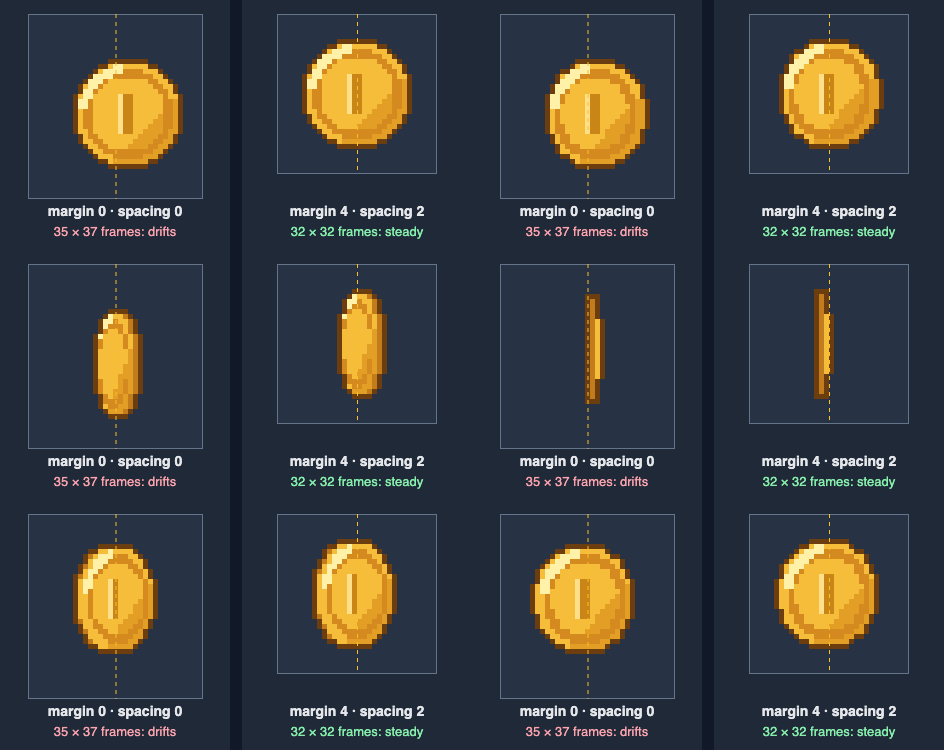
SpritePilot's Sprite Player does this check for you. Load the sheet and enter the columns and rows; it shows the frame size it worked out and warns you when the grid doesn't use up the whole image:
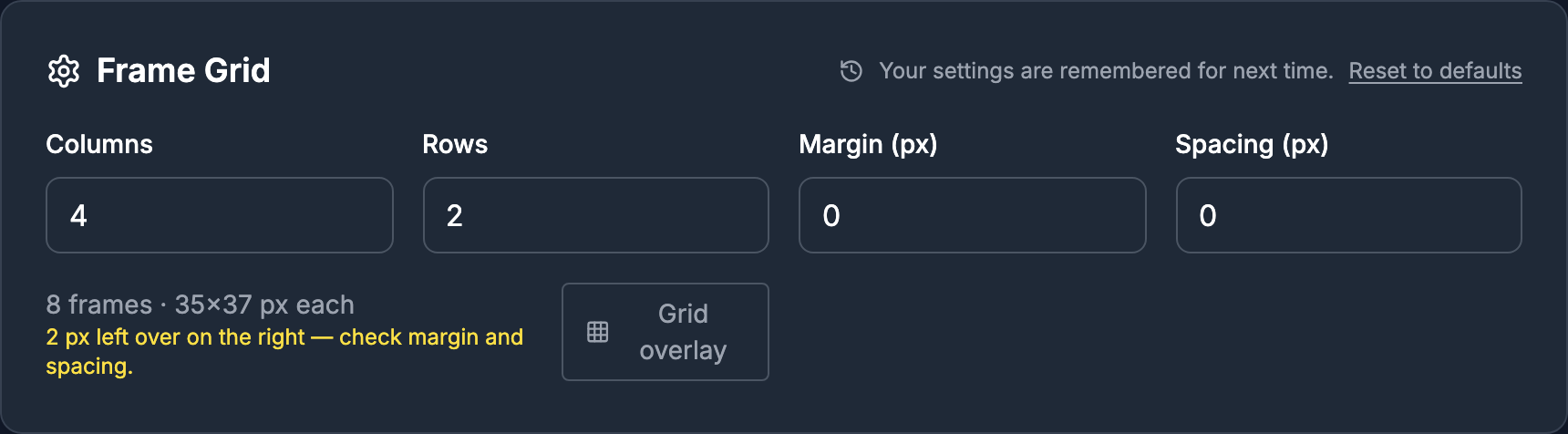
Set the margin to 4 and the spacing to 2 and the warning disappears: 8 frames, 32 × 32 pixels each, and the coin spins in place. Press Grid overlay to see exactly where each frame is cut on the sheet itself. When it looks right, the Sheet to GIF tool can turn it into a GIF to share.
When it never divides: the sheet is packed
If no margin and spacing make the numbers work, or the frames are clearly different sizes, the sheet isn't a grid. It's a packed atlas: frames placed wherever they fit, often with their empty borders trimmed off. An atlas almost always ships with a data file — JSON, XML or .plist — that lists each frame's rectangle. Look for one next to the PNG; your engine can usually read it directly.
No data file? Split the sheet by its transparent background instead. SpritePilot's Sprite Detection finds each sprite automatically and can export them with the metadata your engine needs. For the step-by-step, see How to Split a Sprite Sheet.
Where the numbers go in your engine
- Unity: select the texture, set Sprite Mode to Multiple, open the Sprite Editor and choose Slice. With Grid By Cell Size, enter the frame size as Pixel Size, the margin as Offset and the spacing as Padding. Grid By Cell Count takes the columns and rows instead.
- Godot 4: in the SpriteFrames panel, use Add frames from a Sprite Sheet. Set Horizontal and Vertical to the columns and rows; for a sheet with gaps, set the frame Size, the Separation (spacing) and the Offset (margin).
- Phaser: pass all four numbers when you load the sheet (frame config reference):
this.load.spritesheet('coin', 'coin-spin-grid.png', {
  frameWidth: 32,
  frameHeight: 32,
  margin: 4,
  spacing: 2,
})
Quick reference
- No gaps: frame size = image size ÷ number of frames across (or down).
- With gaps: frame size = (image size − 2 × margin − (count − 1) × spacing) ÷ count.
- Familiar frame sizes: 16, 24, 32, 48, 64, 96, 128.
- Check by playing it: a sprite that drifts means the margin or spacing is off.
- Frames of different sizes: it's an atlas — find its data file or use automatic detection.
Practice sheets
Both coin sheets from this article are free to use in any project (CC0): the 8 × 1 strip (256 × 32, no gaps) and the 4 × 2 grid (142 × 74, margin 4, spacing 2). Load the grid into the Sprite Player and see if you can make the warning go away. For 70 more animated sprites, all one-row strips named with their frame size and count, see Free Pixel Art Game Assets.