Phaser: Loading Sprite Sheets and Texture Atlases (and Animating Them)
October 10, 2026 · 6 min read · Updated October 14, 2026
load.spritesheet, load.atlas or load.aseprite? How each one names its frames in Phaser 3 and 4, how to build animations from them, and when to use which.
Open the tool from this article — free, in your browser, no signup.
Phaser can load animation frames three ways: load.spritesheet, load.atlas and load.aseprite. The one you choose decides how you refer to frames for the rest of the project, by number or by name, and mixing the two up is how you end up with "frame not found" warnings.
This article loads the same character both ways, builds its animations, and covers playing, flipping and reacting to animation events. Everything here works in Phaser 3.60 and later, including Phaser 4; the details were checked against the Phaser source.
Sprite sheet or atlas?
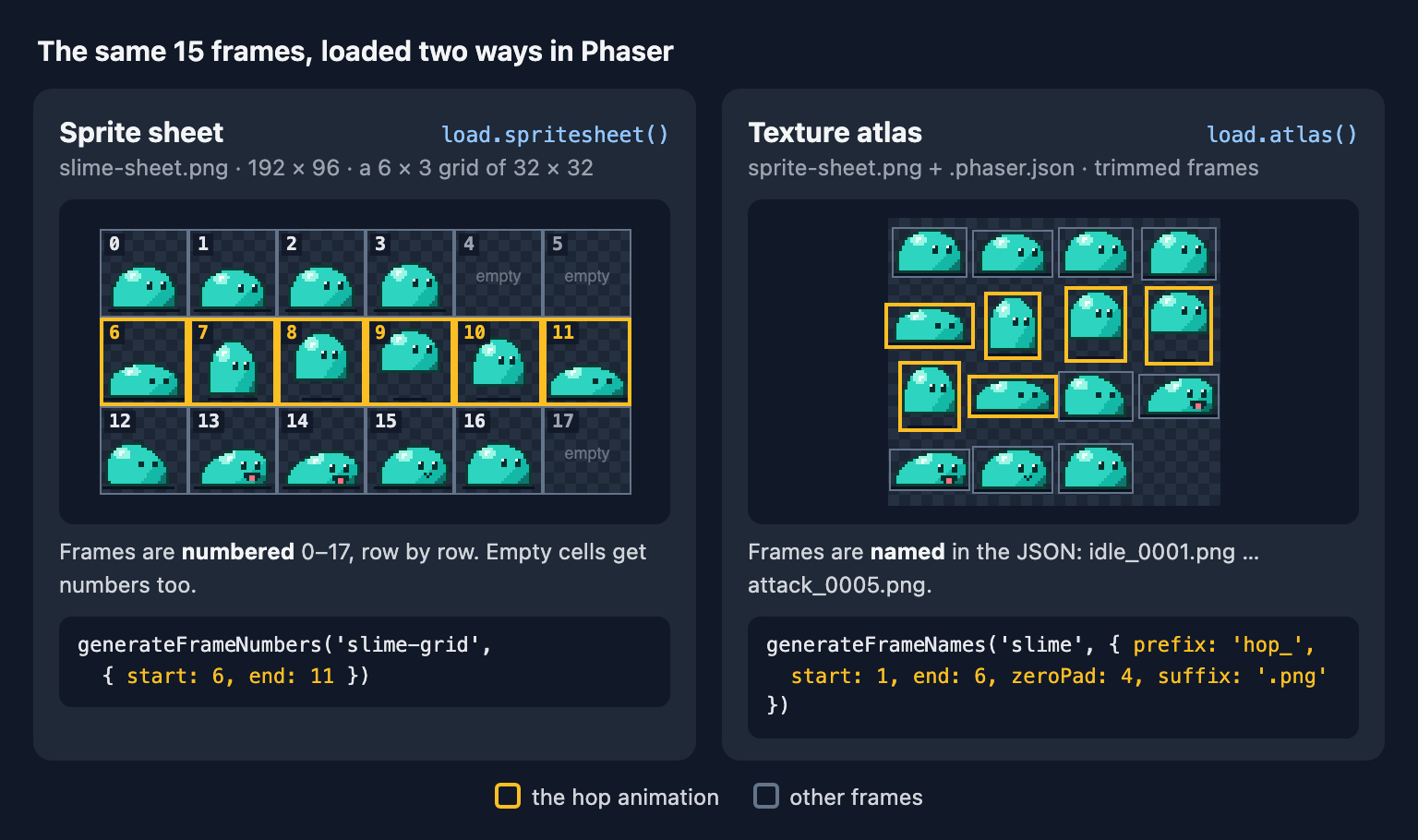
A sprite sheet, in Phaser's terms, is one image where every frame is the same size on a grid. There is no data file: you tell Phaser the frame size, and it numbers the cells 0, 1, 2… left to right, top to bottom.
A texture atlas is an image plus a JSON file that lists each frame's name and rectangle. Frames can be any size, trimmed of empty space and packed tightly, and one atlas can hold a whole character, or several.
Use a sprite sheet when all frames share one size and you want no extra files: one character, a prototype, a sheet from an artist. Use an atlas when frames vary in size, when trimming saves real space, when you'd rather write 'attack_0002.png' than remember that the attack starts at frame 12, or when you want many sprites in one texture.
Loading a sprite sheet
preload() {
  this.load.spritesheet('slime-grid', 'assets/slime-sheet.png', {
    frameWidth: 32,
    frameHeight: 32,
  })
}
The frame config takes six options:
- frameWidth is required; frameHeight defaults to the same value.
- margin is a border around the whole sheet, and spacing is the gap between frames. If the frame size doesn't divide the image evenly, the sheet probably has one or both; How to Find the Frame Size of a Sprite Sheet shows how to work them out.
- startFrame and endFrame load only part of the grid. The frames you keep are numbered from 0 again, so
startFrame: 6makes the seventh cell frame 0.
Empty cells get numbers too. In the slime sheet above, idle is frames 0–3, cells 4 and 5 are empty, hop is 6–11 and attack is 12–16. Forget them and every animation after them is off by two frames.
Loading an atlas
preload() {
  this.load.atlas('slime', 'assets/sprite-sheet.png', 'assets/sprite-sheet.phaser.json')
}
Phaser reads both TexturePacker layouts, the JSON Hash (frames as an object) and the JSON Array (frames as a list), and detects which one you gave it. SpritePilot's Export & Download writes both: its Phaser 3 format is the array and its TexturePacker format is the hash. Here is one frame from the slime atlas:
{
  "filename": "hop_0001.png",
  "rotated": false,
  "trimmed": true,
  "sourceSize": { "w": 32, "h": 32 },
  "spriteSourceSize": { "x": 1, "y": 16, "w": 30, "h": 14 },
  "frame": { "x": 0, "y": 32, "w": 30, "h": 14 },
  "pivot": { "x": 0.5, "y": 1 }
}
Three fields do useful work in Phaser:
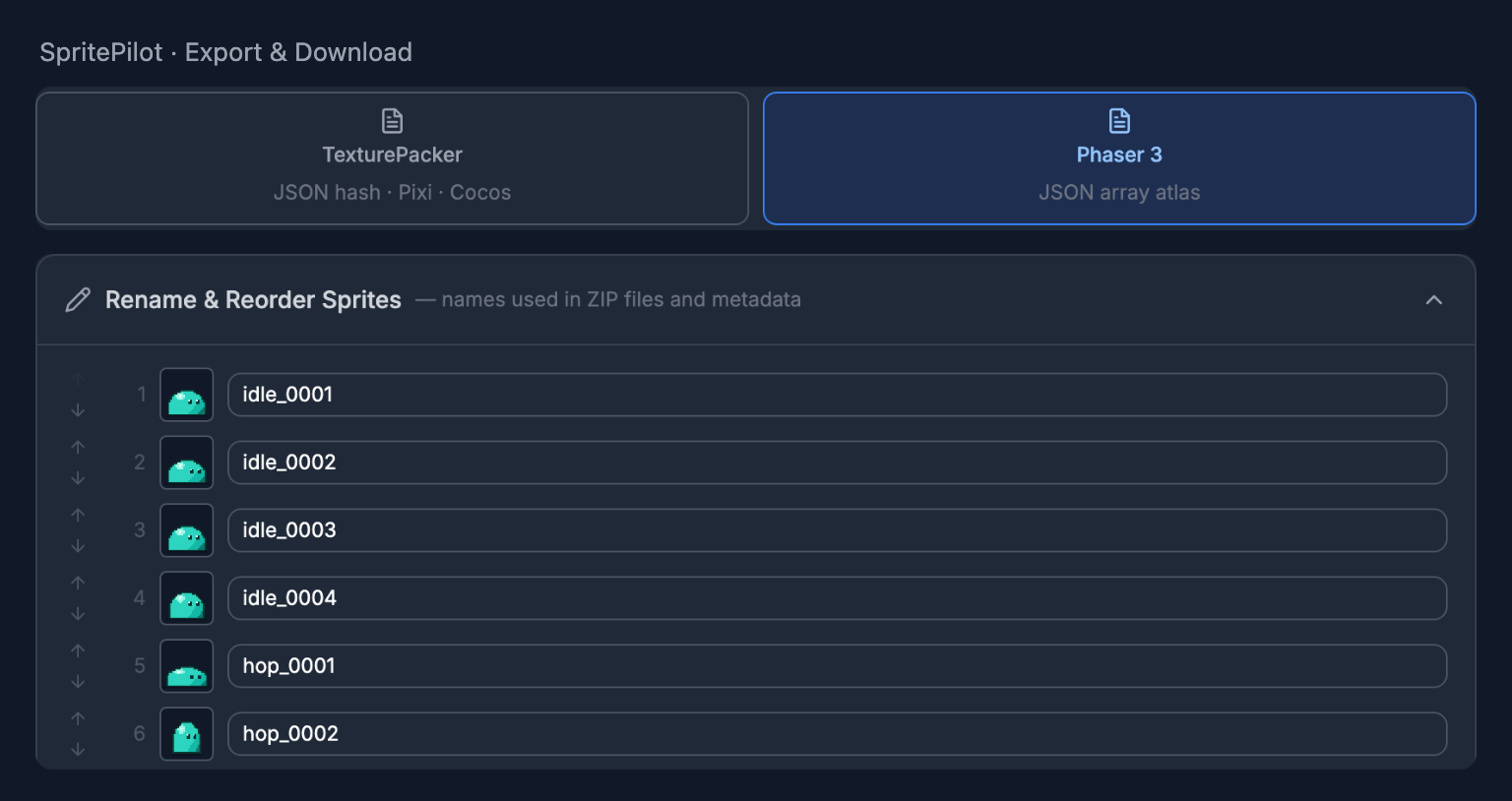
- filename is the frame's name. SpritePilot uses the names you type under Rename & Reorder Sprites, plus
.png; untouched frames aresprite_0001.png,sprite_0002.pngand so on. - sourceSize and spriteSourceSize describe the trimming. Phaser puts the 30 × 14 pixels back at their place in the original 32 × 32 frame, so trimmed frames don't jump around.
- pivot becomes the sprite's origin. With the pivot at bottom center (0.5, 1), a sprite's x and y mark the bottom center of its frame, where a character's feet usually are, which makes placing characters on the ground easy.
Building animations: frame numbers or frame names
For a sprite sheet, generateFrameNumbers turns a range into frames:
this.anims.create({
  key: 'hop',
  frames: this.anims.generateFrameNumbers('slime-grid', { start: 6, end: 11 }),
  frameRate: 10,
  repeat: -1,
})
For an atlas, generateFrameNames builds each name from a prefix, a zero-padded number and a suffix, so this produces attack_0001.png to attack_0005.png:
this.anims.create({
  key: 'attack',
  frames: this.anims.generateFrameNames('slime', {
    prefix: 'attack_',
    start: 1,
    end: 5,
    zeroPad: 4,
    suffix: '.png',
  }),
  frameRate: 12,
})
If a name doesn't exist, Phaser logs Frame "attack_1.png" not found in texture "slime" and leaves that frame out. The usual suspects are a missing suffix: '.png' and a wrong zeroPad. Both helpers also take a frames array, such as frames: [6, 7, 8, 7], when the order isn't a simple range.
The rest of the config:
- frameRate defaults to 24 when you give neither it nor a
duration, which is fast for pixel art. How Fast Should Pixel Art Animate? has better starting points. - repeat: -1 loops forever; leave it out for one-shot animations. yoyo: true plays forward, then backward.
- Animations are global.
this.animsis the game's Animation Manager, so an animation created in one scene can be played by sprites in any scene. Create each key once; creating it again only logs a warning and returns the existing one.
Shortcut: SpritePilot's animation tags
If you define Animation Tags in SpritePilot's Export (idle 0–3, hop 4–9, attack 10–14), they're written into the JSON's meta.frameTags. Phaser keeps the JSON's extra data in texture.customData, and getFrameNames() returns the frames in the order the JSON lists them, so you can build every animation in one loop:
const texture = this.textures.get('slime')
const names = texture.getFrameNames()
for (const tag of texture.customData.meta?.frameTags ?? []) {
  this.anims.create({
    key: tag.name,
    frames: names.slice(tag.from, tag.to + 1).map(frame => ({ key: 'slime', frame })),
    frameRate: 10,
    repeat: -1,
    yoyo: tag.direction === 'pingpong',
  })
}
Override one-shot animations when you play them, for example sprite.play({ key: 'attack', repeat: 0 }).
Playing, flipping and listening
create() {
  // create the idle, hop and attack animations first (see above)
  this.slime = this.add.sprite(160, 120, 'slime', 'idle_0001.png')
  this.cursors = this.input.keyboard.createCursorKeys()
  this.attacking = false
  this.slime.on('animationcomplete-attack', () => {
    this.attacking = false
  })
}

update() {
  const { left, right, space } = this.cursors
  if (this.attacking) return

  if (Phaser.Input.Keyboard.JustDown(space)) {
    this.attacking = true
    this.slime.play('attack')
  } else if (left.isDown || right.isDown) {
    this.slime.setFlipX(left.isDown)
    this.slime.play('hop', true)
  } else {
    this.slime.play('idle', true)
  }
}
The true in play('hop', true) is ignoreIfPlaying. Without it, each call restarts the animation, so a play() inside update() shows only the first frame forever. The attack call leaves it out on purpose, so a new attack always starts from its first frame.
animationcomplete-attack is the per-key form of the animationcomplete event. It fires only for animations with a finite repeat count; an animation with repeat: -1 never completes. To react to a particular frame, such as a hit or a footstep, listen for animationupdate; its listener receives the animation and the current frame, and frame.textureFrame is the frame's name or number.
For pixel art, add pixelArt: true to the game config. Phaser's documentation says it turns antialiasing off and roundPixels on, which keeps scaled sprites crisp.
What about load.aseprite?
this.load.aseprite('paladin', 'paladin.png', 'paladin.json') followed by this.anims.createFromAseprite('paladin') turns every tag in an Aseprite export into an animation, with Aseprite's frame durations, reverse and ping-pong directions. The catch is in the source: createFromAseprite looks frames up by their number, "0", "1" and so on. That only works if you exported from Aseprite with the Item Filename field set to just {frame}, as the Phaser source comments explain. Files that copy Aseprite's layout but give their frames names, such as SpritePilot's Aseprite JSON, load fine with load.atlas instead.
Checklist
- Same-size frames and no data file:
load.spritesheetwithgenerateFrameNumbers, and count the empty cells. - Trimmed, packed or named frames:
load.atlaswithgenerateFrameNames, including the.pngsuffix and the zero padding. - Inside
update(), useplay(key, true). - One-shot animations: no
repeat, thenanimationcomplete-<key>. - Pixel art:
pixelArt: true.
The files from this article are free to use in any project (CC0): the grid sheet (192 × 96, 32 × 32 frames), and SpritePilot's atlas export of the same frames, sprite-sheet.png with sprite-sheet.phaser.json. For a step-by-step export, see How to Export a Phaser Texture Atlas from SpritePilot. The same slime is animated in Godot 4, Unity and pygame too. Seventy more animated CC0 sprites are on the Free Pixel Art Game Assets page; every strip loads with load.spritesheet and the frame size in its file name.