How Fast Should Pixel Art Animate? Choosing a Frame Rate
October 7, 2026 · 6 min read · Updated October 14, 2026
Pixel art usually animates far slower than the game runs. How to pick a frame rate, when to hold frames instead, and why some rates look uneven.
Open the tool from this article — free, in your browser, no signup.
Your game probably runs at 60 frames per second, but a pixel-art walk cycle usually changes its drawing only 8 to 12 times a second. That isn't laziness: in pixel art every drawing is placed by hand, and a few strong poses held for the right time read better than many in-betweens.
So "how fast should it animate?" is really two questions: how many drawings the animation has, and how long each one stays on screen. This article covers both, plus two traps that make a well-timed animation look wrong once it's in a game or a GIF.
Frame count, frame rate and duration
Three numbers describe an animation, and any two give you the third:
- frame count — how many drawings there are,
- frame rate — how many drawings are shown per second (fps),
- duration — how long one cycle takes: duration = frame count ÷ frame rate.
| Animation | Frames | Frame rate | One cycle |
|---|---|---|---|
| Coin spin | 8 | 10 fps | 0.8 s |
| Walk cycle | 8 | 12 fps | 0.67 s |
| Idle (breathing) | 4 | 5 fps | 0.8 s |
| Run cycle | 6 | 12 fps | 0.5 s |
This is why "more frames" and "faster" are different fixes. If a walk looks choppy, add drawings and keep the duration. If it looks sluggish, raise the frame rate or cut frames — the cycle gets shorter either way.
What the frame rate does
Here is the same 8-frame coin at three frame rates:
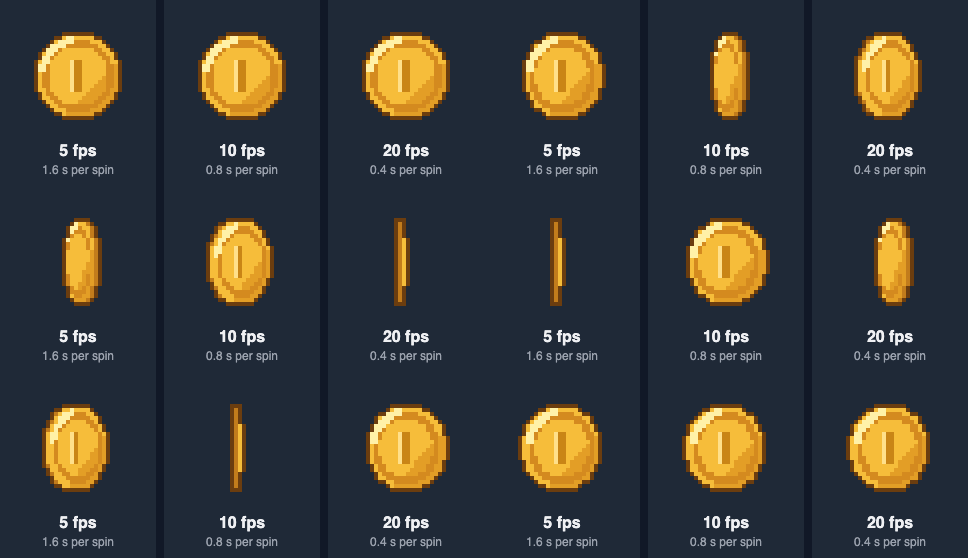
At 5 fps you can see every drawing — fine for something slow, choppy for something that should move. At 20 fps the spin turns into a quick flash, and the individual drawings stop mattering. In between, at 10 fps, the coin spins at a pace the eye can follow while the pixel work still shows. That middle zone is where most pixel art lives.
These aren't rules, but they are common starting points in 2D games:
- Idle and breathing: 4–8 fps, often with long holds.
- Walk cycles: 8–12 fps.
- Runs: 10–15 fps — more speed comes from fewer, longer strides, not just a higher rate.
- Pickups and UI loops (coins, gems, blinking prompts): 8–15 fps.
- Effects (sparks, explosions, magic): 12–24 fps, often with frames of different lengths.
Set a starting rate, play it next to your character's movement speed, and adjust by eye. Feet that slide across the ground mean the animation and the movement don't match — change one of them.
Hold frames instead of using one rate
Real motion isn't evenly timed. An attack has a slow wind-up, a strike that's over almost instantly, and a recovery. Showing every frame for the same time makes it look mechanical. The fix is to time each drawing:
| Attack frame | Time on screen |
|---|---|
| 1–2: wind-up | 100 ms each |
| 3: hold before the strike | 200 ms |
| 4–5: strike | 40 ms each |
| 6–8: recovery | 80 ms each |
Every engine can do this:
- Godot 4: in the SpriteFrames panel, each frame has a Duration, and it is relative: 2.0 shows a frame twice as long as 1.0 at the animation's FPS. The documentation gives the exact rule: absolute duration = relative duration ÷ (animation FPS × playback speed).
- Phaser: give a frame a
durationin milliseconds; in current versions, that is how long the frame stays on screen, and frames without one follow the animation'sframeRate. (If you override the frame rate when callingplay(), Phaser ignores the per-frame durations.)
this.anims.create({
  key: 'attack',
  frameRate: 12,
  frames: [
    { key: 'hero', frame: 0, duration: 100 },
    { key: 'hero', frame: 1, duration: 100 },
    { key: 'hero', frame: 2, duration: 200 }, // the hold
    { key: 'hero', frame: 3, duration: 40 },
    { key: 'hero', frame: 4, duration: 40 },
    { key: 'hero', frame: 5, duration: 80 },
    { key: 'hero', frame: 6, duration: 80 },
    { key: 'hero', frame: 7, duration: 80 },
  ],
})- Unity: in the Animation window, a sprite stays on screen until the next keyframe, so you hold a drawing by moving the following keyframe later on the timeline. The clip's sample rate sets the grid the keyframes snap to.
- Aseprite: every frame has its own duration in milliseconds (Frame Properties), and its JSON export includes them.
The 60 Hz catch: some rates look uneven
A monitor shows a new image at a fixed rate — usually 60 times a second. Your animation can only change drawings on one of those refreshes, so a drawing is always on screen for a whole number of refreshes. When the frame rate divides 60 evenly, every drawing gets the same share. When it doesn't, some drawings get one refresh more than others:
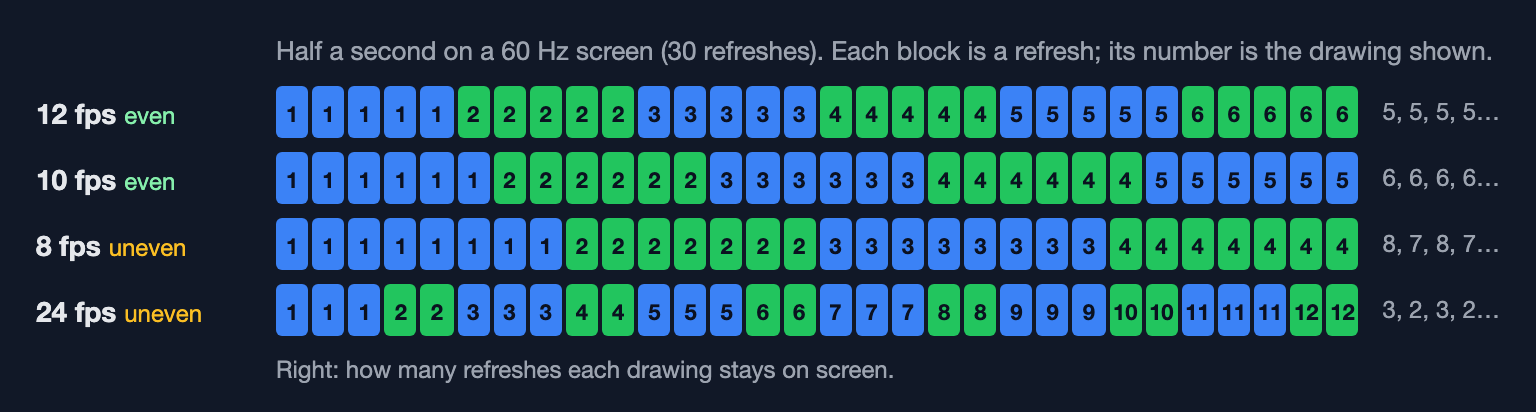
The difference is small — a sixtieth of a second — but in a slow, smooth motion like a floating platform or a spinning coin it shows up as a faint stutter. On a 60 Hz screen, the even rates are 5, 6, 10, 12, 15, 20 and 30 fps.
Many players now have 120 Hz or 144 Hz screens, where the even rates are different (8 fps is even at 120 and 144 Hz, but not at 60). If you want a rate that is even on all three, pick 12, 6, 4, 3, 2 or 1 fps. That is one more reason 12 fps is such a popular choice.
GIFs round your timing
GIF stores each frame's time in hundredths of a second. Two consequences:
- Only some frame rates are exact. A GIF plays exactly at 100 ÷ n fps: 50, 33.3, 25, 20, 16.7, 14.3, 12.5, 11.1, 10 … — 12 and 24 fps aren't on the list. A 12 fps animation (0.083 s per frame) is stored as 0.08 s and plays at 12.5 fps.
- Very short delays get slower, not faster. Browsers treat a delay of 0 or 0.01 s as 0.1 s, so a "60 fps" GIF crawls along at 10 fps. The fastest reliable GIF is 0.02 s per frame — 50 fps.
SpritePilot's GIF export rounds to the nearest hundredth of a second and never goes below 0.02 s, so the GIF you download plays at the speed you expect. If exact timing matters, export an APNG instead: it stores each frame's time as a fraction (1/12 of a second), keeps full transparency, and plays in every modern browser.
Try it
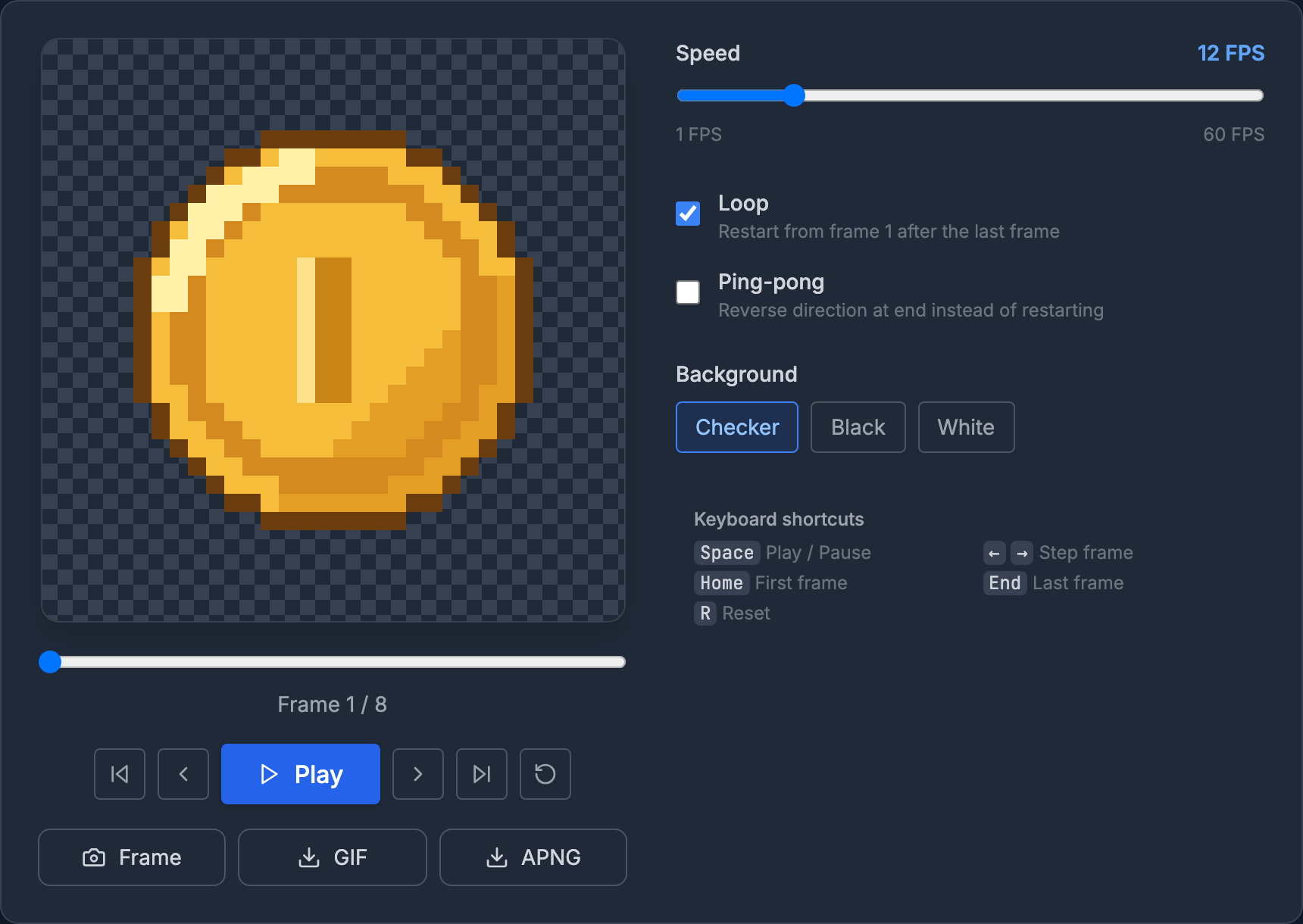
Load a sheet into SpritePilot's Sprite Player, set its columns and rows, and drag the speed between 8, 10, 12 and 15 fps while it plays — the right rate is usually obvious within a few seconds. Ping-pong plays the frames forwards and back, which halves the drawings a breathing or hovering loop needs. The player runs in your browser and nothing is uploaded.
No sheet handy? The coin from this article is free to use (CC0): download the coin sheet, 8 frames of 32 × 32 pixels in a row. If you're not sure how a downloaded sheet is laid out, How to Find the Frame Size of a Sprite Sheet walks through it. The Free Pixel Art Game Assets page has 70 more, each with the speed it was timed for.

In short
- Duration = frame count ÷ frame rate. Choppy: add drawings. Sluggish: raise the rate or cut frames.
- Most pixel art sits between 8 and 12 fps; tune by eye against the movement.
- Time drawings individually for anything with weight — wind-ups, impacts, landings.
- On 60 Hz screens, rates that divide 60 play evenly; 12 fps is even at 60, 120 and 144 Hz.
- GIFs round to hundredths of a second and can't go faster than 50 fps; APNG keeps exact timing.