Sprite Sheet Animation in Pygame, Step by Step
October 11, 2026 · 5 min read · Updated October 14, 2026
Load a sprite sheet in pygame, cut it into frames, animate at the same speed at any frame rate, flip and scale pixel art crisply, and draw with sprite groups.
Open the tool from this article — free, in your browser, no signup.
Pygame has no animation system. A sprite sheet is just one image, and animation is your code showing a different part of it several times a second. The good news is that the code is short, and you control every detail of it.
This walkthrough builds it piece by piece: loading the sheet, cutting frames, an Animation class that runs at the same speed at any frame rate, several animations from one sheet, flipping, crisp scaling and sprite groups. It follows the pygame 2.6 documentation, and the pieces add up to one complete program.
Load the sheet and cut out the frames
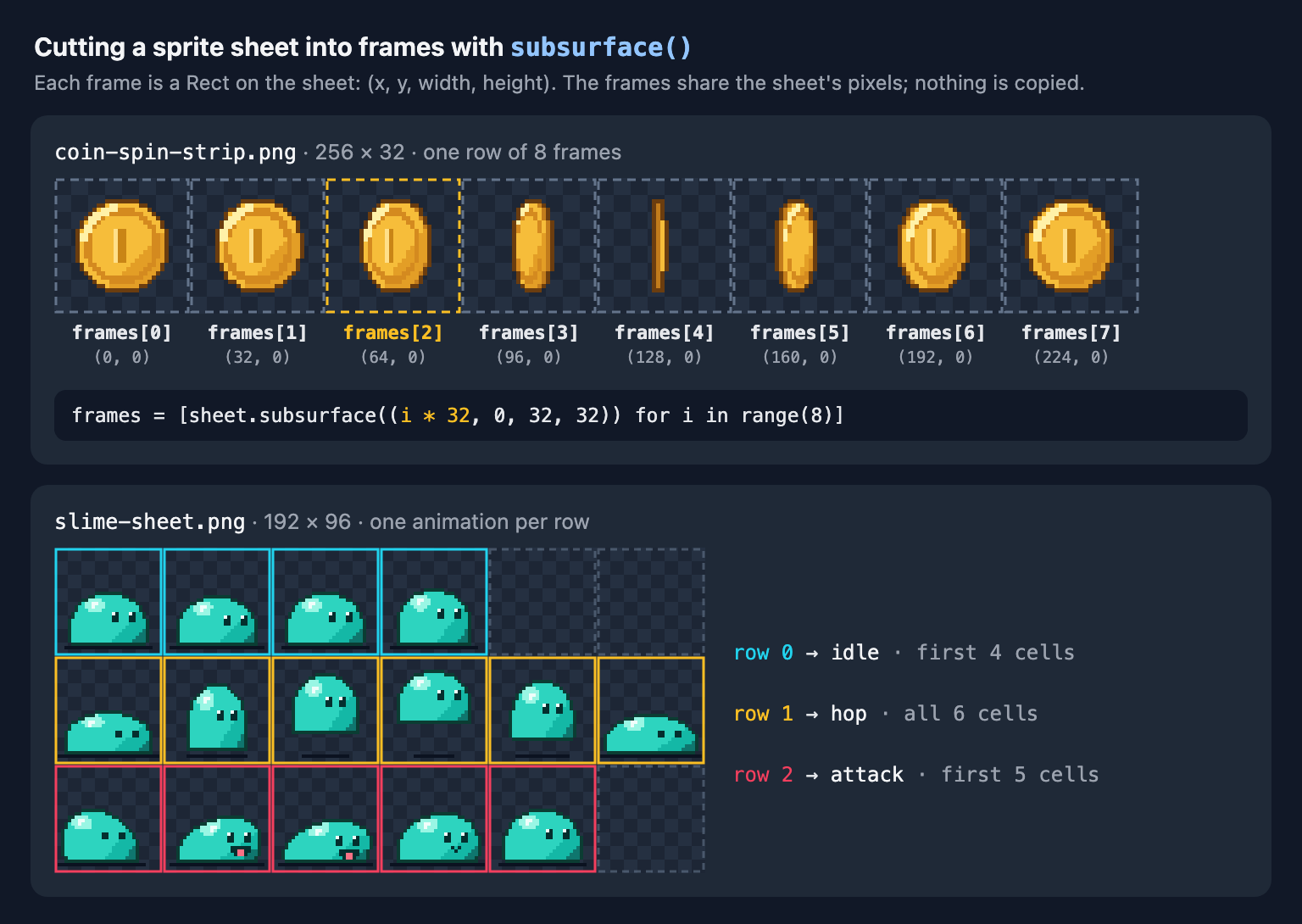
You need two numbers first: the frame size and how fast the animation should play. If the sheet came without them, load it into SpritePilot's Sprite Player, enter the columns and rows, and it shows the frame size and plays the animation at any speed from 1 to 60 FPS. The coin strip used here is 256 × 32 pixels with 8 frames, so each frame is 32 × 32, and it looks right at 10 FPS.
import pygame

pygame.init()
screen = pygame.display.set_mode((640, 360))

sheet = pygame.image.load("coin-spin-strip.png").convert_alpha()
frames = [sheet.subsurface((i * 32, 0, 32, 32)) for i in range(8)]
Two calls do the work:
convert_alpha()makes a copy of the image in the window's pixel format, keeping per-pixel transparency, so it draws quickly. Because it converts to the window's format, call it afterpygame.display.set_mode().subsurface(rect)returns a Surface for one rectangle of the sheet. As the documentation explains, it shares its pixels with the sheet, so cutting a sheet into 100 frames copies nothing. If you plan to edit frames individually, blit each one into its ownpygame.Surface((32, 32), pygame.SRCALPHA)instead.
A function for any grid
Real sheets have several rows and sometimes a border (margin) or gaps (spacing). This function handles all of them and returns the frames row by row. Save it, and every piece after it, in one file, game.py, next to the PNGs:
import pygame

SCALE = 4  # draw the 32 x 32 pixel art four times larger


def slice_grid(sheet, frame_w, frame_h, margin=0, spacing=0):
    """Cut a sheet into rows of frames. Each frame shares the sheet's pixels."""
    cols = (sheet.get_width() - 2 * margin + spacing) // (frame_w + spacing)
    rows = (sheet.get_height() - 2 * margin + spacing) // (frame_h + spacing)
    return [
        [
            sheet.subsurface((margin + c * (frame_w + spacing),
                              margin + r * (frame_h + spacing),
                              frame_w, frame_h))
            for c in range(cols)
        ]
        for r in range(rows)
    ]


def enlarge(frames, factor=SCALE):
    """Nearest-neighbor scaling: crisp at whole-number factors."""
    return [pygame.transform.scale(f, (f.get_width() * factor, f.get_height() * factor))
            for f in frames]
For a sheet with a 4-pixel border and 2-pixel gaps, call slice_grid(sheet, 32, 32, margin=4, spacing=2). If you don't know those numbers, How to Find the Frame Size of a Sprite Sheet shows how to work them out. enlarge() is explained under scaling below.
An Animation class that keeps time
The simplest version adds 1 to the frame index on every pass through the game loop. At 60 loops a second, an 8-frame coin then spins seven and a half times a second, and on a 144 Hz monitor it spins faster still. The animation's speed has to come from elapsed time, not from the number of loops.
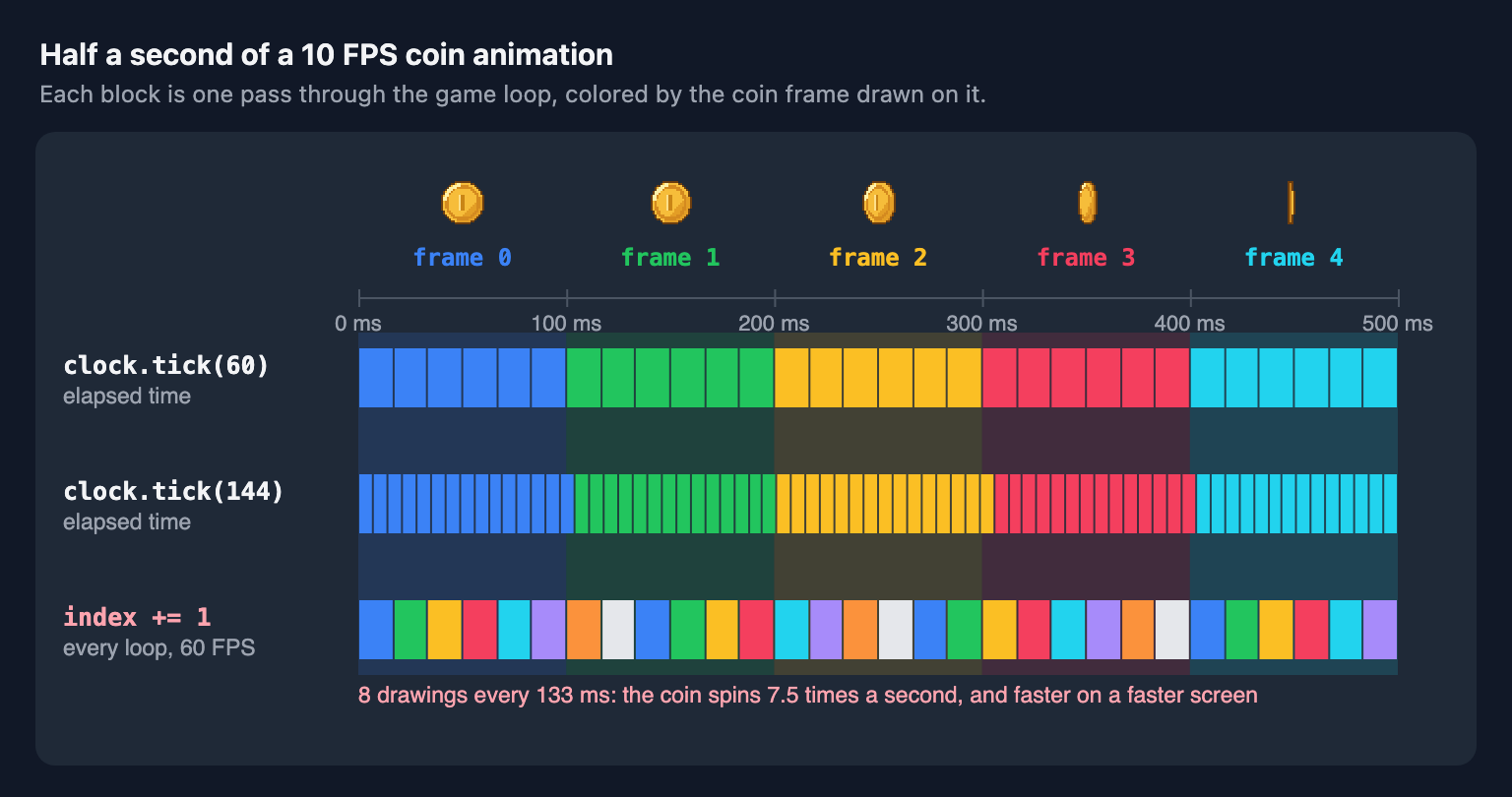
Pygame gives you the elapsed time for free: clock.tick() returns the milliseconds since its previous call. The class adds those up and moves to the next frame each time a frame's worth of time has passed:
class Animation:
    """A list of frames played at a fixed rate, driven by elapsed milliseconds."""

    def __init__(self, frames, fps, loop=True):
        self.frames = frames
        self.mirrored = [pygame.transform.flip(f, True, False) for f in frames]
        self.frame_ms = 1000 / fps
        self.loop = loop
        self.reset()

    def reset(self):
        self.index = 0
        self.elapsed = 0.0
        self.done = False

    def update(self, dt_ms):
        if self.done:
            return
        self.elapsed += dt_ms
        while self.elapsed >= self.frame_ms:
            self.elapsed -= self.frame_ms
            if self.index < len(self.frames) - 1:
                self.index += 1
            elif self.loop:
                self.index = 0
            else:
                self.done = True
                break

    def current(self, flipped=False):
        return (self.mirrored if flipped else self.frames)[self.index]
Three details matter. Subtracting frame_ms instead of resetting elapsed to 0 carries the leftover milliseconds into the next frame, so the timing doesn't drift. The while loop catches up if one slow frame took longer than a whole animation frame. And loop=False makes a one-shot animation, such as an attack, stop on its last frame and set done.
Several animations in one sheet
The slime sheet holds three animations, one per row: idle (4 frames), hop (6) and attack (5). The rows have different lengths, so slice the whole grid and trim each row to its frame count. The same file also needs a coin:
class Coin(pygame.sprite.Sprite):
    def __init__(self, sheet, pos):
        super().__init__()
        frames = enlarge(slice_grid(sheet, 32, 32)[0])  # one row of 8 frames
        self.anim = Animation(frames, fps=10)
        self.image = self.anim.current()
        self.rect = self.image.get_rect(center=pos)

    def update(self, dt_ms, *args):
        self.anim.update(dt_ms)
        self.image = self.anim.current()


class Slime(pygame.sprite.Sprite):
    SPEED = 120  # pixels per second

    def __init__(self, sheet, pos):
        super().__init__()
        idle, hop, attack = slice_grid(sheet, 32, 32)  # one animation per row
        self.anims = {
            "idle": Animation(enlarge(idle[:4]), fps=6),
            "hop": Animation(enlarge(hop), fps=10),
            "attack": Animation(enlarge(attack[:5]), fps=12, loop=False),
        }
        self.state = "idle"
        self.facing_left = False
        self.x = float(pos[0])
        self.image = self.anims["idle"].current()
        self.rect = self.image.get_rect(midbottom=pos)

    def play(self, state):
        if state != self.state:
            self.state = state
            self.anims[state].reset()

    def update(self, dt_ms, move, attack_pressed):
        if self.state != "attack":
            if attack_pressed:
                self.play("attack")
            elif move:
                self.facing_left = move < 0
                self.x += move * self.SPEED * dt_ms / 1000
                self.play("hop")
            else:
                self.play("idle")

        anim = self.anims[self.state]
        anim.update(dt_ms)
        if anim.done:  # a one-shot animation finished
            self.play("idle")
            anim = self.anims["idle"]

        bottom = self.rect.bottom
        self.image = anim.current(self.facing_left)
        self.rect = self.image.get_rect(midbottom=(round(self.x), bottom))
play() restarts an animation only when the state actually changes, so calling it every frame keeps a running animation going. Movement uses the same elapsed time as the animation, so the slime crosses the screen at 120 pixels per second at any frame rate. The rectangle is re-anchored at the bottom center each frame, which keeps the slime's feet in place even if frames had different sizes.
Flip and scale once, at load time
The slime is drawn facing right. For left, pygame.transform.flip(surface, True, False) returns a mirrored copy, so the Animation class builds the mirrored frames once, in __init__, and current(flipped=True) picks them. Flipping every frame would allocate a new Surface 60 times a second for nothing.
Scaling works the same way: once, when loading. The function you choose decides how pixel art looks:
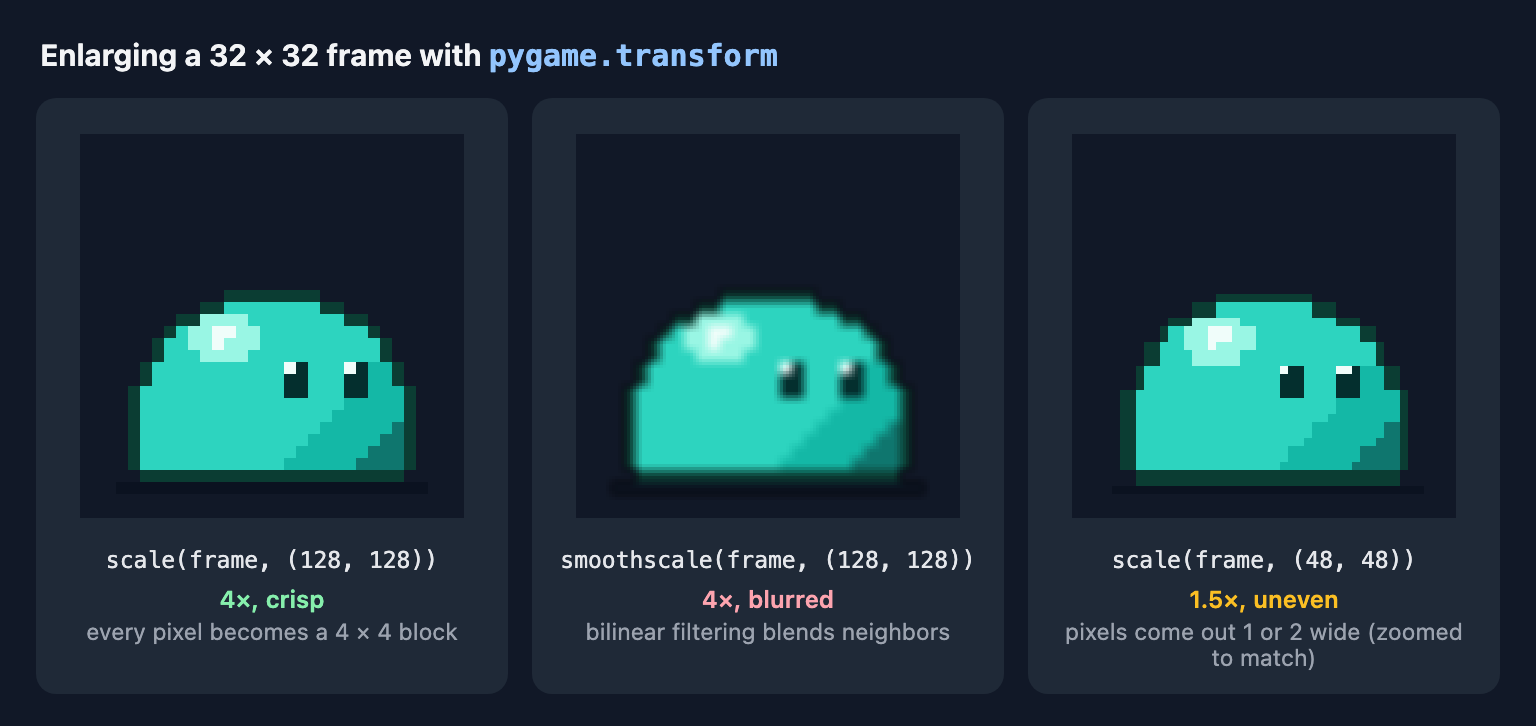
scale()is a fast resize that, in the documentation's words, "does not sample the results": each source pixel is copied, so at 2×, 3× or 4× every pixel becomes a clean square block. This is the one for pixel art.smoothscale()uses a bilinear filter when enlarging, which blends neighboring pixels and blurs hard edges. Keep it for photos and painted art.scale_by(surface, 4), added in pygame 2.1.3, isscale()with a factor instead of a size. The documentation still marks it experimental.
Whatever the function, stick to whole-number factors: at 1.5× some pixels come out one pixel wide and others two. How to Scale Pixel Art Without Blurring It covers the same problem in other tools.
Draw everything with a sprite group
A pygame.sprite.Group calls update() on every sprite with whatever arguments you pass it, and its draw() blits each sprite's image at its rect. That's why both classes keep those two attributes up to date. The last piece is the game loop:
def main():
    pygame.init()
    screen = pygame.display.set_mode((640, 360))
    clock = pygame.time.Clock()

    # convert_alpha() converts to the window's pixel format, so call it after set_mode()
    coin_sheet = pygame.image.load("coin-spin-strip.png").convert_alpha()
    slime_sheet = pygame.image.load("slime-sheet.png").convert_alpha()
    sprites = pygame.sprite.Group(Coin(coin_sheet, (480, 150)), Slime(slime_sheet, (200, 300)))

    running = True
    while running:
        dt = clock.tick(60)  # milliseconds since the previous frame
        attack = False
        for event in pygame.event.get():
            if event.type == pygame.QUIT:
                running = False
            elif event.type == pygame.KEYDOWN and event.key == pygame.K_SPACE:
                attack = True

        keys = pygame.key.get_pressed()
        move = keys[pygame.K_RIGHT] - keys[pygame.K_LEFT]

        sprites.update(dt, move, attack)
        screen.fill((31, 41, 55))
        sprites.draw(screen)
        pygame.display.flip()

    pygame.quit()


if __name__ == "__main__":
    main()
clock.tick(60) both limits the loop to 60 frames a second and returns the time since the last frame, which is the dt every sprite receives. The arrow keys move the slime, which hops and turns to face its direction; Space attacks once. A plain Group draws its sprites in no particular order, so if sprites overlap and the order matters, use pygame.sprite.LayeredUpdates instead.
A checklist
convert_alpha()every sheet, afterset_mode().- One
subsurface()per frame; separate Surfaces only if you edit frames. - Advance frames by elapsed milliseconds from
clock.tick(), never once per loop. - Flip and scale when loading, with
scale()at whole-number factors. - Keep
imageandrectcurrent, and let a group update and draw.
Both sheets are free to use in any project (CC0): the coin strip (256 × 32, 8 frames) and the slime sheet (192 × 96, three rows of 32 × 32 frames). Save them next to game.py and run it. The same slime is animated in Godot 4, Unity and Phaser too. For more, the Free Pixel Art Game Assets page has 70 animated CC0 strips, such as pickups and creatures, that slice with the same code.