Sprite Sheet vs. Texture Atlas: What's the Difference?
October 14, 2026 · 6 min read
Both put many sprites in one image. How a grid sheet differs from a packed atlas, what the atlas data file holds, and when each is the better choice.
Open the tool from this article — free, in your browser, no signup.
Search for either term and you'll find them used for the same thing: one image with many sprites in it. Engines and tools are stricter. The difference isn't the picture, it's how you find a sprite inside it. A sprite sheet is a grid, described by a frame size. A texture atlas is packed, and a separate data file lists where every sprite is.
That difference decides how you load the file, how much memory it takes, and what it can hold. Here are both, with real measurements from the same set of sprites.
A sprite sheet is a grid you can describe in one line
In a grid sheet every cell is the same size. Give your engine the frame width and height (plus the margin and spacing, if the sheet has gaps) and it can work out every frame's rectangle with arithmetic. Frames are referred to by number: frame 0, frame 1, and so on, left to right and top to bottom.
Phaser's loader documentation draws the line clearly: in Phaser, a sprite sheet means a fixed-size sheet whose frames are referenced by number, while in a texture atlas frames are packed to take up the least space and are referenced by name. It also warns that some software uses "sprite sheet" to mean an atlas.
Unity, Godot and Phaser all cut a grid by themselves:
- Unity: Sprite Editor → Slice → Grid By Cell Size or Grid By Cell Count, with Offset and Padding for sheets with gaps.
- Godot 4: a Sprite2D's Hframes and Vframes, or Add frames from a Sprite Sheet in the SpriteFrames panel.
- Phaser:
this.load.spritesheet()withframeWidthandframeHeight.
The catch is that every cell is as big as the biggest sprite. That's fine for an animation whose frames all share one canvas, and wasteful for anything else. If you have a grid sheet and no notes, How to Find the Frame Size of a Sprite Sheet shows how to recover the numbers.
A texture atlas is packed and comes with a map
An atlas places sprites of any size wherever they fit. Because no formula can find them again, the packer writes a data file next to the image: usually JSON, sometimes XML or a .plist. Each entry names a sprite and gives its rectangle.
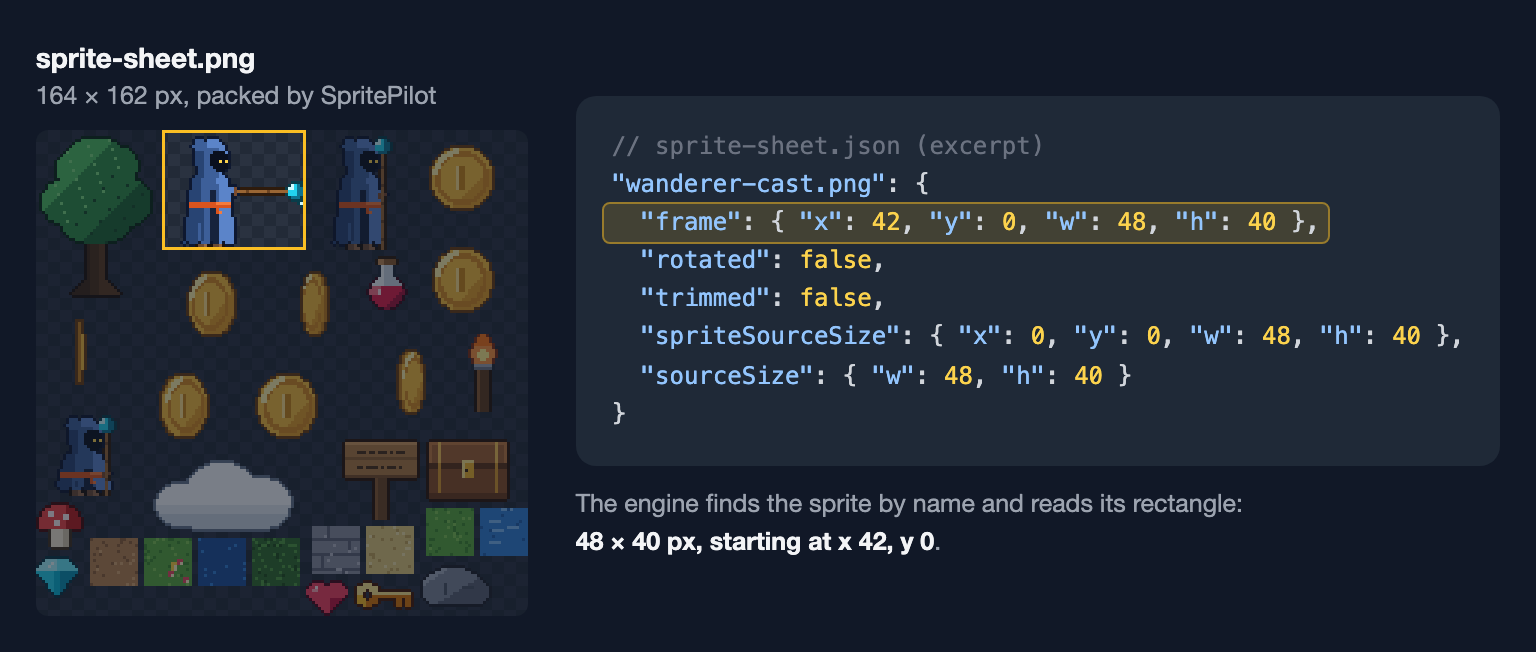
This is a real entry, plus the file's meta section, from a sheet packed by SpritePilot's Sheet Maker in the TexturePacker "JSON (Hash)" layout, which Phaser and PixiJS read directly:
"chest.png": {
  "frame": { "x": 130, "y": 102, "w": 28, "h": 22 },
  "rotated": false,
  "trimmed": false,
  "spriteSourceSize": { "x": 0, "y": 0, "w": 28, "h": 22 },
  "sourceSize": { "w": 28, "h": 22 }
},
…
"meta": {
  "app": "SpritePilot",
  "version": "1.0",
  "image": "sprite-sheet.png",
  "format": "RGBA8888",
  "size": { "w": 164, "h": 162 },
  "scale": "1"
}
What each field means:
- frame — where the sprite's pixels are in the sheet.
- rotated — whether the packer turned the sprite 90° to make it fit. Some packers do; SpritePilot never does.
- trimmed, spriteSourceSize, sourceSize — whether the transparent border around the sprite was cut off, and where the remaining pixels sat in the original image, so the engine can put them back in the same place. Trimming Transparent Pixels From Sprites covers this in detail.
- meta — the image file the rectangles refer to and its size.
The same 30 sprites, packed both ways
Here is one set of 30 original sprites packed twice by SpritePilot's Sheet Maker: a character in three poses, eleven props from 14 × 12 to 40 × 56 pixels, eight 32 × 32 coin frames and eight 16 × 16 tiles. Same images, same 2 px padding; only the Algorithm setting changed.
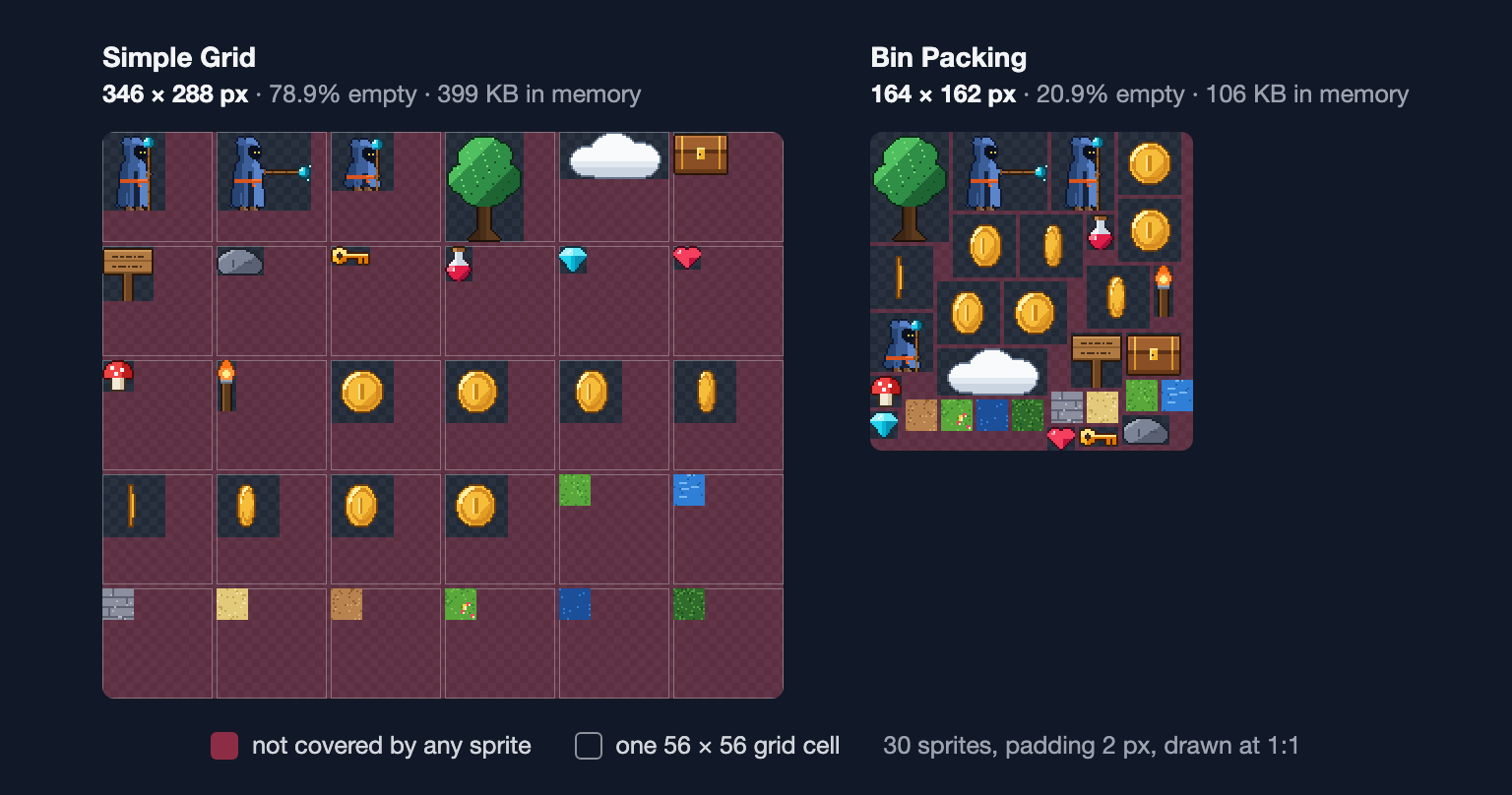
| Simple Grid | Bin Packing | |
|---|---|---|
| Sheet size | 346 × 288 px | 164 × 162 px |
| Pixels | 99,648 | 26,568 |
| Not covered by a sprite | 78.9% | 20.9% |
| Memory as RGBA (4 bytes per pixel) | 399 KB | 106 KB |
| PNG file | 11.0 KB | 8.5 KB |
The sprites themselves cover 21,020 pixels. The grid makes every cell 56 × 56, the widest sprite by the tallest, so a 16 × 16 tile uses 8% of its cell. The packer puts each sprite against its neighbors; most of what's left is the padding. Packed again with 0 padding, the atlas comes out at 152 × 150 pixels and only 7.8% empty.
Notice the last two rows. The PNG files differ by less than 3 KB, because PNG compresses big transparent areas to almost nothing. Memory is different: unless the engine converts it to a compressed GPU format, a loaded texture costs 4 bytes per pixel. Unity's texture format reference lists RGBA 32 bit at 32 bits per pixel, 4 MB for a 1024 × 1024 texture, and Godot's import documentation describes lossless textures as small on disk but large in memory. Judge a sheet by its pixel count, not its file size: here the grid costs 3.75 times as much memory.
Atlases and draw calls
The other reason atlases exist is speed. Unity's manual on sprite atlases explains that when each sprite has its own texture, Unity sends a separate draw call to the GPU for each one, while sprites in one atlas need only one draw call.
How that plays out depends on the engine:
- Unity packs atlases for you. Import sprites or grid sheets as usual, add them to a Sprite Atlas asset, and Unity combines them. Its packing options include Tight Packing (packing each sprite by its mesh shape instead of its rectangle), Allow Rotation and Padding, 4 pixels by default.
- Godot 4 has a TextureAtlas import type; the importing images documentation says it "can be used to reduce memory usage for animated 2D sprites".
- Phaser loads a packed atlas with
this.load.atlas(), which accepts the JSON Hash and JSON Array formats that TexturePacker and SpritePilot write, and PixiJS reads the same fields. In web engines like these you usually ship a ready-made atlas file.
What changes in code
Under the hood, the only difference is where the rectangle comes from. This plain JavaScript draws from either kind of sheet onto a canvas, and was checked pixel for pixel against SpritePilot's real output:
// A grid: the rectangle comes from arithmetic.
function gridFrame(index, { frameWidth, frameHeight, columns, margin = 0, spacing = 0 }) {
  const col = index % columns
  const row = Math.floor(index / columns)
  return {
    x: margin + col * (frameWidth + spacing),
    y: margin + row * (frameHeight + spacing),
    w: frameWidth,
    h: frameHeight,
  }
}

// An atlas: the rectangle comes from the data file, by name.
function atlasFrame(atlas, name) {
  return atlas.frames[name].frame
}

// Drawing is the same call either way.
function drawRect(ctx, sheet, r, x, y) {
  ctx.drawImage(sheet, r.x, r.y, r.w, r.h, x, y, r.w, r.h)
}
A grid needs a few numbers for the whole sheet; an atlas needs one entry per sprite, and that list has to travel with the image.
Which one to use
Use a grid sheet when:
- the sprites are frames of one animation drawn on the same canvas size,
- the image is a tileset: tile map editors and engines expect tiles on a regular grid,
- you want the simplest import: every engine slices a grid without extra files.
Use a packed atlas when:
- the sprites have different sizes: items, props, UI icons, effects,
- you have many animations and want them in one texture,
- frames have lots of empty space that trimming could remove,
- memory or draw calls matter, as they do on phones and in browsers.
You can also mix them: an atlas can hold animation frames named walk_0, walk_1 and so on, next to everything else.
Try it
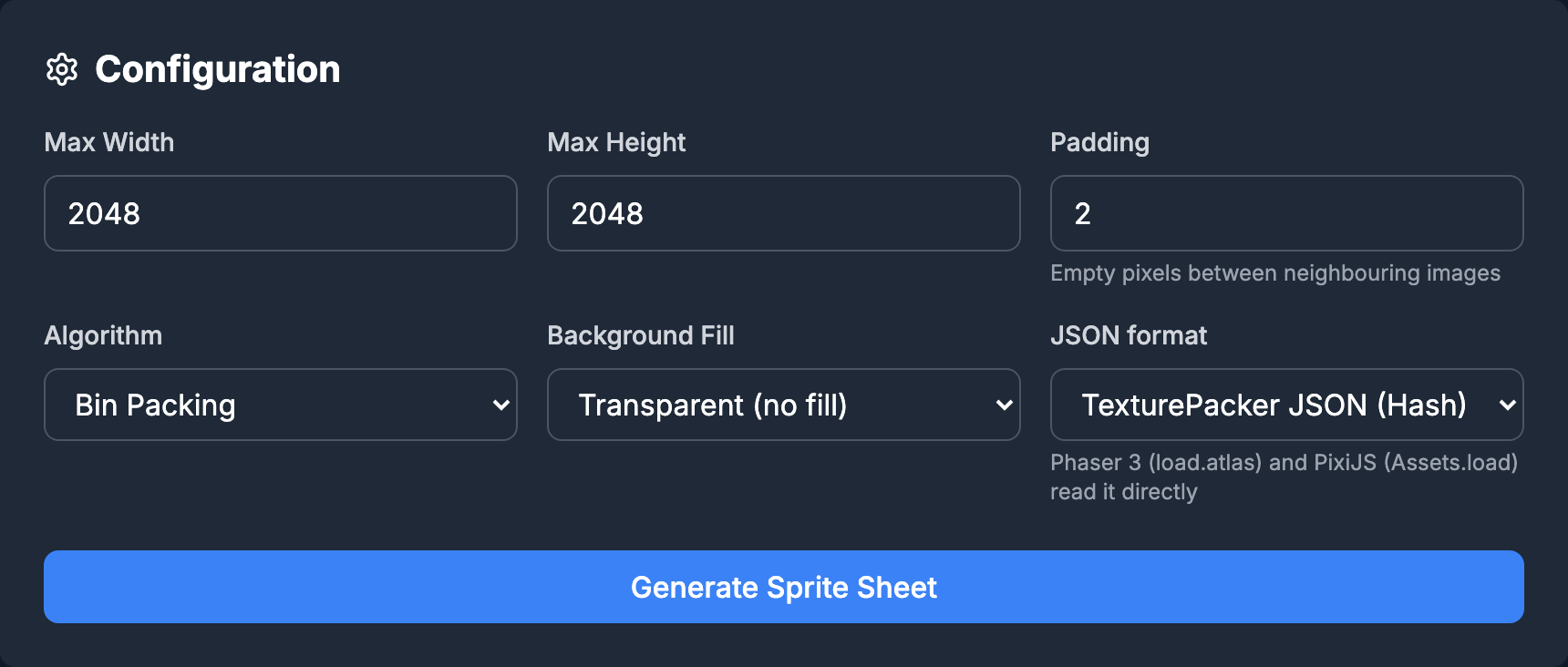
Load your images into SpritePilot's Sheet Maker, generate the sheet once, then switch Algorithm between Bin Packing and Simple Grid and compare the dimensions it reports. It downloads the PNG with a TexturePacker JSON (Hash) file or a simple list, runs in your browser and uploads nothing. The step-by-step is in How to Make a Sprite Sheet, and Sprite Sheet Export Formats Explained covers which data format suits which engine.