How Many Frames Does a Walk Cycle Need? 4, 6 and 8 Compared
October 14, 2026 · 7 min read
What 4-, 6- and 8-frame walk cycles keep and lose, how sprite size changes the choice, and how to match a walk to movement speed so feet don't slide.
Open the tool from this article — free, in your browser, no signup.
Four frames, six or eight? It's the first decision in a walk cycle, and it sets how many drawings you make, how smooth the walk looks and how fast the character can move before its feet start to slide. There's no single right number, but there is a reliable way to choose: know which poses each count keeps, look at the size of your sprite, and check how far the character travels per frame.
A walk is two steps of four key poses
A walk cycle is one full repeat of the motion: a step with the right leg, then a step with the left. The second step is the first with the legs and arms swapped, so a cycle is two mirrored halves and its frame count is almost always even.
Each step passes through four key poses. The names below are the ones popularized by Richard Williams' The Animator's Survival Kit:
- Contact: the front heel touches down. The legs are spread their widest, and so are the arms, which swing opposite the legs.
- Down: the front foot takes the weight, its knee bends and the body drops to its lowest point.
- Passing: the supporting leg is straight under the body while the other leg passes it with the foot lifted.
- Up: the back foot pushes off its toes and the body rises to its highest point as the free leg swings forward.
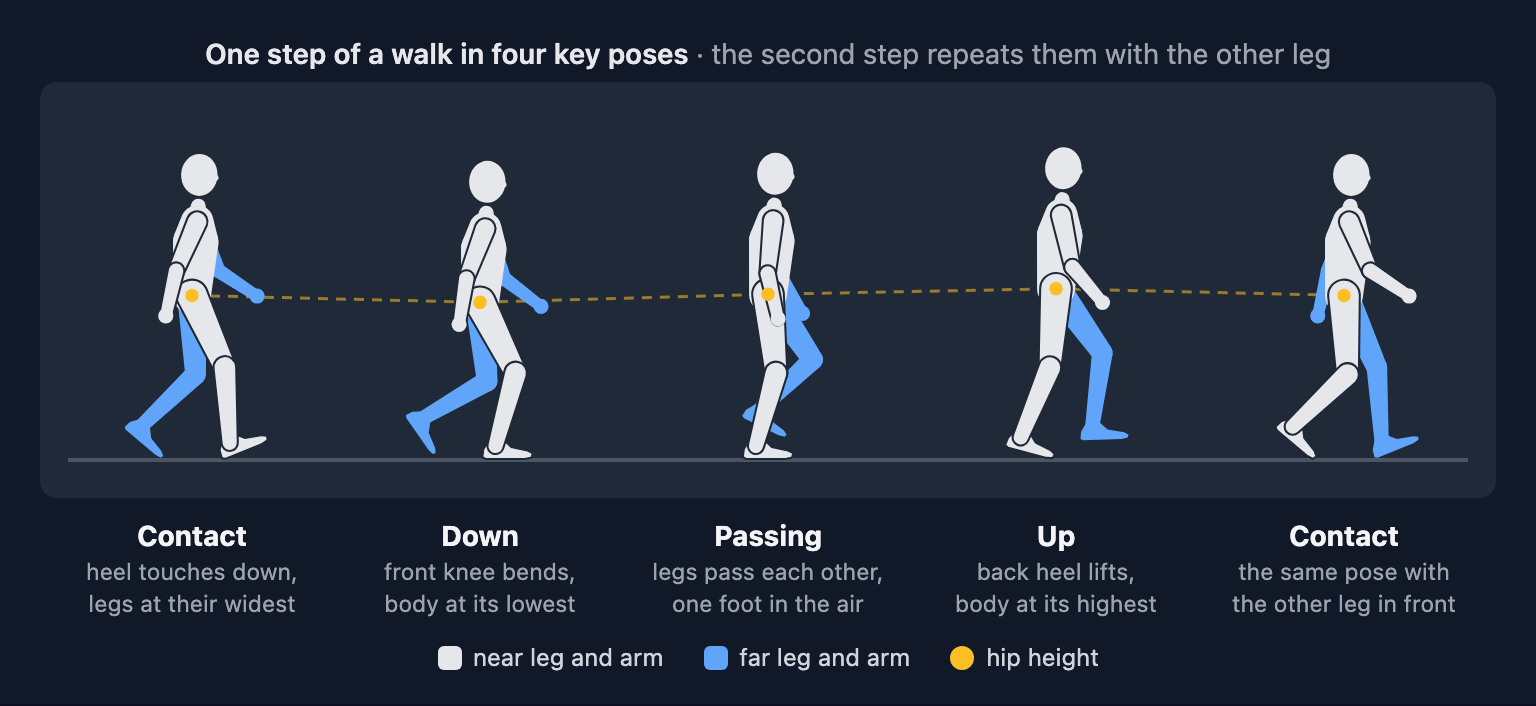
That rise and fall of the hips is what gives a walk its weight. Keep an eye on it: it's the first thing you lose when you cut frames.
What 4, 6 and 8 frames keep
Frames in a cycle are evenly spaced in time, so the frame count decides exactly where each drawing lands within a step:
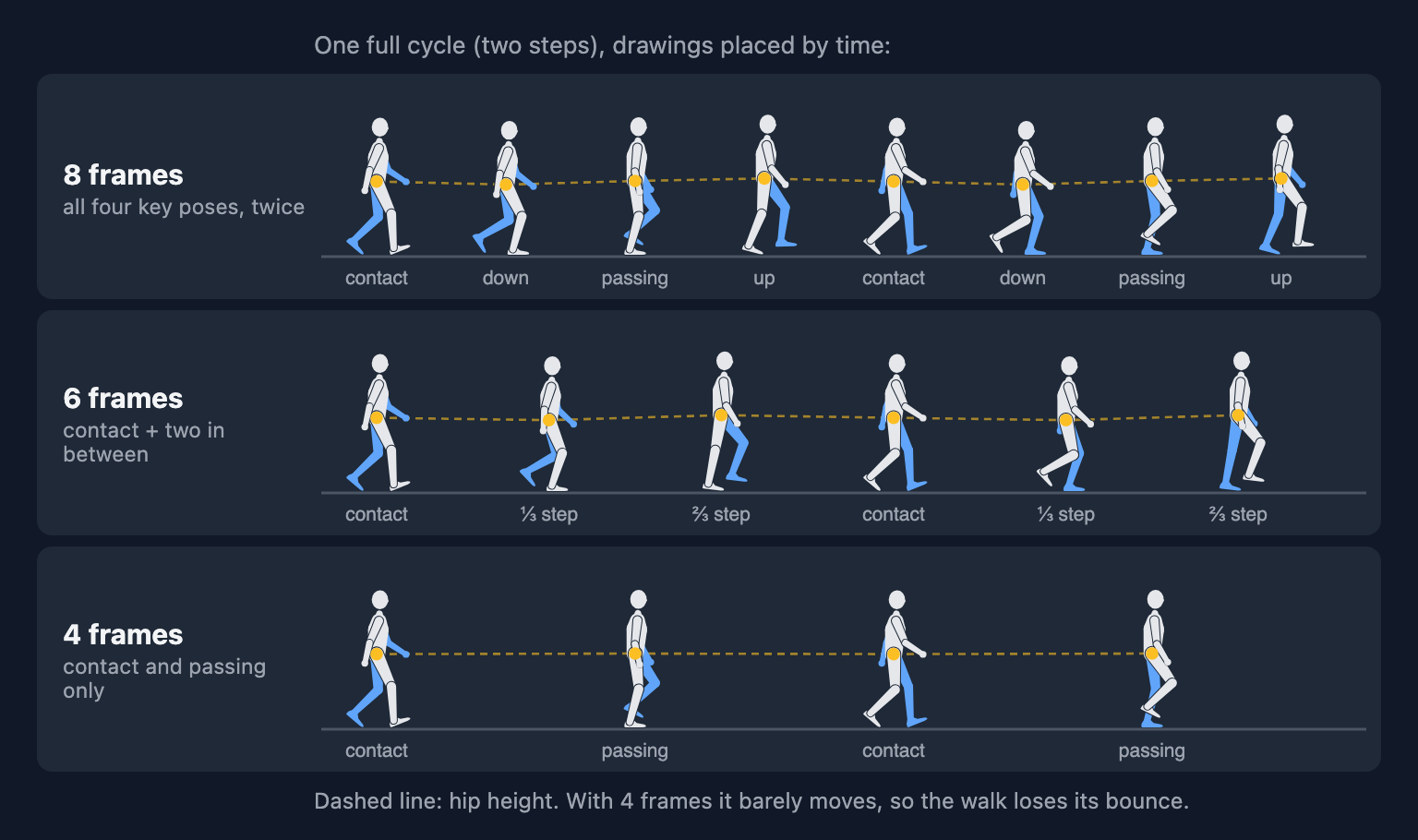
| Frames per cycle | Drawings per step | What you get | What you lose |
|---|---|---|---|
| 8 | 4 | contact, down, passing, up | nothing essential |
| 6 | 3 | contact, a low pose, a high pose | the exact down and up poses |
| 4 | 2 | contact, passing | the bounce and the push-off |
- 8 frames hold all four key poses, so the weight lands on the down and the push-off shows on the up.
- 6 frames put the two drawings after each contact at a third and two thirds of a step, between the classic poses. Draw them as a low pose and a high pose and most of the bounce survives: in the walk drawn for this article, the hips rise and fall by 3.6% of the figure's height, against 4.4% with 8 frames.
- 4 frames keep only contact and passing. The legs still alternate, but the hips move just 0.4% of the height, so the walk glides. A simple fix is to raise the body by a pixel on both passing frames, which puts back some bounce.
Here is the same walk at the same pace, 0.72 seconds per cycle, with each frame count:
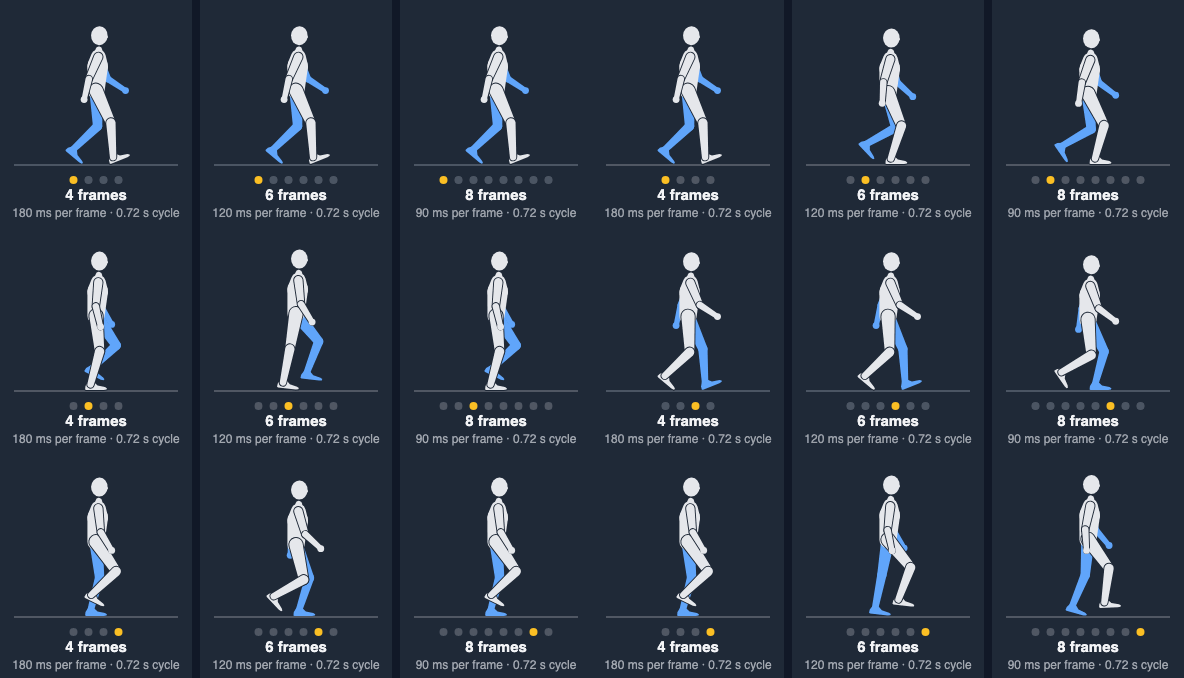
Four frames read as walking but look stiff at this pace. Six come surprisingly close to eight. Playing a 4-frame walk faster doesn't make it smoother; it makes the character walk faster, which brings us to speed further down.
Small sprites and large sprites need different counts
The size of the sprite changes the answer, because pixel art can only move in whole pixels.
Take the planted foot. Over one step it moves back by one step length, and it should do so evenly, the same number of pixels every frame. That gives a simple test: step length ÷ drawings per step should be a whole number.
- 16 px tall: a step might be 6 px. With 4 frames the foot moves 3 px per frame, and with 6 frames it moves 2 px. With 8 frames it would move 1.5 px, which can't be drawn: it alternates between 1 and 2 px and the foot wobbles. Small sprites often look cleaner with 4 or 6 frames than with 8.
- 32 px tall: a 12 px step works with all three: 6, 4 or 3 px per frame. Six or eight frames suit this size well.
- 64 px and taller: the down and up poses are several pixels apart, and arms, hair and clothes have room to follow through. Eight frames is a sensible minimum, and large, smooth characters can use 12 or 16.
If your step doesn't divide evenly, change the step: a 14 px step won't split into 4 drawings per step, but 12 or 16 will.
Match the cycle to the movement speed
Feet slide when the character moves at a different speed from the one the walk was drawn for. In a walk cycle the body stays in place on the sprite sheet and the planted foot moves backward. In the game the body moves forward. When the two distances match, the planted foot stays fixed on the ground.
So the speed a walk is drawn for is:
speed = foot travel per frame × frame rate = 2 × step length × frame rate ÷ frames per cycle
For a 32 px character with a 12 px step, drawn with 8 frames and played at 10 fps:
- foot travel per frame: 12 px ÷ 4 drawings per step = 3 px
- speed: 3 px × 10 fps = 30 px per second, which is 0.5 px per tick in a game running at 60 ticks per second
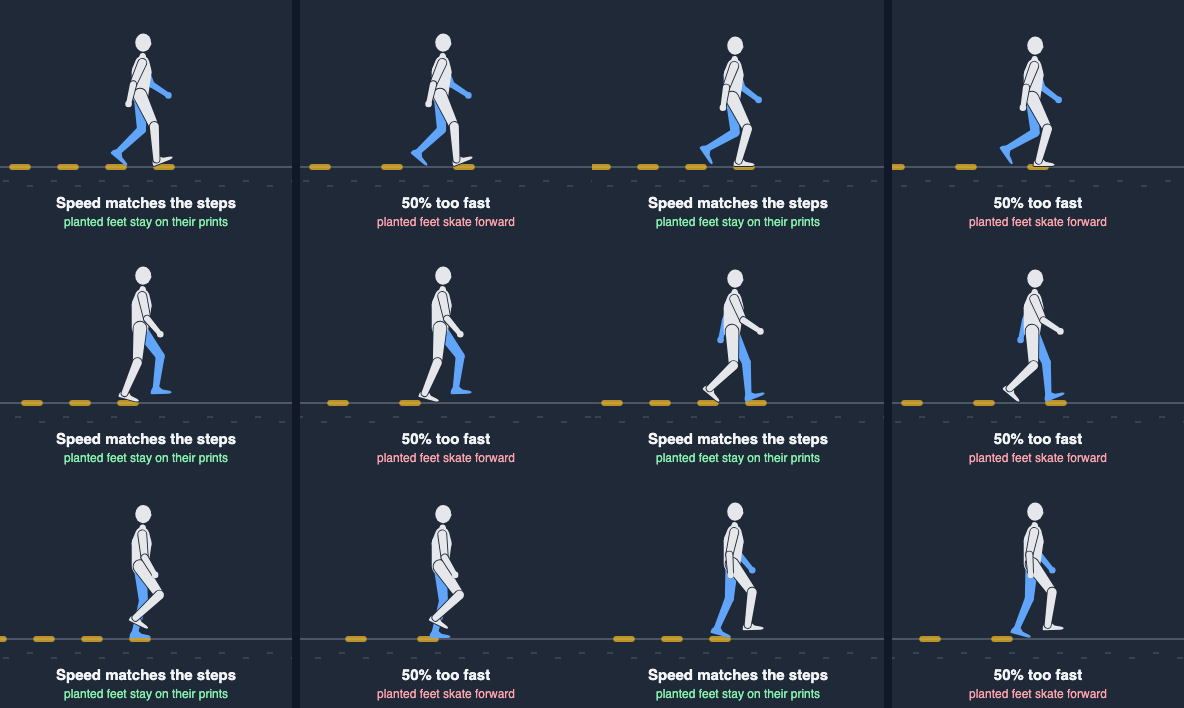
If your game moves the character at a different speed, change one of three things:
- The frame rate. At 48 px per second, the same walk needs 48 ÷ 3 = 16 fps. That works for small adjustments, but a walk played much faster than it was drawn starts to look frantic.
- The step length. Redraw with a 16 px step and the foot travels 4 px per frame, so 12 fps gives 48 px per second.
- The movement speed. Sometimes the honest fix is to move the character at the speed the animation suggests.
When the speed varies, for example with an analog stick, scale the playback rate by current speed ÷ drawn speed. Engines expose this directly: speed_scale on Godot 4's AnimatedSprite2D, Animator.speed in Unity and timeScale on a Phaser sprite's anims.
One last detail: if the character moves smoothly every tick but the drawing changes only 10 times a second, the planted foot creeps forward with the body while each drawing is on screen, then snaps back by the foot travel on the next one. In the example that's 3 px. More frames make the creep smaller. Some games instead move the character in steps that line up with the frame changes, which keeps the feet perfectly planted at the cost of slightly jerkier movement.
Try it
Draw a walk in SpritePilot's Pixel Art Editor: start with the two contact poses, then add the passing poses between them (a working 4-frame walk), then the downs and ups if the sprite is big enough. Duplicate frame copies a pose so you only move the limbs. Onion skin shows the previous frame underneath, which makes even foot travel easy to check (how onion skinning works). The Preview plays the frames at 1 to 30 FPS, and Download Sheet PNG saves them as a strip you can check in the Sprite Player. New to the editor? How to Draw Your Own Pixel Art Sprite covers the tools. For picking the playback rate, see How Fast Should Pixel Art Animate?
In short
- A walk cycle is two mirrored steps; each step has four key poses: contact, down, passing, up.
- 8 frames keep all four poses, 6 frames keep most of the bounce, 4 frames keep contact and passing only.
- Small sprites: choose a frame count that divides the step length into whole pixels.
- Drawn speed = foot travel per frame × frame rate. Match it, or scale the playback rate with the speed.