Squash and Stretch for Sprite Animation (with a Bouncing Ball)
October 14, 2026 · 7 min read
Why squash and stretch make sprites feel heavy and fast, how to keep the volume right with simple arithmetic, and when to use it, frame by frame.
Open the tool from this article — free, in your browser, no signup.
A ball that keeps its perfect circle all the way down and all the way back up looks like it's made of glass, or like it bounced off an invisible floor. Change a single frame so the ball flattens on impact and it suddenly has weight. That change is squash and stretch, the first of the twelve principles of animation that Disney animators Ollie Johnston and Frank Thomas set out in their 1981 book The Illusion of Life (summary on Wikipedia).
This article takes a real 8-frame bouncing ball apart, measures it, and shows the three things that make squash and stretch work: where it goes, how much, and for how long.
What squash and stretch tells the viewer
- Squash is a shape compressing against something: a ball hitting the floor, a character landing, a fist meeting a wall. It shows force. How much the shape gives tells the viewer what it's made of: a rubber ball flattens a lot, a bowling ball hardly at all.
- Stretch is a shape lengthening along its direction of travel. It shows speed, and in a sprite it also bridges the gap between two positions that are far apart, so a fast drop reads as one motion instead of a jump.
Both only work if the object still looks like the same object. That comes down to keeping its size, which you can measure.
The bouncing ball, frame by frame
SpritePilot's bundled sample, ball-bounce.png, is a 256 × 128 sheet with 8 frames of 64 × 64 pixels, 4 columns by 2 rows. Here is every frame, with the ball's size and the number of pixels it covers:
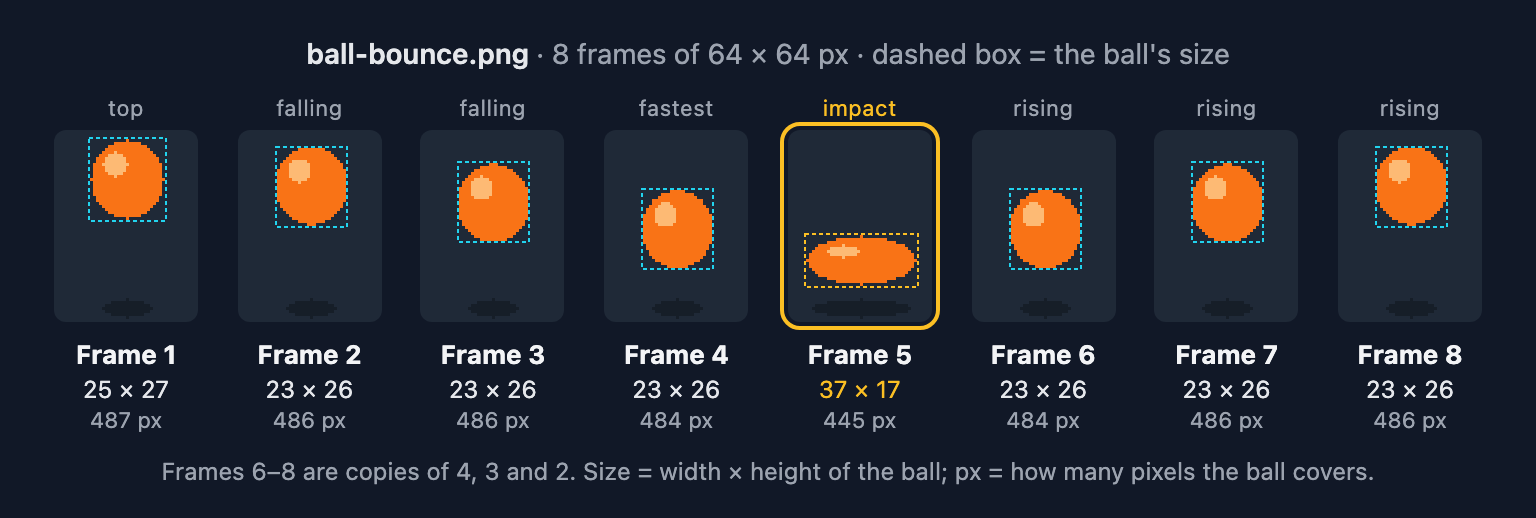
Three things are going on:
- Spacing. The ball's top edge moves 3, then 5, then 9 pixels between frames 1 and 4. The gaps grow because the ball is accelerating under gravity, and the frames after the impact repeat them in reverse.
- Stretch. Without the one-pixel bumps at its edges, frame 1's ball is 23 × 25 pixels. The falling frames are 23 × 26: one pixel taller, a light stretch along the direction of travel.
- Squash. Frame 5 is 37 × 17 pixels, 14 pixels wider and 9 pixels shorter than the falling frames. Its bottom edge sits on the lowest row the ball reaches, its highlight flattens with it, and its shadow widens from 17 to 33 pixels.
The squash lasts exactly one frame. Frame 6 is already the stretched rising shape again.
Keep the area the same
The rule that keeps a squashed ball looking like the same ball is to keep its volume. On a flat sprite, volume means area, and the area of an ellipse is π ÷ 4 × width × height. The π ÷ 4 never changes, so the rule becomes simple arithmetic: keep width × height the same.
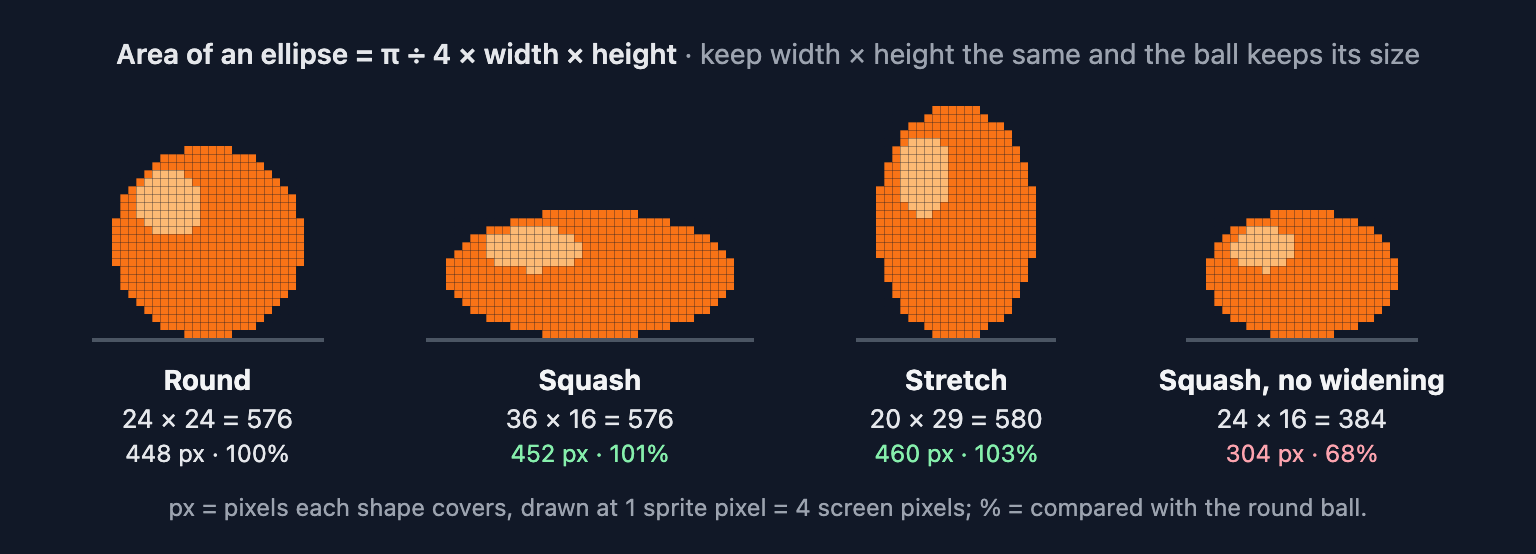
For a 24 × 24 ball, width × height is 576:
- Squash it to 16 pixels tall and it needs 576 ÷ 16 = 36 pixels of width.
- Stretch it to 20 pixels wide and it needs 576 ÷ 20 = 28.8, so 29 pixels of height.
- Flatten it to 16 without widening and it keeps only 24 × 16 = 384, two thirds of its area. It reads as the ball shrinking, not squashing.
Pixel art can't hit these numbers exactly, and it doesn't need to. The sample's squash frame covers 445 pixels against 487 for the round frame, 91% of the area, and it reads as the same ball. Aim for within about 10%, and count pixels when a frame looks off: a squash that "looks wrong" is often just too small.
Timing: squash on impact, stretch when it's fast
Here is the sample next to two edited copies. The only difference is frame 5:
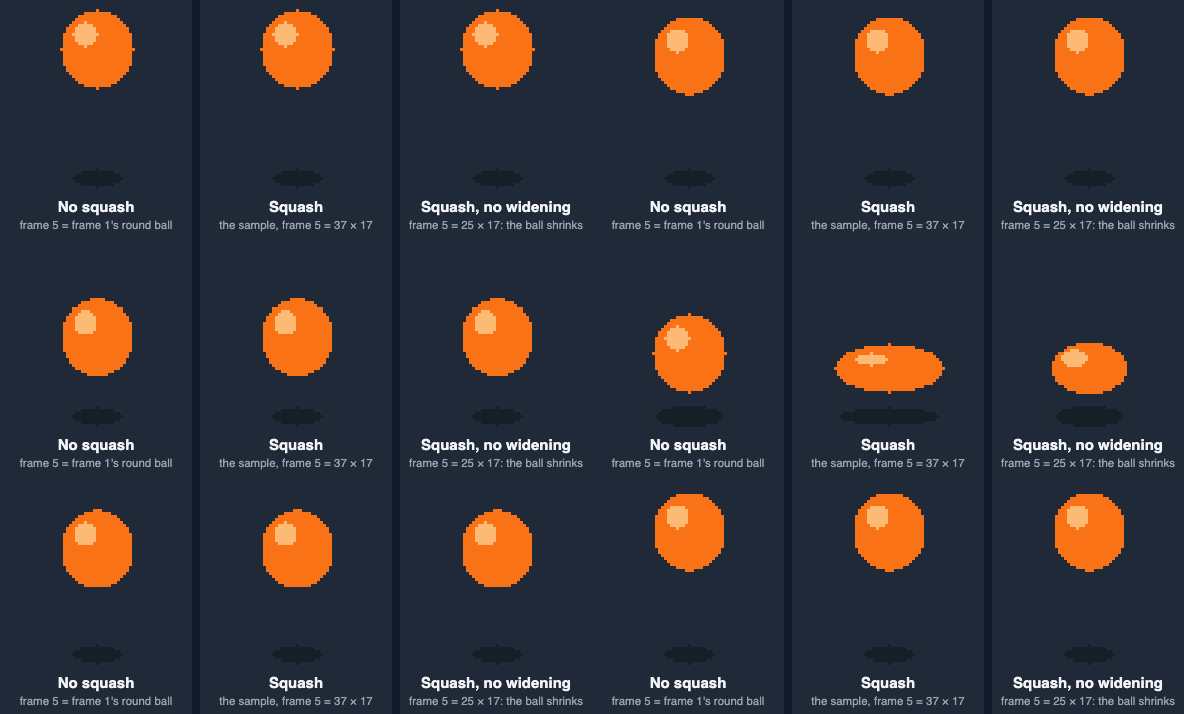
With no squash, the ball touches the ground and leaves as if it hit something rigid. With the sample's squash, the impact has weight. The squash without widening looks like the ball shrinks for a moment, which reads as an error.
Some timing guidelines that follow from this:
- Squash on the contact frame. That's the frame where the force is. At 10 to 12 fps, one frame lasts about 83 to 100 ms, which is enough for the eye to register it.
- Hold the squash longer for a softer object. Two frames of squash suggest something that takes time to recover its shape, such as a slime or a sack.
- Stretch on the fastest frames, just before and just after the impact, where the gaps between positions are largest. Don't stretch at the top of the bounce, where the ball is barely moving.
- Match the amount to the material. The sample squashes to about two thirds of its height. A bowling ball might lose a pixel or two; a water balloon could lose half.
If you want different frames to stay on screen for different times, for example a two-frame hold on the squash, How Fast Should Pixel Art Animate? shows how to set per-frame durations in Godot, Phaser, Unity and Aseprite.
Squash and stretch at pixel-art sizes
Small sprites have fewer pixels to give, so every pixel of squash counts:
- One pixel is a lot. On a 16 × 16 ball, losing one pixel of height is a 6% squash and already visible. Squashing it from 16 to 12 pixels tall needs 256 ÷ 12 ≈ 21 pixels of width.
- Squash from the contact point. The edge that touches the ground stays on the same row of pixels and the shape grows outward from there. In the sample, the squash frame's bottom edge is the lowest row of the whole bounce.
- Squash the details too. The sample's highlight goes from 9 × 9 to 11 × 5 pixels. A highlight left round on a flat ball breaks the illusion.
- For characters, think in body parts. On landing, drop the head and body a pixel or two and spread the feet or widen the torso by the same amount. On take-off, squash into a crouch first, then stretch upward as the feet leave the ground.
Two engine details matter once the frames have different shapes:
- Keep the pivot at the bottom. If your frames are trimmed to their content, the squash frame's rectangle is shorter than the others. With a centered pivot it would pop up into the air; with a bottom-center pivot it stays on the ground. Sprite pivot points covers how to set one.
- Draw it rather than scaling in code. Many games fake squash by scaling the sprite, for example to 120% wide and 80% tall. That works for smooth art, but on pixel art a non-integer scale makes some pixels wider than others (more on scaling pixel art). Drawn frames keep the pixel grid intact.
Try it
The ball from this article is SpritePilot's sample sheet. Open the Sprite Player, click Try a sample (it sets 4 columns and 2 rows for you), then press the right arrow key four times to step to frame 5:
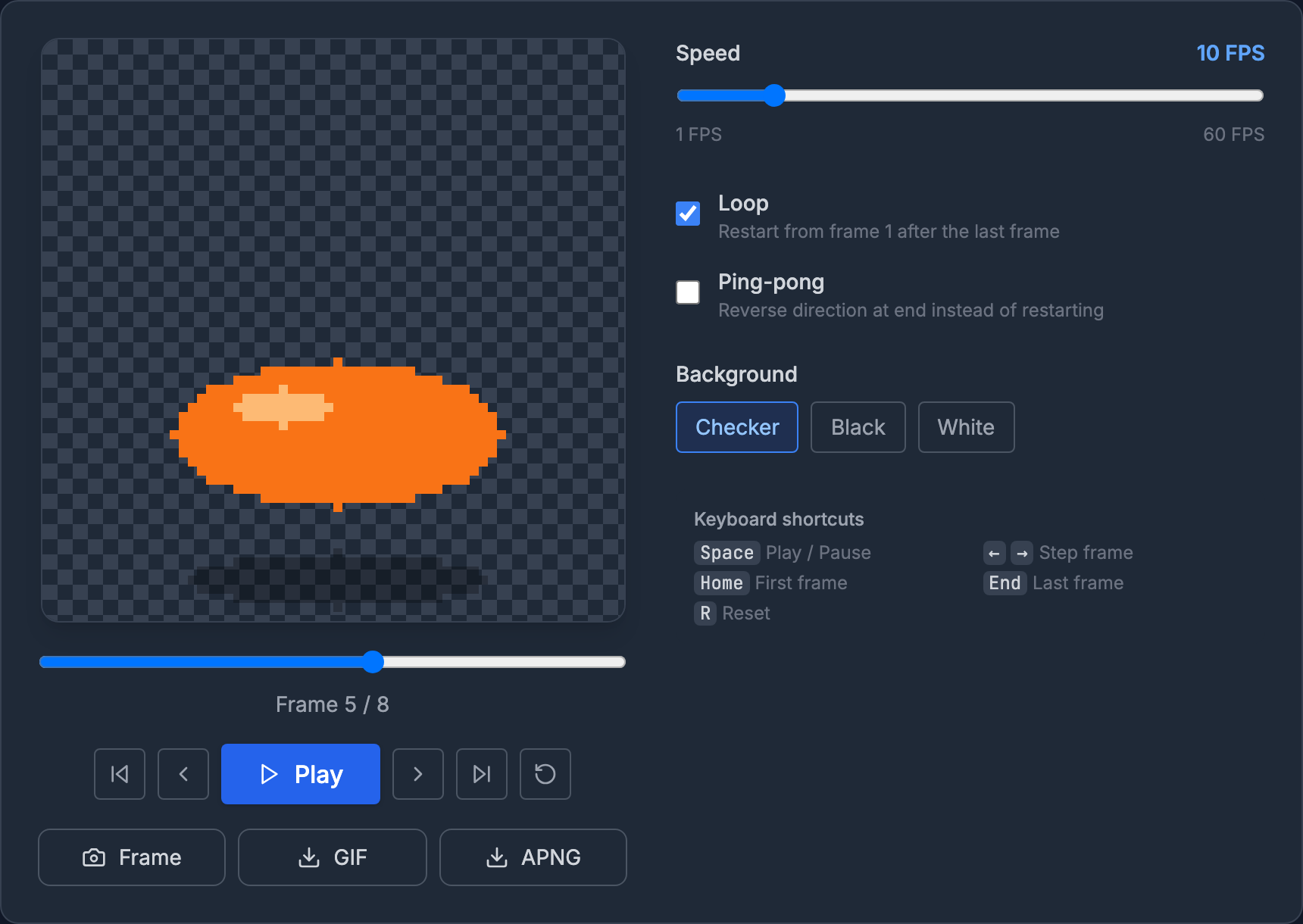
Play it at 8, 10 and 12 fps and watch how long the squash stays visible. To try your own version, download the sample sheet, edit frame 5 in any pixel editor and load it back into the player. The player runs in your browser and nothing is uploaded.

In short
- Squash shows force and material; stretch shows speed and bridges big gaps between frames.
- Keep width × height roughly constant, within about 10% of the round shape.
- Squash on the contact frame, for one frame unless the object is soft; stretch on the fastest frames.
- At pixel-art sizes, squash from the contact point, squash the details too, and keep the pivot at the bottom.