Draw and Animate Pixel Art in Your Browser
Draw a sprite and make it move, without installing anything. Use the pencil, fill and shape tools, mirror with symmetry, add frames with onion skin, play it back, then download a PNG strip or a GIF, or send the frames to export for your engine.
Chapters
After the video
- The video starts at 32 by 32, a common size for a game character; 16 by 16 suits small enemies and retro heroes. New drawings can be anywhere from 8 to 128 pixels on a side.
- Symmetry works horizontally and vertically, onion skin shows the previous frame under the one you are drawing, and playback runs from 1 to 30 frames per second.
- Your drawing saves in this browser only. Download it before you clear site data or move to another device.
The editor downloads a PNG strip or a GIF. For a Godot SpriteFrames file, a Phaser atlas or another engine format, send the frames to Export and Download. The draw your own sprite guide goes through the drawing tools in more detail.
Transcript
0:00 Want to draw your own sprite and make it move, without installing anything? Let's do it right in the browser.
0:08 Open the Pixel Art Editor on spritepilot.com and pick a small canvas. Thirty two by thirty two is a great start.
0:17 Draw with the pencil, fill and shape tools. Turn on symmetry and both sides of your character draw at once.
0:34 Now add a frame, or duplicate this one, and change the pose a little. Onion skin shows the last frame underneath, so the motion stays smooth.
0:45 Press play and adjust the speed until it feels right.
0:49 Download it as a PNG strip or an animated GIF, or send the frames on to Export and Download for your engine.
0:57 That's it. Your own sprite, drawn and animated in a few minutes.
More video tutorials
 Sprite sheet toolsHow to Cut a Sprite Sheet Into Separate Sprites
 Sprite sheet toolsGIF or Video to Sprite Sheet in Under a Minute
 Sprite sheet toolsRemove a Sprite Sheet Background, Then Trim and Pad It
 Free assetsFree Game Assets: Sound Effects, Pixel Font and Parallax Backgrounds
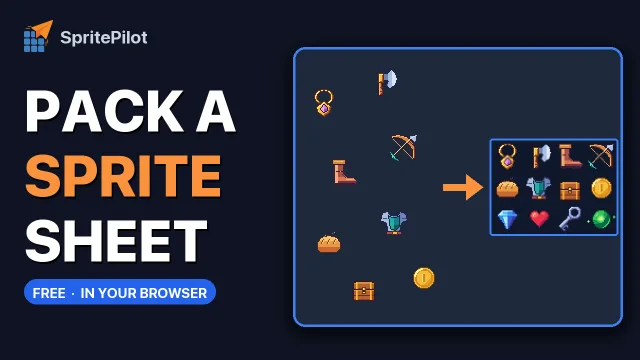 Sprite sheet toolsMake a Sprite Sheet From Separate Images
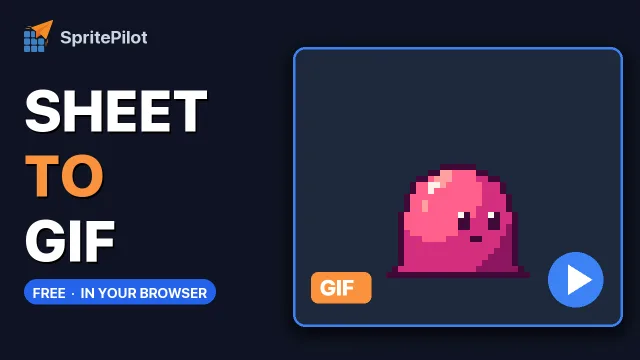 Sprite sheet toolsPreview a Sprite Sheet Animation and Turn It Into a GIF
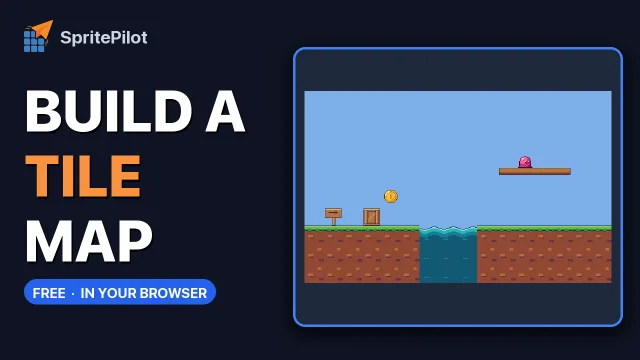 Game artBuild a Tile Map in Your Browser
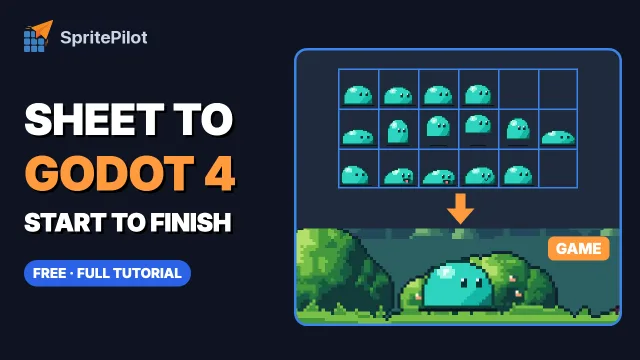 Sprite sheet toolsSprite Sheet to Godot 4 Animation, Start to Finish
 Sprite sheet toolsSprite Sheet to Unity 6 Animation, Start to Finish