Sprite Sheet to Godot 4 Animation, Start to Finish
Turn one sprite sheet into a character you can control in Godot 4, start to finish. Cut the sheet into frames in SpritePilot, name the animations with tags, export a SpriteFrames file, then set up the Godot project, tune each animation and write the short script that makes the slime idle, hop, turn and attack.
Chapters
Transcript
0:04 In this video we take a sprite sheet and turn it into a character you can control in Godot 4. By the end, this slime idles when it stands still, hops when it moves, turns to face where it's going, and attacks when you press a key. We'll do it start to finish: cutting the sheet, naming the animations, setting up the Godot project, and the short script that drives it. No slicing frames by hand. Everything here is free, including the slime.
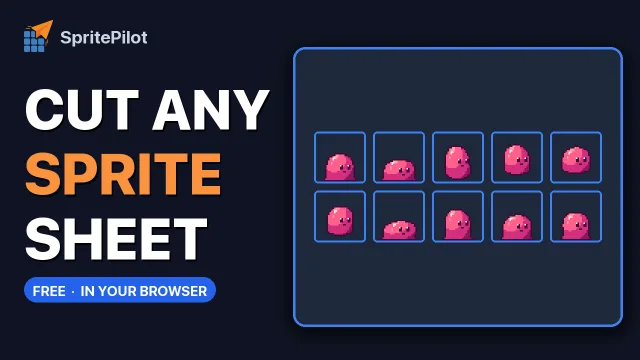
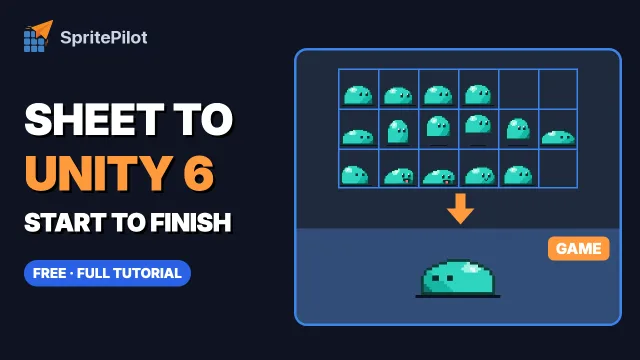
0:34 Here's our sheet. Three rows, each frame thirty two by thirty two pixels. The top row is idle, four frames. The middle row is a hop, six frames. And the bottom row is an attack, five frames. The rows don't have to be full, and that matters later, because we only want the frames that are actually there.
0:59 Open SpritePilot in your browser and go to Sprite Detection. Drop the sheet in and choose Grid Slice, because this sheet is a neat grid. Set Columns to six and Rows to three, and cut it. Every frame is now its own sprite. Skip empty cells is on, so the short rows don't give us blank frames. If your sheet isn't a neat grid, Auto-detect finds the sprites for you instead.
1:31 Before we export, it's worth watching the frames move. Open Sprite Extraction: your frames are already waiting in the Animation Preview. Press play, and all fifteen run in order: idle, then hop, then attack. This is where you spot a frame in the wrong place, or decide on a speed. Around six frames a second suits the idle. The hop feels better faster, around ten. Remember these numbers; we'll use them in Godot.
2:08 Now open Export and Download. First, check the frame order under Rename and Reorder. The frames are numbered from zero, left to right, top to bottom. Then open Animation Tags. A tag is a name plus a range of frames. Add idle, frames zero to three. Add hop, four to nine. And the last one, attack, frames ten to fourteen. Each tag becomes a named animation in Godot, so this is the step that saves you the most clicking later.
2:51 For the format, choose SpriteFrames. That's Godot 4's own resource for animated sprites. Download it, and you get two files: the packed sheet, sprite-sheet dot png, and a Sprite Frames resource file, which describes every frame and every animation. Keep these two together. The resource file looks for the sheet by name, in the top folder of your project.
3:19 In Godot, create a new project. Before anything else, one setting for pixel art: open Project Settings, go to Rendering, then Textures, and set the default texture filter to Nearest. Without it, your sprites come out blurry. Now drag both files into the File System panel, right in the top folder, so the sheet sits where the resource file expects it.
3:44 Make a new scene with a CharacterBody2D as the root, and call it Slime. Give it two children: an AnimatedSprite2D, which plays the animation, and a CollisionShape2D with a small rectangle, so the body has a shape. Select the AnimatedSprite2D and drag sprite-frames dot tres onto its Sprite Frames property. Open the panel at the bottom, and there they are: idle, hop and attack, with all their frames, already in order.
4:18 Every animation starts at twelve frames a second and loops. Set idle to six and hop to ten, the speeds we picked earlier. Attack can stay at twelve, but switch its looping off. That one's important: an attack has to finish, so the game knows when to go back to idling. Press play on each one to check it. Also tick Autoplay on idle, so the slime is alive as soon as the game starts.
4:50 Attach a script to the Slime. It's short. Each frame, it reads the left and right keys, moves the body, and flips the sprite to face the way it's going. Then it picks an animation: attack if you just pressed the accept key, hop if you're moving, idle if you're not. Calling play every frame is fine, because Godot carries on if that animation is already playing. When the attack finishes, a signal tells the script, and the slime can move again.
5:27 Put the Slime in a main scene and press play. It idles. Hold left or right and it hops, turning to face the way it moves. Press space and it attacks, then goes straight back to what it was doing. That's a working animated character, from a single sprite sheet.
5:47 Four things go wrong most often. If the sprite is blurry, the texture filter isn't set to Nearest. If the slime gets stuck in its attack, that animation is still looping. If Godot can't find the texture, the sheet isn't in the top folder next to the tres file. And if an animation plays the wrong frames, fix the order in Rename and Reorder and export again; the tags follow the order you export.
6:18 That's the whole path: sheet, frames, tags, SpriteFrames, script. The slime sheet is free to use in your own games, and SpritePilot is free in your browser, with nothing to install. Next time, the same character in Unity.
More video tutorials
 Sprite sheet toolsHow to Cut a Sprite Sheet Into Separate Sprites
 Sprite sheet toolsGIF or Video to Sprite Sheet in Under a Minute
 Sprite sheet toolsRemove a Sprite Sheet Background, Then Trim and Pad It
 Free assetsFree Game Assets: Sound Effects, Pixel Font and Parallax Backgrounds
 Sprite sheet toolsMake a Sprite Sheet From Separate Images
 Game artDraw and Animate Pixel Art in Your Browser
 Sprite sheet toolsPreview a Sprite Sheet Animation and Turn It Into a GIF
 Game artBuild a Tile Map in Your Browser
 Sprite sheet toolsSprite Sheet to Unity 6 Animation, Start to Finish