Video tutorials
Narrated tutorials recorded on the real site. Each one has its chapters and a full transcript, and a button that opens the tool it shows.
There are ten videos here. Eight are short tours of about a minute, each showing one tool or one part of the site from start to finish: you see the file go in, the settings that matter, and what comes out. The other two are full walkthroughs of about seven minutes that take one slime sprite sheet all the way to a character you can move with the keyboard, one in Godot 4 and one in Unity 6.
Sprite sheet tools
Cut, convert, clean up, pack and preview sprite sheets.
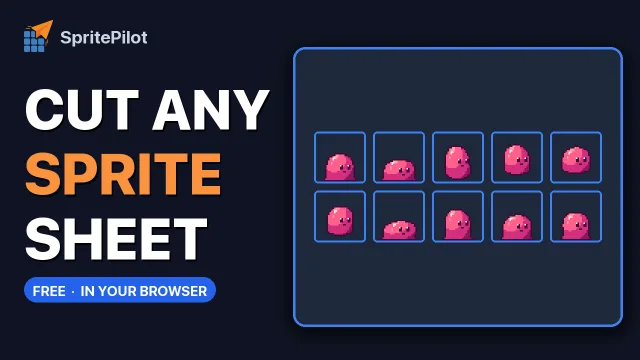 Sprite sheet toolsHow to Cut a Sprite Sheet Into Separate Sprites
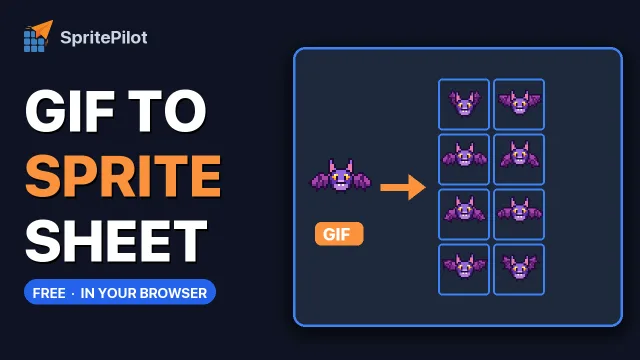 Sprite sheet toolsGIF or Video to Sprite Sheet in Under a Minute
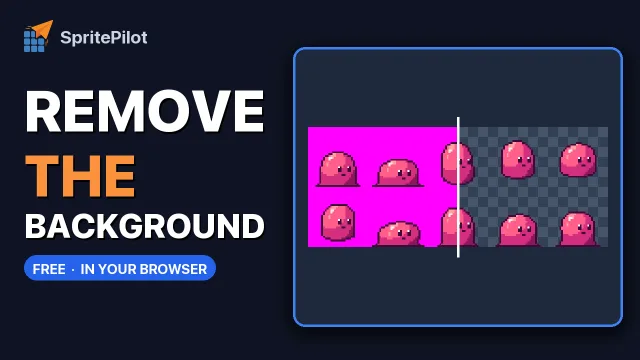 Sprite sheet toolsRemove a Sprite Sheet Background, Then Trim and Pad It
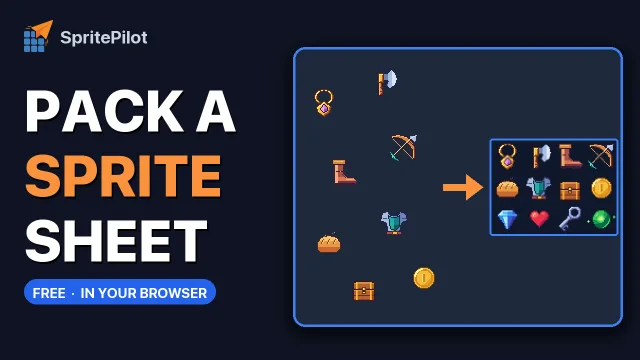 Sprite sheet toolsMake a Sprite Sheet From Separate Images
 Sprite sheet toolsPreview a Sprite Sheet Animation and Turn It Into a GIF
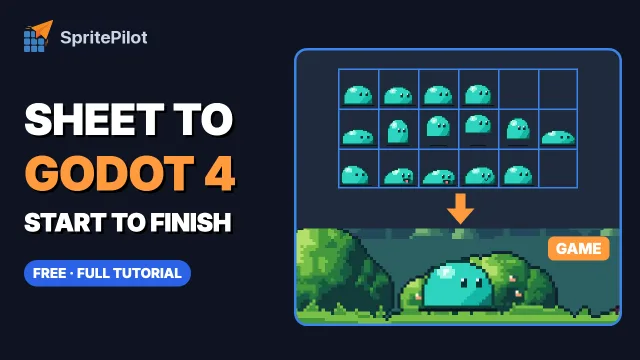 Sprite sheet toolsSprite Sheet to Godot 4 Animation, Start to Finish
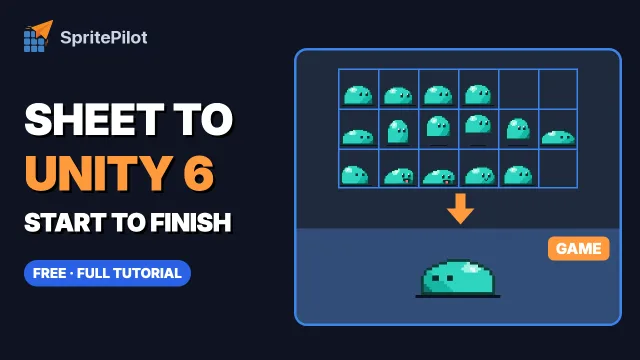 Sprite sheet toolsSprite Sheet to Unity 6 Animation, Start to Finish
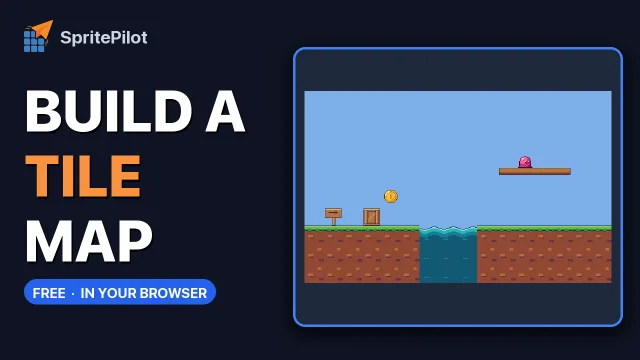
Make game art in your browser
Draw and animate sprites, then build levels from tiles.
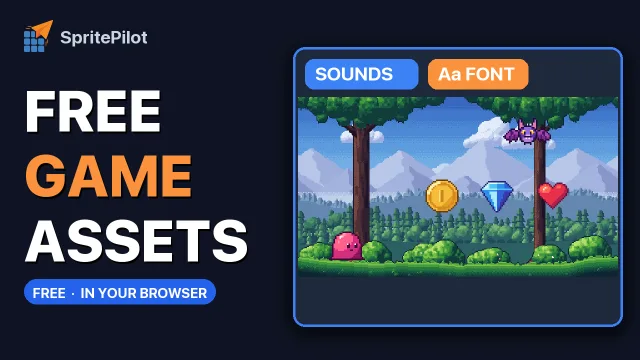
Free game assets
Sprites, sound effects, a pixel font and backgrounds, all CC0.
Which video for which job
- Your sheet is one big image and you need every frame on its own. How to Cut a Sprite Sheet Into Separate Sprites 1:20
Grid Slice for frames in an even grid, Auto-detect for sprites that are scattered or different sizes. - The animation you want is a GIF, an animated WebP or a short video clip. GIF or Video to Sprite Sheet in Under a Minute 1:12
It also says how much video to grab: two seconds at twelve frames per second covers most game moves. - Your sheet sits on a solid pink or green background. Remove a Sprite Sheet Background, Then Trim and Pad It 1:09
Clear the color, cut the frames, then trim, pad and extrude them so they never bleed into each other. - You have a folder of separate images and want one sheet. Make a Sprite Sheet From Separate Images 1:02
Packing or a grid, a little padding, and a PNG that comes with its JSON. - You want to see a sheet move before it goes into your game, or share it. Preview a Sprite Sheet Animation and Turn It Into a GIF 0:56
Set the grid, step through the frames one at a time, then export a GIF or an APNG. - You want to draw and animate the sprite yourself. Draw and Animate Pixel Art in Your Browser 1:07
Pencil, fill, symmetry and onion skin on a 32 by 32 canvas, then a strip or a GIF. - You need a level rather than a character. Build a Tile Map in Your Browser 1:19
Slice a tileset, paint on layers, and download a Tiled map or a flat picture. - You would rather start from art and sound that already exist. Free Game Assets: Sound Effects, Pixel Font and Parallax Backgrounds 1:14
CC0 sprite packs, sound effects, a pixel font and six parallax backgrounds, free for any game. - Your game is in Godot 4. Sprite Sheet to Godot 4 Animation, Start to Finish 6:43
Tags in SpritePilot become named animations in a SpriteFrames file, then a short GDScript makes the slime idle, hop, turn and attack. - Your game is in Unity 6. Sprite Sheet to Unity 6 Animation, Start to Finish 6:53
The frame size from the Sprite Player, then import settings, grid slicing, clips, the Animator and a C# script on the Input System.
How the videos fit with the tools and guides
The short videos show the clicks, not the reasons. When you want the reasons, each watch page has a button that opens the tool from the video, the short ones add a section on what to check afterwards, and most link to a written guide that explains the settings in more depth.
The same videos sit on the tool pages themselves, so on the Sprite Sheet Cutter or the Map Editor you can watch and try in one place. The two engine walkthroughs belong with the Godot 4 and Unity articles on the blog, which have the scripts as text you can copy.
Every watch page lists the chapters, so you can jump straight to the step you need, and the full narration as a transcript if you would rather read than watch. Nothing in the videos needs an account or anything installed: the tools open in your browser, and the assets are free to download.
Every tutorial is also on SpritePilot on YouTube.