GIF to Sprite Sheet: Keep Uneven Frame Timing
November 11, 2026 · 6 min read
Follow four unequal GIF delays into the converter's JSON, compare them with average-FPS playback, and see which exports preserve the original timing.
Open the tool from this article — free, in your browser, no signup.
To preserve uneven GIF timing, use GIF → Sprite Sheet's Download Sheet + JSON and keep the downloaded sprite-sheet.json beside the PNG. Each entry in frames has a duration in milliseconds. The displayed suggested FPS is only an average; it cannot describe a long hold on one pose. Send to Export & Download also preserves those delays when you choose Aseprite JSON or SpriteFrames.
Four poses, one deliberately long hold
The test GIF contains four code-drawn 64 × 64 poses, numbered 0, 1, 2, 3. They move from left to right and change color so the order is easy to recognize. Their intended delays are 100, 100, 500, 100 ms. Pose 2 is the hold, and one complete loop lasts 800 ms.

We generated the file with gifenc, specifying each frame's delay separately, then independently decoded it to confirm those four values. GIF delay values are stored in hundredths of a second, as defined in the GIF89a specification. These particular durations are all whole multiples of that unit, so this fixture does not involve sub-centisecond rounding or zero-delay handling.
The test concerns timing, not difficult disposal or partial-frame reconstruction. Each source frame is a full, opaque canvas with a numbered pose. That keeps the question narrow: after conversion, can we recover the same four durations in the same order?
Follow the delays into the direct JSON
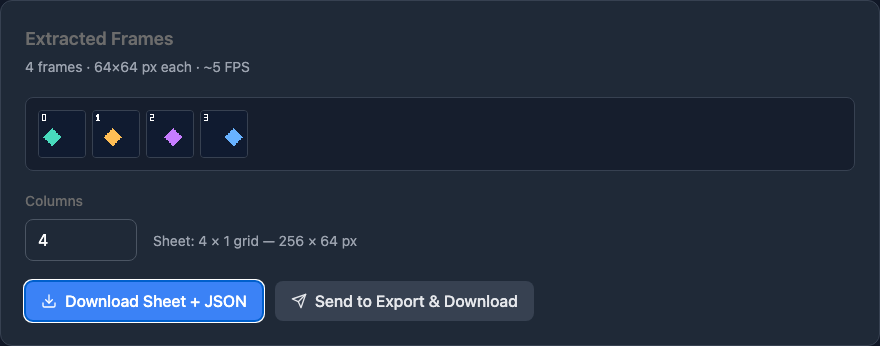
Load the GIF into the converter. The result reports 4 frames · 64×64 px each · ~5 FPS. Set Columns to 4 and choose Download Sheet + JSON. The two files are a 256 × 64 sprite-sheet.png and its sprite-sheet.json. Our copies are available as the sheet and the direct JSON.

The downloaded metadata contained the following mapping. index and the numbered poses both start at zero in this fixture.
| Frame index | Sheet rectangle x, y, w, h | duration |
Interval in one loop |
|---|---|---|---|
| 0 | 0, 0, 64, 64 | 100 | 0–100 ms |
| 1 | 64, 0, 64, 64 | 100 | 100–200 ms |
| 2 | 128, 0, 64, 64 | 500 | 200–700 ms |
| 3 | 192, 0, 64, 64 | 100 | 700–800 ms |
Intervals include their starting time and exclude the ending time: exactly 700 ms selects pose 3. The actual field is frames[i].duration, not a separate delays file or an animation tag. The PNG stores the pictures; the JSON supplies both their rectangles and these timings. Saving only the image loses that timing information from this handoff.
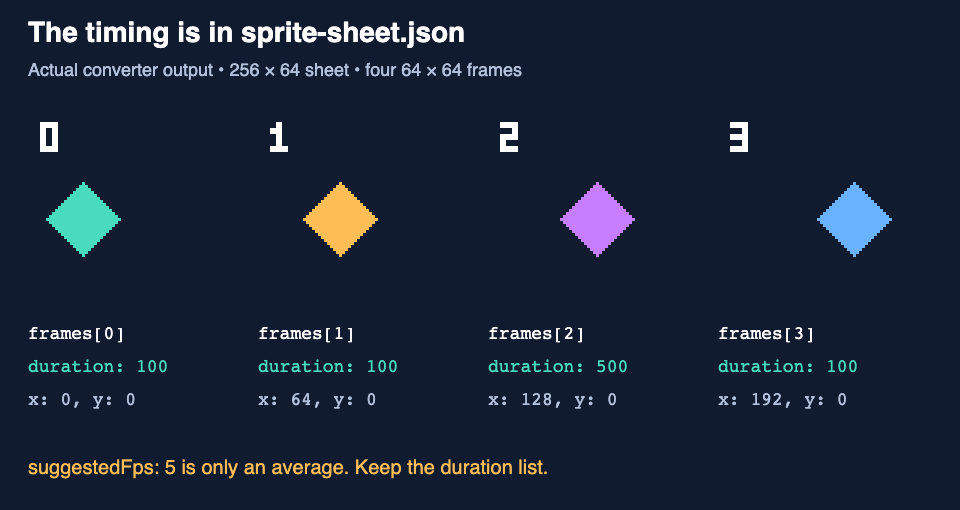
Changing Columns repacks the rectangles without changing the frame sequence or durations. If a grid has unused cells in its last row, use frameCount or the length of frames to decide how many poses exist. Do not treat the full grid capacity as the animation length.
Why 5 FPS is not equivalent
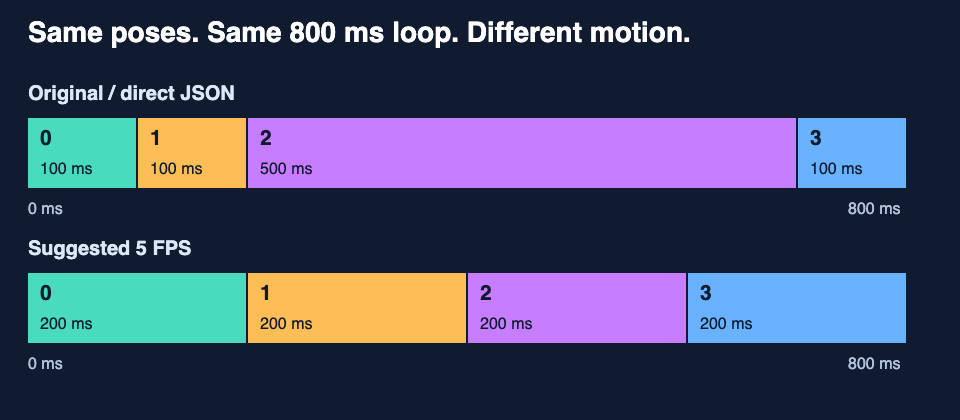
The four delays average 200 ms, so the suggested rate is 5 FPS. In this carefully chosen example, four evenly timed frames at that rate also take 800 ms. The total loop duration matches, but the movement does not.
With the real delays, the green and amber poses each pass quickly, the purple pose holds for half a second, and the blue pose passes quickly before the loop restarts. At a uniform 5 FPS, each pose lasts 200 ms. The first two poses are doubled, the hold shrinks by 300 ms, and the last pose is doubled. For another GIF, the tool's rounding of the suggested FPS can change the total duration too.
Sprite Player is useful for checking this sheet's cuts and order, but its Speed control is one FPS value for all cells. It does not load the converter's duration list. For this particular fixture, a uniform 10 FPS version could repeat pose 2 five times, producing eight 100 ms cells. That is a deliberate expanded frame sequence, not something the GIF converter automatically writes for you. Prefer preserving the duration list when your playback code can use it.
A small duration-aware playback function
This JavaScript selects a frame from elapsed milliseconds and the direct JSON's frames array. It assumes a nonempty list of positive durations, which the downloaded fixture has. Validate those conditions before using untrusted or hand-edited metadata.
function frameAt(elapsedMs, frames) {
  const total = frames.reduce((sum, f) => sum + f.duration, 0);
  let t = ((elapsedMs % total) + total) % total;
  for (let i = 0; i < frames.length; i++) {
    if (t < frames[i].duration) return i;
    t -= frames[i].duration;
  }
  return frames.length - 1;
}
Use the returned index to select a rectangle from frames, then draw that rectangle from the sheet. In a browser animation loop, pass elapsed time since playback began, rather than adding one frame per display refresh. A requestAnimationFrame callback provides a timestamp you can subtract the start time from. The function is independent of that scheduler, so it can also be tested with explicit times.
The modulo keeps the remainder when time crosses a loop boundary. At 850 ms, for example, it selects the pose at 50 ms into the next loop instead of resetting the clock to zero and losing the extra 50 ms. A large time jump may skip visible presentations, but the selected pose remains aligned to elapsed animation time. This is a frame selector, not an event-delivery system; do not use it alone to guarantee that every pose triggers gameplay logic.
We ran the function in Node and Chromium and drew the corresponding rectangles in the browser. Boundary checks covered two complete loops: transitions at 0, 100, 200, 700, 800, 900, 1000, 1500, and 1600 ms, with checks just before the transitions as well. Additional late times verified remainder handling. That verifies the timing calculation and crops; it is not a claim that any game engine imported this JSON automatically.
Choose an export that carries timing
We also clicked Send to Export & Download and downloaded each metadata choice from that page. The transfer keeps each delay with its decoded picture in the editing session, including after renaming, reordering, trimming, or reloading. Here is what the files actually contained:
| Export path | Original 100, 100, 500, 100 ms retained? |
|---|---|
| Converter's direct Sheet + JSON | Yes, in frames[].duration |
| Aseprite JSON in Export & Download | Yes; duration is 100, 100, 500, 100 ms |
| SpriteFrames in Export & Download | Yes; duration is 1.2, 1.2, 6, 1.2, with speed: 12.0 |
| TexturePacker, Phaser 3, Godot JSON, Basic JSON | No original per-frame duration fields |
| CSS Sprites | No input delay sequence |
| Download as ZIP metadata | No input delay sequence |
Aseprite stores milliseconds directly. Godot's SpriteFrames duration is relative: at normal playback speed, seconds = duration ÷ animation speed. Here, 1.2 ÷ 12 is 0.1 seconds and 6 ÷ 12 is 0.5 seconds. The base stays at 12; the long hold comes from its frame's multiplier. Animation tags select frames with their own delays.
The other rows describe atlas rectangles, CSS sprite positions, or ZIP contents without a per-frame duration field. That is a limit of those exported formats, not missing pictures: they need a separate animation timing list. CSS can animate, and Phaser can play variable delays, but these atlas exports do not define that playback. Keep the direct JSON if you need a separate list, and map each picture to its delay when editing outside SpritePilot. Inside Export & Download, timing follows the frame automatically: swapping poses 1 and 2 exports 100, 500, 100, 100 ms, including after reload.
Choose Aseprite JSON for milliseconds or SpriteFrames for Godot's animation resource; keep the PNG beside the metadata. Start with the export guide or Godot animation article for engine setup. We checked the downloaded fields and timing math, not an engine import.
The GIF conversion guide covers the controls. For uneven timing, the critical check is simpler: keep timing-capable metadata, verify the ordered durations, and compare the held pose rather than judging only the loop's overall speed.