Sprite Sheet Tester: Find Bad Frames Before Importing
October 30, 2026 · 6 min read
Test a numbered sprite sheet for wrong cuts, mixed animations, swapped frames, and empty cells, then isolate each clip before importing it.
Open the tool from this article — free, in your browser, no signup.
Use a sprite sheet tester to check cuts, order, and timing separately. In Sprite Player, first align the numbered grid with the artwork, then step through every cell, then play at the intended speed. The player reads the whole grid; it cannot select an animation range. A sheet containing several clips needs separate strips for a useful playback test. The fixture below makes those distinctions visible before you spend time setting up an engine animation.
A small sheet with known faults
Download the test sheet. It is 192 × 96 pixels, with four columns and two rows of 48 × 48 cells. Margin and spacing are both zero. The little white number in each occupied cell is the pose ID, drawn into the image. Sprite Player's overlay numbers are cell positions, counted from one. Keep those two kinds of number separate when reporting a bug.

The green idle should play pose IDs 0, 1, 2, 3. The orange dash should play 4, 5, 6. Instead, the second row contains 4, 6, 5, empty. This creates three independent problems for whole-sheet playback: crossing into a different animation, playing dash poses out of order, and displaying an unused cell. None requires changing the frame size.
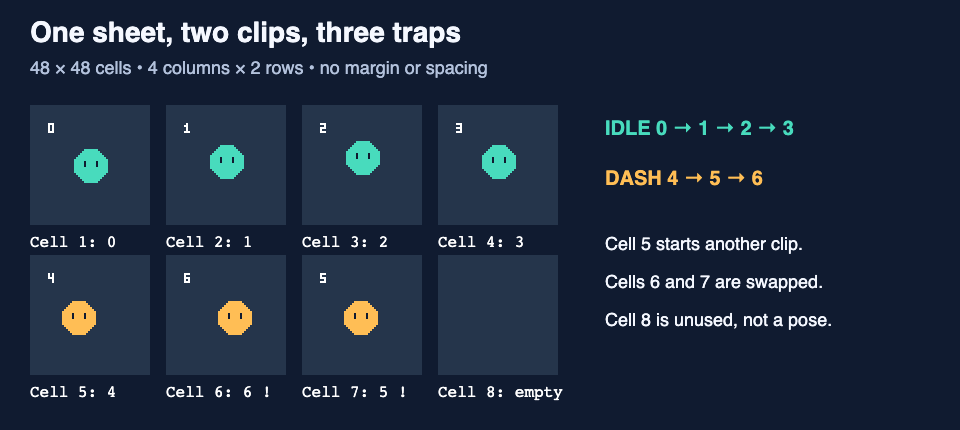
At 8 FPS, the idle should take 0.5 seconds and the dash 0.375 seconds. Playing all eight cells takes one second, but that is not either intended animation. The empty cell occupies another eighth of a second just like an occupied cell. A plausible total duration therefore does not prove that the frame list is correct.
Check the cuts before judging the motion
Load the fixture into Sprite Player and set Columns to 4, Rows to 2, Margin (px) to 0, and Spacing (px) to 0. The readout should say 8 frames · 48×48 px each. Turn on Grid overlay. Every rectangle should contain one complete numbered pose, except the intentionally unused bottom-right cell.
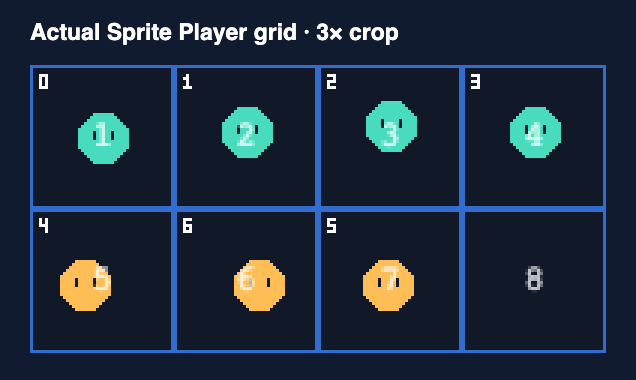
Now deliberately set Columns to 3. The tool reports six frames of 64 × 48 pixels. Cuts no longer follow the original cells: some crops contain parts of neighboring poses. Crucially, there is no leftover-pixels warning. The width divides evenly by three, so arithmetic alone cannot tell you that this is the wrong grid.
Restore four columns before continuing. A leftover warning is useful evidence of a mismatch, but its absence is not evidence that the artwork is aligned. Check the first, middle, and last cells visually. If the cuts gradually drift across a real sheet, investigate margin and spacing; if all boxes align but the movement jumps backward, investigate order. Finding a sprite sheet's frame size covers the grid arithmetic in more detail.
Record the first wrong transition
Set Speed to 8 FPS, leave Loop checked, and leave Ping-pong unchecked. Watch one complete pass, then pause. Use the scrubber or the next-frame button to inspect these transitions:
| Player position | Pose ID | What it tells you |
|---|---|---|
| 4 | 3 | Last idle pose; the idle should return to pose 0 next |
| 5 | 4 | First dash pose; a clip boundary, not a broken crop |
| 6 | 6 | First ordering fault within the dash; pose 5 belongs here |
| 7 | 5 | The dash moves backward after overshooting |
| 8 | none | Unused cell; the player still displays it |
Arrow keys step frames; Home and End jump to the ends. Click away from a settings input before using keyboard shortcuts, because shortcuts are ignored while an input has focus. R stops playback and returns to the first frame. The player guide is the full control reference.
Do not try to solve the swapped poses by increasing Speed. Faster playback shortens the error without fixing it. Ping-pong also changes the motion being tested, so leave it off when checking a forward sequence. There is no start-frame/end-frame selector or named-clip list here. The scrubber chooses the current cell; it does not establish a playback range.
Isolate and repack the two clips
The corrected downloads are idle-strip.png, 192 × 48 pixels, and dash-strip.png, 144 × 48 pixels. Both preserve the original 48 × 48 canvas around every pose. The idle copies source cells 1, 2, 3, 4; the dash copies 5, 7, 6, in that order.


This is the browser-canvas crop recipe used to make the strips. Here source is the decoded image, and cells contains one-based source cell positions. It was run on the supplied fixture; no engine is required.
function makeStrip(source, cells) {
  const out = document.createElement('canvas');
  out.width = cells.length * 48;
  out.height = 48;
  const ctx = out.getContext('2d');
  cells.forEach((cell, i) => {
    const n = cell - 1;
    ctx.drawImage(source,
      (n % 4) * 48, Math.floor(n / 4) * 48, 48, 48,
      i * 48, 0, 48, 48);
  });
  return out;
}
Call it with [1, 2, 3, 4] or [5, 7, 6], then save the returned canvas as PNG. Keeping the cell canvas avoids introducing a second problem through tight cropping: each pose retains its original position relative to the cell. This recipe is specific to this fixture's four-column grid; change its dimensions and coordinates for another sheet.
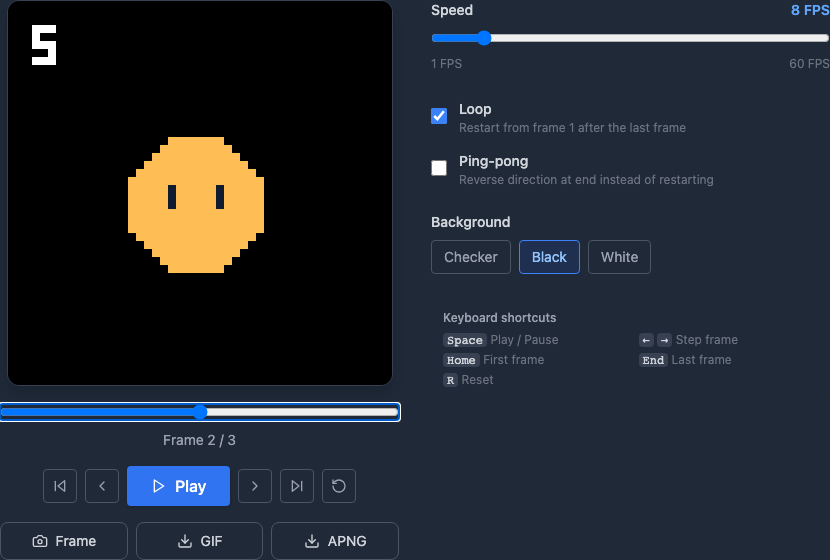
Load each strip separately. Use four columns and one row for idle, then three columns and one row for dash. Recheck margin, spacing, and Speed: the player remembers settings, so loading another file is not a reset to a known configuration. Loop idle to inspect the seam. Turn Loop off for a single forward dash test; the player stops on its final cell. Loop troubleshooting goes deeper into duplicated endpoints and unwanted holds.
Empty cell or deliberate blank?
For this fixture, cell 8 is unused because the intended dash has exactly three poses. On another sheet, a transparent frame might intentionally hide a sprite between flashes. Its pixels alone cannot tell you which meaning was intended.
Grid Slice has Skip empty (fully transparent) cells. That is useful when the empty cells are packing leftovers, but it also drops deliberate fully transparent poses. It does not sort the swapped dash frames or identify clip boundaries. Decide what the empties mean before choosing that option, and use the splitting guide for the slicing workflow.
Switch the player's Background between Black and White while stepping. A truly transparent final cell becomes the chosen backdrop. A white rectangle saved into the sheet stays white on black. This check separates an empty alpha cell from a filled background that merely looks empty against one preview color.
Hand off evidence, not “it looks weird”
At position 6 of the original sheet, use Frame to save the offending crop. The supplied frame_0006.png is the actual tool download: 48 × 48 pixels containing pose 6, where pose 5 was expected. The preview backdrop is not baked into that PNG.

A useful handoff records the source dimensions, grid settings, one-based cell position, expected pose, actual pose, ordered clip cells, and playback rate. For this dash: 192 × 96 source; 4 × 2 grid; zero margin/spacing; cell 6 is pose 6 instead of 5; corrected cells 5, 7, 6; 8 FPS; 0.375 seconds. That is enough to reproduce and verify the repair without guessing which “frame six” someone meant.