Make Sprite Animations Loop Without a Hitch
October 14, 2026 · 6 min read
Why looping sprite animations stutter at the seam, from duplicated frames to ping-pong that repeats its ends and easing in the wrong place, and how to fix each.
Open the tool from this article — free, in your browser, no signup.
Your animation plays smoothly, except for a tiny stutter once every cycle. It's always in the same place: the seam, where the last frame hands over to the first. Seams go wrong in a handful of predictable ways, and each one has a simple fix.
A duplicated frame at the seam
The classic hitch is a last frame that is the same as the first. The pose then appears twice in a row, so the motion stops for one frame every cycle:
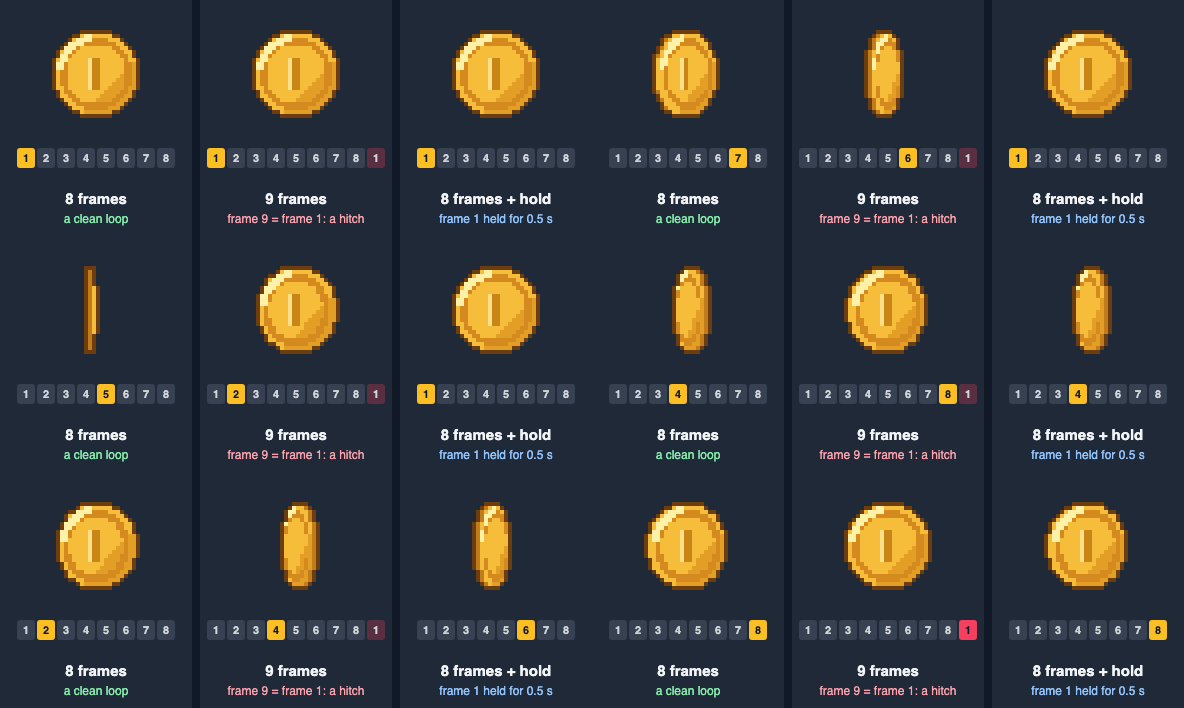
It tends to sneak in one of three ways: the first frame is copied to the end "to close the loop", a rotation is rendered from 0° to 360° inclusive, or a captured GIF or video ends where it started.
The fix is to make the last frame one normal step before the first. For a full turn in 8 frames, each step is 360° ÷ 8 = 45°, so the frames sit at 0°, 45°, 90° … 315°. The next frame would be 360°, which looks the same as 0°, and that one is frame 1 of the next cycle. The same goes for any loop: if a bob moves 2 pixels per frame, the last frame should be 2 pixels away from the first, not on top of it.
To check a sheet, load it in SpritePilot's Sprite Player and press Home and End to flip between the first and last frames. If they look identical, delete the last one.
Ping-pong: do the end frames repeat?
Ping-pong plays the frames forward, then backward, then forward again. It suits motions that reverse on their own, such as breathing, swaying or a pendulum, and it nearly halves the drawings they need: 8 drawings give a 14-step cycle. Whether it hitches depends on how the turnaround is done:
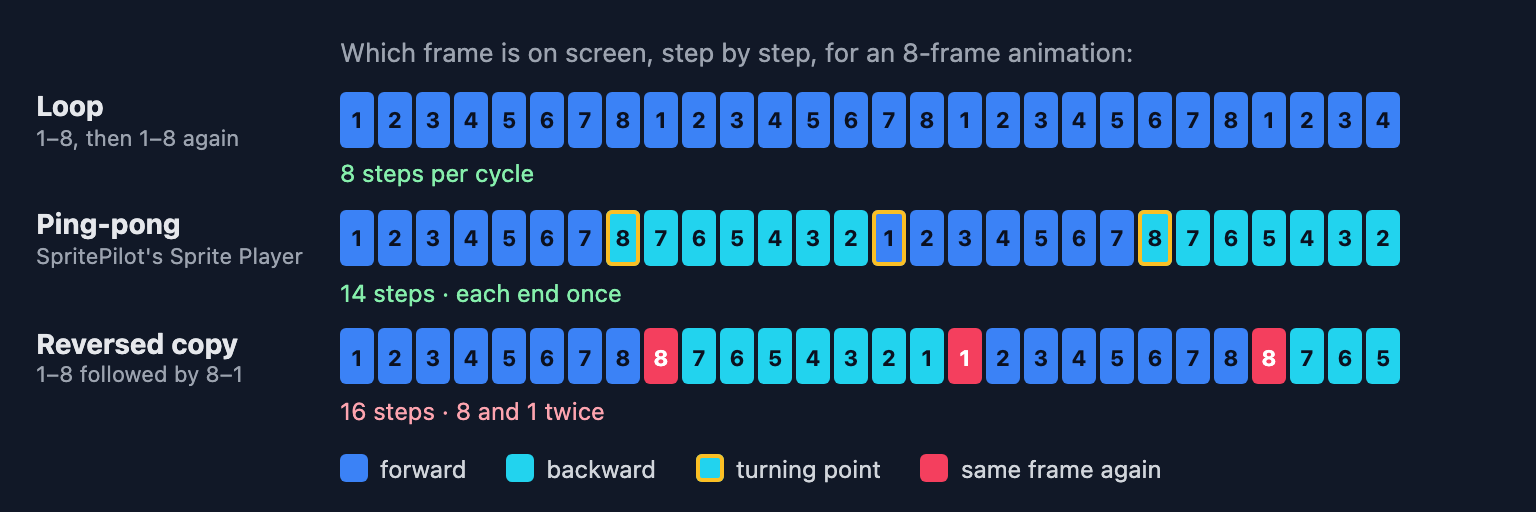
- Turning without repeating shows frame 8 once, goes straight to 7, and back down to 1 before heading to 2. A full back-and-forth of 8 frames takes 2 × 8 − 2 = 14 steps.
- Appending a reversed copy of all the frames (1–8 followed by 8–1) takes 16 steps and shows frames 8 and 1 twice in a row each, a hitch at both ends.
SpritePilot's Sprite Player does the first. Its Ping-pong option steps 1 → 8, then 7 → 1, then 2 → 8, with each end frame on screen for a single step, and it keeps bouncing whether or not Loop is ticked. Phaser's yoyo option turns around the same way: in Phaser's source, the animation steps from the last frame straight to the one before it, and when it repeats, from the first frame straight to the second.
The trap is exporting. The player's GIF and APNG buttons write the frames once, in sheet order, so the ping-pong isn't in the file. If you need a ping-pong GIF, or an engine that only loops forward, put the return trip in the sheet: frames 1 to 8 followed by 7 to 2, for 14 frames. Adding 8 to 1 instead brings back both doubled frames.
Don't ping-pong motions that only go one way. A spinning coin, a walk, fire or a waterfall played backward is visibly reversed: the coin spins back, the character walks backward.
Spacing across the seam
Even with no duplicated frame, a loop can slow down at the seam. That happens when the spacing, how far things move between frames, changes there.
One-way motion (spinning, walking, scrolling, a flag rippling) should keep the same spacing across the seam as everywhere else. The mistake to avoid is easing a loop as if it were a one-shot animation: slowing into the last frame and out of the first. Played once, that looks natural. Looped, it slows down and speeds up again every cycle.
Back-and-forth motion (hovering, bobbing, breathing) is the opposite: it should slow down, at the top and bottom where it turns around. With even spacing it bounces off the ends like it hit a wall:
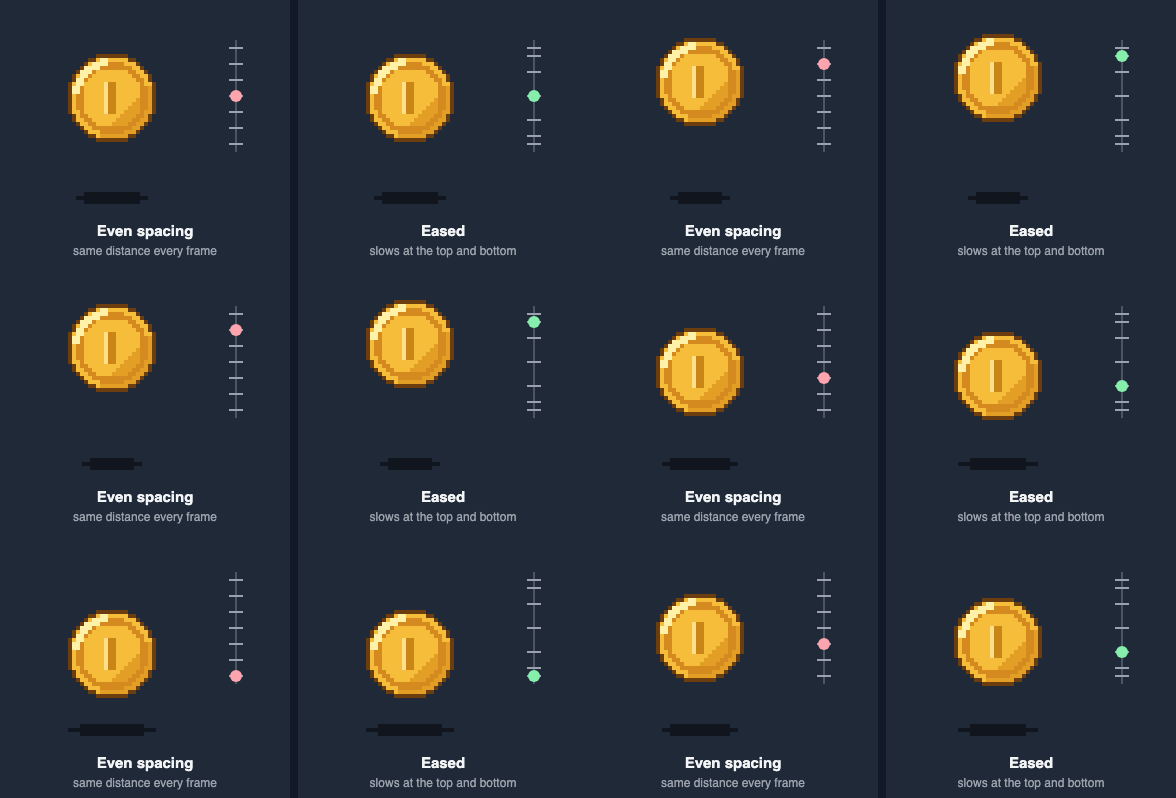
A sine curve gives you that easing for free, and it loops cleanly, because the step from the last frame back to the first is the same size as the step after it. This function returns the vertical offsets, in pixels, for each frame of a hover:
// Vertical offsets (in pixels) for a hover loop of `frames` drawings.
// The sine curve slows down at the top and bottom, and the last frame
// leads straight back into the first.
function hoverOffsets(frames, amplitude) {
  const offsets = []
  for (let i = 0; i < frames; i++) {
    offsets.push(Math.round(amplitude * Math.sin((2 * Math.PI * i) / frames)))
  }
  return offsets
}

console.log(hoverOffsets(12, 6)) // [0, 3, 5, 6, 5, 3, 0, -3, -5, -6, -5, -3]
Those are the heights of the eased coin above. The loop runs from i = 0 to frames − 1, never to frames itself, which would duplicate frame 1. The steps between frames are 3, 2 and 1 pixels: large in the middle of the motion, small at the turns, and 3 again across the seam from −3 back to 0.
Holds that look deliberate
A pause isn't always a mistake. A coin that rests face-on for half a second, an idle that holds still before a blink, a breath held at the top: holds give a loop rhythm. The difference between a hold and a hitch is mostly length. One extra frame, 0.1 s at 10 fps, looks like a skipped beat. Five frames' worth, as in the right-hand coin above, looks intended.
There are two ways to make one:
- Per-frame durations in the engine or editor that plays the animation. How Fast Should Pixel Art Animate? shows how in Godot, Phaser, Unity and Aseprite.
- Repeating the frame in the sheet. That works everywhere, and it's the way to preview a hold in the Sprite Player, which shows every frame for the same time.
A loop checklist
Load the sheet in the Sprite Player (no sheet handy? The CC0 coin strip is 8 frames of 32 × 32) and go through these:

- End, then Home: flip between the last frame and the first. If they're identical, delete the last one.
- ← and →: step through the frames and note how far things move each time. The jump from the last frame to the first (End, then Home again) should be the same size.
- Speed: play it slowly, at 2 to 4 FPS, where a hitch is easy to see, then at full speed.
- Ping-pong: only for motions that reverse. To export it, add the return frames without the ends: 8 frames become 14.
- Holds: make them long enough to look intended, or remove them.
When it loops cleanly, the GIF and APNG buttons export it as an endlessly looping animation. How to Convert a Sprite Sheet to a GIF explains when to pick which.