Sprite Sheet Animation in JavaScript With Canvas (No Engine)
October 13, 2026 · 7 min read
Play a sprite sheet on a canvas in plain JavaScript, with time-based frames, the 9-argument drawImage, crisp pixel art, sharp high-DPI output and a JSON atlas.
Open the tool from this article — free, in your browser, no signup.
You don't need a game engine to play a sprite animation in the browser. A canvas, an image and about 30 lines of JavaScript will do it. Four things tend to go wrong: the animation runs at a different speed on a 144 Hz monitor, the pixel art comes out blurry, it looks soft on a phone or a high-resolution laptop, or the frames come out of a packed atlas in the wrong place.
This article builds the program once and then explains each of those parts. All the code was run in Chromium, and the frames it drew were checked pixel by pixel.
The whole program
The sheet is the bouncing-ball sample, ball-bounce.png: 8 frames of 64 × 64 pixels in 4 columns and 2 rows. Put it next to an HTML file with this in it:

<canvas id="game"></canvas>
<script type="module">
  const canvas = document.getElementById('game')
  const ctx = canvas.getContext('2d')

  const FRAME_W = 64       // one frame, in sheet pixels
  const FRAME_H = 64
  const COLUMNS = 4        // frames per row in the sheet
  const FRAME_COUNT = 8
  const FRAME_MS = 100     // 10 frames per second
  const SCALE = 3          // each sheet pixel becomes 3 × 3 CSS pixels

  const sheet = new Image()
  sheet.src = 'ball-bounce.png'
  await sheet.decode()

  // A whole number of screen pixels per sheet pixel, on any screen
  const zoom = Math.max(1, Math.round(SCALE * window.devicePixelRatio))
  canvas.width = FRAME_W * zoom
  canvas.height = FRAME_H * zoom
  canvas.style.width = canvas.width / window.devicePixelRatio + 'px'
  canvas.style.height = canvas.height / window.devicePixelRatio + 'px'
  ctx.imageSmoothingEnabled = false   // after sizing: resizing the canvas resets it

  let start = null
  function tick(now) {
    if (start === null) start = now
    const frame = Math.floor((now - start) / FRAME_MS) % FRAME_COUNT
    const sx = (frame % COLUMNS) * FRAME_W
    const sy = Math.floor(frame / COLUMNS) * FRAME_H

    ctx.clearRect(0, 0, canvas.width, canvas.height)
    ctx.drawImage(sheet, sx, sy, FRAME_W, FRAME_H, 0, 0, FRAME_W * zoom, FRAME_H * zoom)
    requestAnimationFrame(tick)
  }
  requestAnimationFrame(tick)
</script>
type="module" is what allows await at the top level, so the loop only starts once the image is ready to draw. The sections below go through the program from the loop outwards.
Let time pick the frame, not the frame counter
requestAnimationFrame calls tick once before each repaint of the screen. How often that happens depends on the display: MDN notes that 60 Hz is the most common rate, but 75, 120 and 144 Hz are also widely used. So the number of calls tells you nothing about how much time has passed.
What does tell you is the timestamp the browser passes in, now, in milliseconds. The program measures the time since the first call and divides it by the frame duration:
- after 0–99 ms:
floor(elapsed / 100) % 8= frame 0, - after 100–199 ms: frame 1,
- … after 800 ms it wraps back to frame 0.
The common mistake is advancing a counter on every call (frame++, perhaps every sixth call). That ties the speed to the monitor: on a 144 Hz screen it plays 144 ÷ 60 = 2.4 times as fast as on a 60 Hz one. With the timestamp, the speed is the same everywhere. In the test, the program was driven at 30, 60 and 144 calls per second, and at every moment all three showed the same frame.
Two more details come free. Most browsers pause requestAnimationFrame in background tabs; when the tab comes back, the elapsed time has jumped and the animation simply carries on in step. And if you later want per-frame timing, the frame can come from a list of durations instead of one FRAME_MS.
Choosing the frame and drawing it with drawImage
The frame number becomes a position in the sheet. With 4 columns, frame 7 (the last of the eight, counting from 0) is in column 7 % 4 = 3 and row floor(7 ÷ 4) = 1, so its top-left corner is at x = 3 × 64 = 192, y = 1 × 64 = 64.
The 9-argument form of drawImage copies a rectangle of one image onto the canvas, scaling it on the way. The source rectangle comes first, then the destination:
ctx.drawImage(image, sx, sy, sWidth, sHeight, dx, dy, dWidth, dHeight)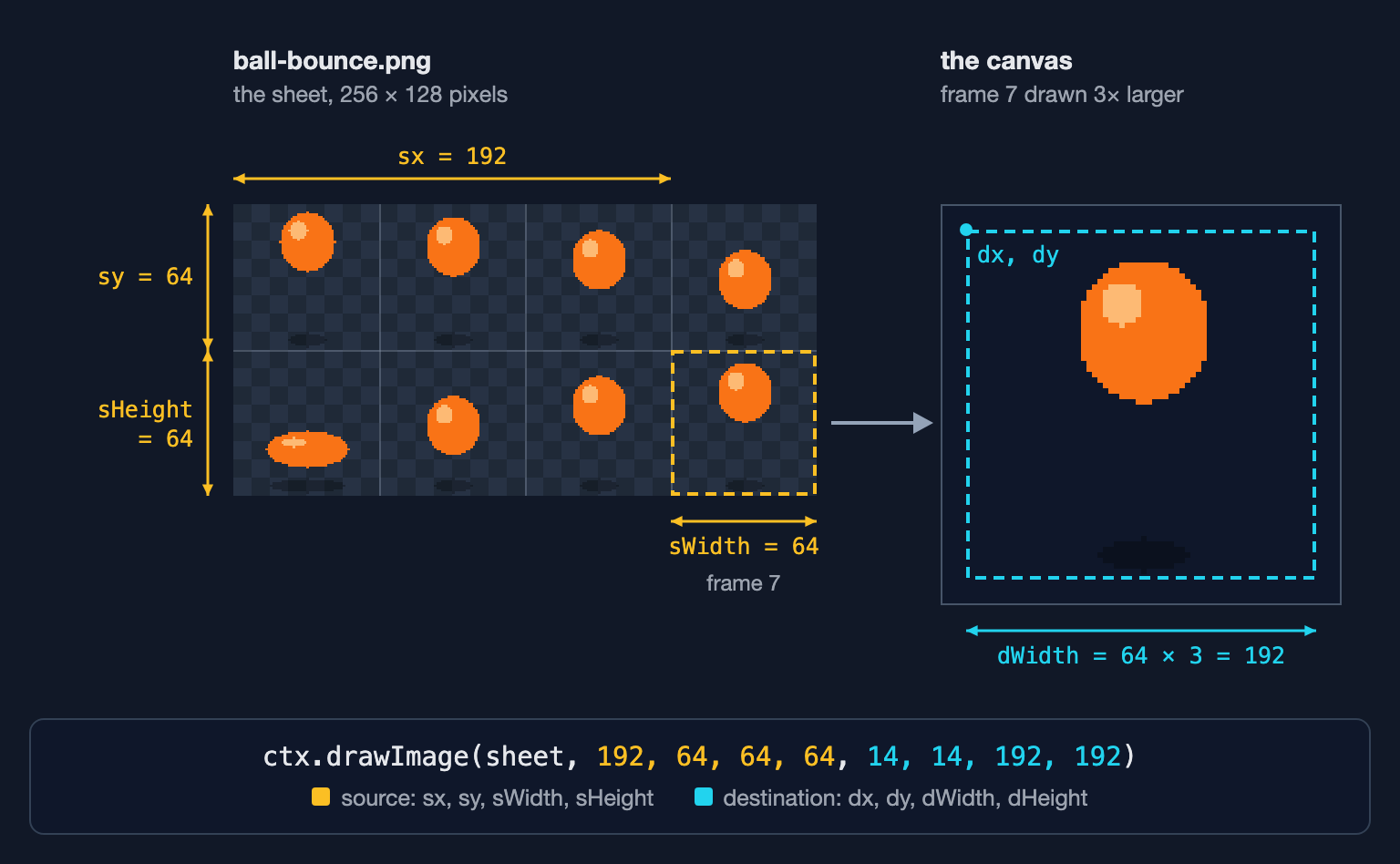
When the destination is bigger than the source, the frame is scaled up. That is how the program draws a 64-pixel frame 192 pixels wide (64 × 3) on a normal screen. Swap the two groups, for example by passing the destination first, and you get the wrong part of the sheet, in the wrong place, at the wrong size.
Keep pixel art crisp: imageSmoothingEnabled
By default the canvas smooths images it scales, blending neighboring pixels. That is right for photos and wrong for pixel art. imageSmoothingEnabled is true by default. Set it to false and scaled pixels stay hard-edged squares:
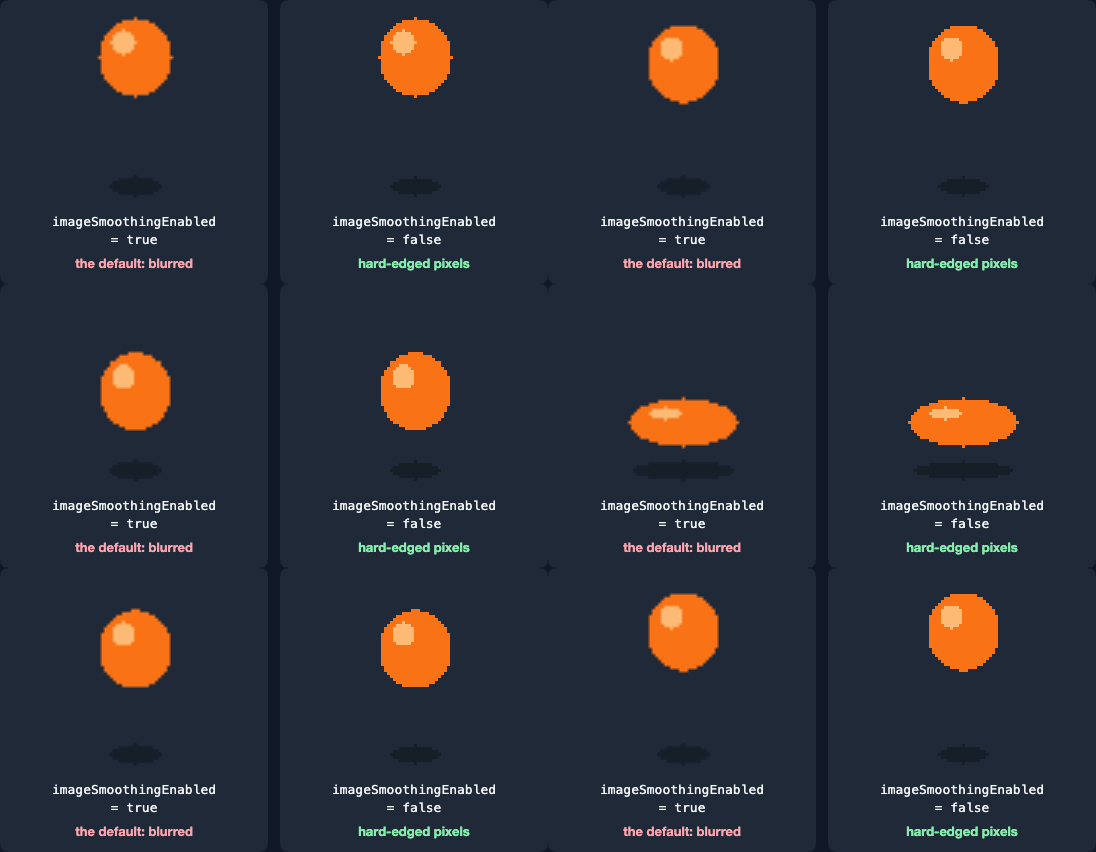
One trap: setting canvas.width or canvas.height resets the whole drawing context, smoothing included. In Chromium, ctx.imageSmoothingEnabled reads true again straight after a resize. That's why the program turns smoothing off after sizing the canvas. If your game resizes the canvas when the window changes size, set it again every time.
Sharp on high-DPI screens: devicePixelRatio
A canvas has two sizes: the bitmap it draws into (canvas.width and canvas.height) and the size it takes on the page (its CSS width and height). On a phone or a high-resolution laptop screen, one CSS pixel often covers 2 or 3 screen pixels. window.devicePixelRatio says how many. If the bitmap is only as big as the CSS size, the browser stretches it to fill the screen pixels, and the stretch is smooth: your carefully crisp pixels get soft edges.
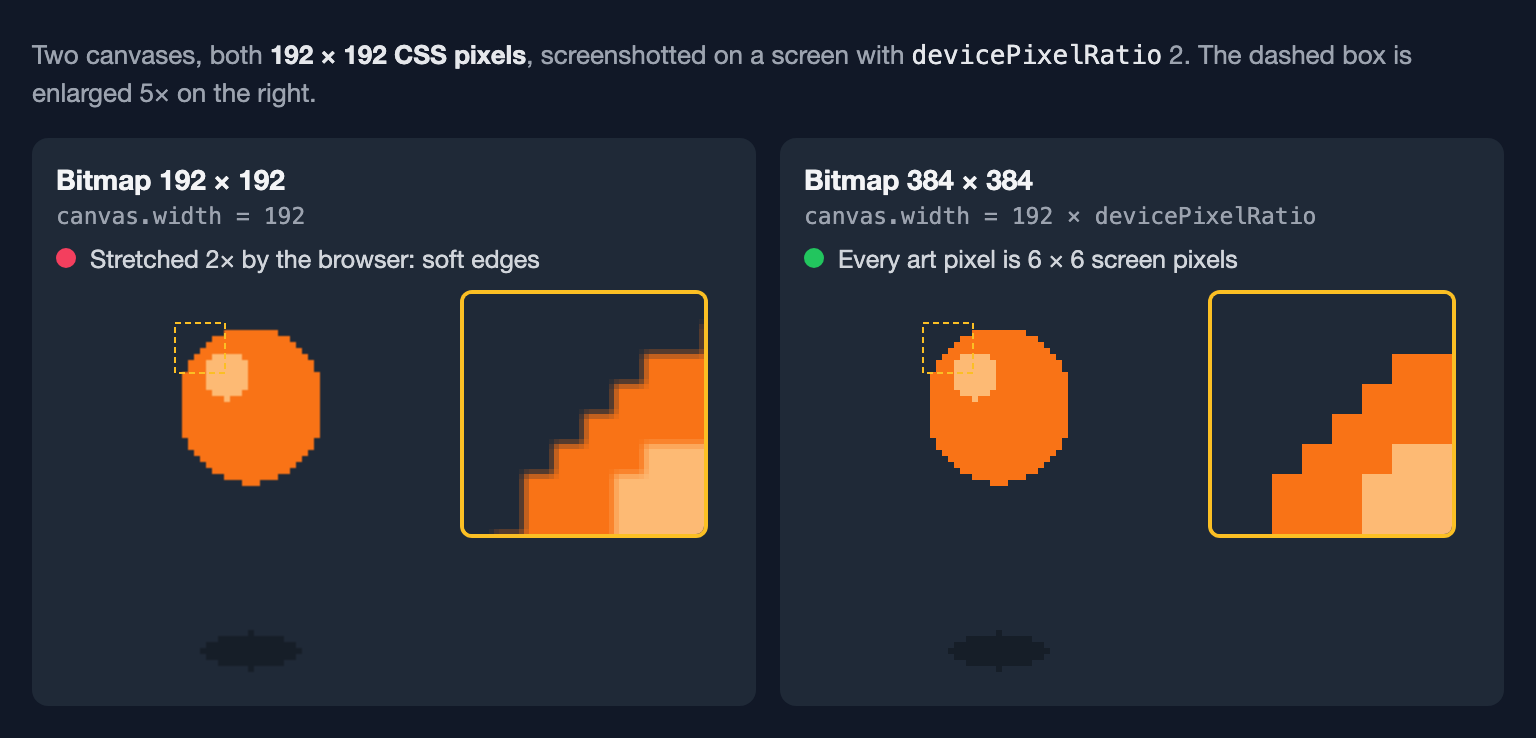
So the program makes the bitmap big enough for the screen and shrinks the element back with CSS. It also rounds: zoom is the number of screen pixels per sheet pixel, and it has to be a whole number, or some art pixels come out one screen pixel wider than others. On a 2× screen, zoom is 3 × 2 = 6, so the canvas is 384 × 384 bitmap pixels shown at 192 × 192 CSS pixels. On a 1.5× screen, 3 × 1.5 = 4.5 rounds to 5: the bitmap is 320 pixels and the sprite comes out about 213 CSS pixels wide, a little over 3×, with every art pixel exactly 5 × 5 screen pixels. In Chromium screenshots at ratios 1, 1.25, 1.5, 2 and 3, the screen pixels matched the canvas bitmap exactly: square art pixels, nothing resampled.
The ratio can change while the page is open, when a window moves to another monitor or the visitor zooms. MDN's devicePixelRatio page shows how to listen for that with matchMedia; when it fires, run the sizing code again.
Reading frames from a JSON atlas
Grid math only works for a grid. A packed or trimmed sheet needs its data file, which lists every frame's rectangle. SpritePilot's Export & Download can write it in TexturePacker's "JSON hash" layout. This is one entry from an export of the ball with Trim transparency on:
"sprite_0001.png": {
  "frame": { "x": 6, "y": 0, "w": 25, "h": 60 },
  "rotated": false,
  "trimmed": true,
  "spriteSourceSize": { "x": 20, "y": 3, "w": 25, "h": 60 },
  "sourceSize": { "w": 64, "h": 64 },
  "pivot": { "x": 0.5, "y": 0.5 }
}frameis where the pixels are in the sheet: the source rectangle fordrawImage.sourceSizeis the frame's original size, 64 × 64, before the empty border was trimmed off.spriteSourceSizesays where the trimmed pixels sat inside that original frame: 20 pixels from the left and 3 from the top. Draw them there and the ball stays put instead of jumping around.
The program becomes:
<canvas id="game"></canvas>
<script type="module">
  const canvas = document.getElementById('game')
  const ctx = canvas.getContext('2d')
  const FRAME_MS = 100
  const SCALE = 3

  async function loadImage(src) {
    const image = new Image()
    image.src = src
    await image.decode()
    return image
  }

  const [sheet, atlas] = await Promise.all([
    loadImage('sprite-sheet.png'),
    fetch('sprite-sheet.json').then(response => response.json()),
  ])
  const frames = Object.values(atlas.frames)   // in the order they were exported
  const { w, h } = frames[0].sourceSize        // the untrimmed frame size

  const zoom = Math.max(1, Math.round(SCALE * window.devicePixelRatio))
  canvas.width = w * zoom
  canvas.height = h * zoom
  canvas.style.width = canvas.width / window.devicePixelRatio + 'px'
  canvas.style.height = canvas.height / window.devicePixelRatio + 'px'
  ctx.imageSmoothingEnabled = false

  function drawFrame(f, x, y) {
    ctx.drawImage(
      sheet,
      f.frame.x, f.frame.y, f.frame.w, f.frame.h,   // where the pixels are in the sheet
      x + f.spriteSourceSize.x * zoom,              // trimmed frames: put the pixels back
      y + f.spriteSourceSize.y * zoom,              // where they sat in the full frame
      f.frame.w * zoom,
      f.frame.h * zoom,
    )
  }

  let start = null
  function tick(now) {
    if (start === null) start = now
    const index = Math.floor((now - start) / FRAME_MS) % frames.length
    ctx.clearRect(0, 0, canvas.width, canvas.height)
    drawFrame(frames[index], 0, 0)
    requestAnimationFrame(tick)
  }
  requestAnimationFrame(tick)
</script>
It was tested with three SpritePilot exports of the same 8 frames: trimmed (111 × 180 pixels), untrimmed (a 192 × 192 grid with an empty last cell) and from the Sheet Maker (262 × 130, with 2-pixel gaps). All three drew exactly the same pixels as the original sheet.
A few things to know:
fetchdoesn't work on a page opened straight from disk (file://). Serve the folder from any local web server.Object.valueskeeps the order the frames appear in the file, which is the export order. Frame names that are plain numbers ("1", "2") are the exception: JavaScript puts those in numeric order.- If you add Animation Tags in SpritePilot (walk, idle…), the export lists them in
atlas.meta.frameTagswith afromandtoframe index.frames.slice(tag.from, tag.to + 1)is that animation's frame list. - SpritePilot never rotates frames. Some packers do, and mark it with
"rotated": true; this code doesn't handle rotated frames.
To make an atlas from separate frame images, the Sheet Maker packs them in your browser and writes this same JSON, with the frames in the order you added them. To re-export frames that are already in SpritePilot, with trimming, pivots or animation tags, use Export & Download; Sprite Sheet Export Formats Explained compares its other formats. To check a sheet's frame size and speed before writing any code, play it in the Sprite Player.
In short
- Pick the frame from elapsed time:
Math.floor((now - start) / FRAME_MS) % frameCount. Never count calls. drawImage(image, sx, sy, sw, sh, dx, dy, dw, dh): source rectangle first, destination second.ctx.imageSmoothingEnabled = falsefor pixel art, set again after every canvas resize.- Bitmap size = CSS size × devicePixelRatio, with a whole number of screen pixels per art pixel.
- From an atlas: draw
frameatspriteSourceSizeinside a box ofsourceSize. - For the same animation without JavaScript, see Animate a Sprite Sheet With CSS steps().